A project can give someone room to grow, but the assignment needs the right support. For employee development and performance planning, use Creately Atlas to review project rosters, skills, and role requirements before agreeing on responsibilities. Then confirm availability, set expectations, and decide how you will review progress with each person.
Start with one upcoming project. You will get a clearer picture of what the team needs than by trying to assess every development goal at once.
Connect the Project Roster to the People Doing the Work
Atlas’s project entities include a Pick Members mode: select people from the org chart to add them to a project roster. This helps you bring colleagues from different departments into the same staffing discussion. Team entities also support permanent cross-functional groups, with fields for the team lead, member count, and status.
Use the roster to establish who is involved. Then agree on who owns each deliverable, who reviews it, and where decisions need another team’s input. These responsibilities still need a conversation; adding someone to a roster does not assign their tasks.
If you are mapping the structure first, use these project team org chart examples to choose a layout that makes reporting lines and project relationships clear.
Review Skills Before Choosing Stretch Assignments
Atlas’s Skills field pack includes skills inventory, certifications, technical skills, skill level, and experience. Role profiles describe required and preferred skills. Compare those records with the capabilities your project needs, and check with employees that their information is current.
For example, a team member may know the product well but have limited experience leading customer workshops. A useful stretch assignment could be co-facilitating the next workshop with an experienced colleague. Agree on preparation time and feedback before making that person responsible for the whole session.
Use a skills matrix to discuss coverage and backup support. Record gaps openly rather than treating an empty field as proof that someone lacks a skill.
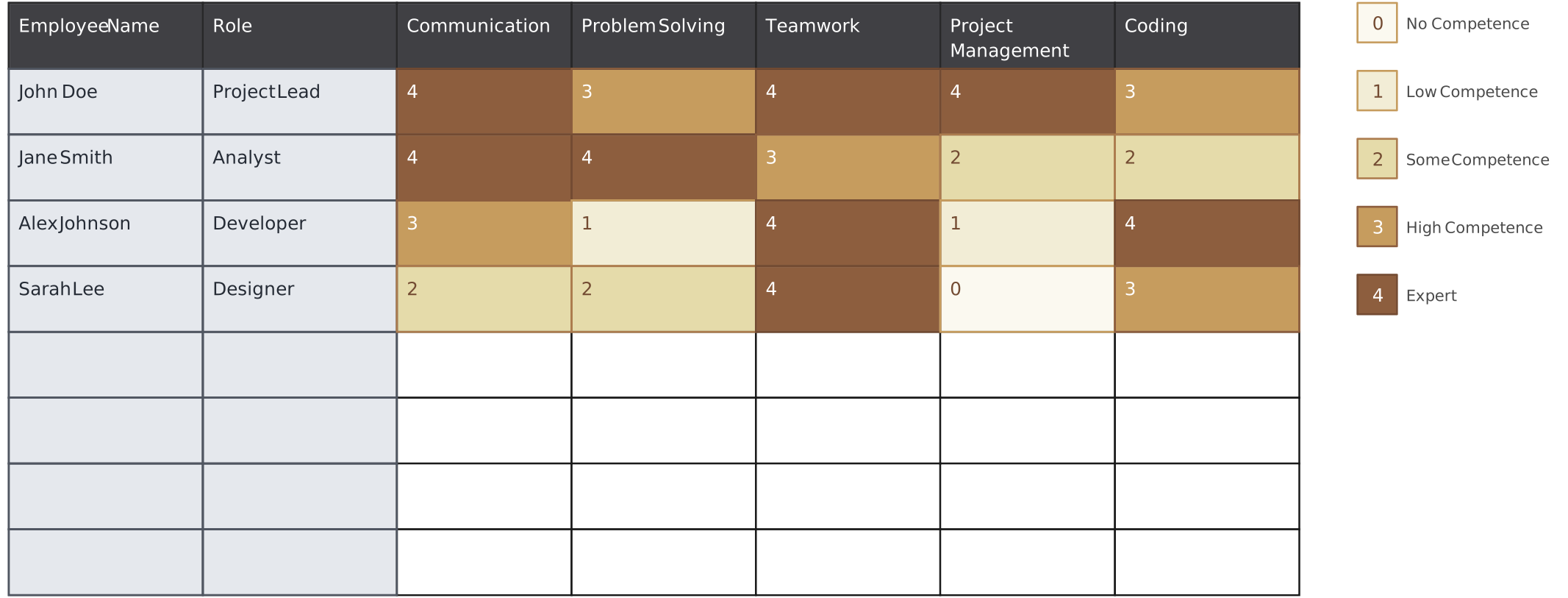

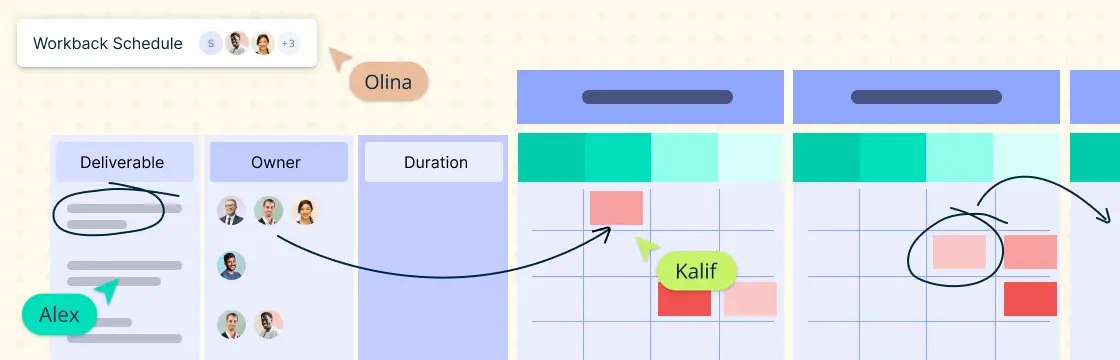
This is an editable Creately planning template. Fill it with the information you have reviewed with the team; it is not an automatically populated Atlas view.
Turn a Development Goal into a Supported Assignment
Keep the employee development plan specific enough to use in your next one-to-one. A goal such as “improve leadership” is hard to act on. “Co-lead the next customer workshop and review the feedback with your mentor” gives both people something concrete to discuss.
| Planning question | What to agree on |
|---|---|
| What skill will the employee practice? | One capability linked to the project and the employee’s growth goals |
| What will they own? | A bounded assignment with a clear outcome |
| Who will support them? | A mentor or reviewer, plus time for preparation and feedback |
| What will good work look like? | Observable expectations, such as a reviewed agenda and clear follow-up actions |
| When will you review progress? | A check-in date and the evidence you will discuss |
Atlas role profiles can inform the skills discussion. Its Talent field pack includes development plan status and last review date, subject to permissions. Keep the detailed goals and feedback in the planning document or review process your team uses.
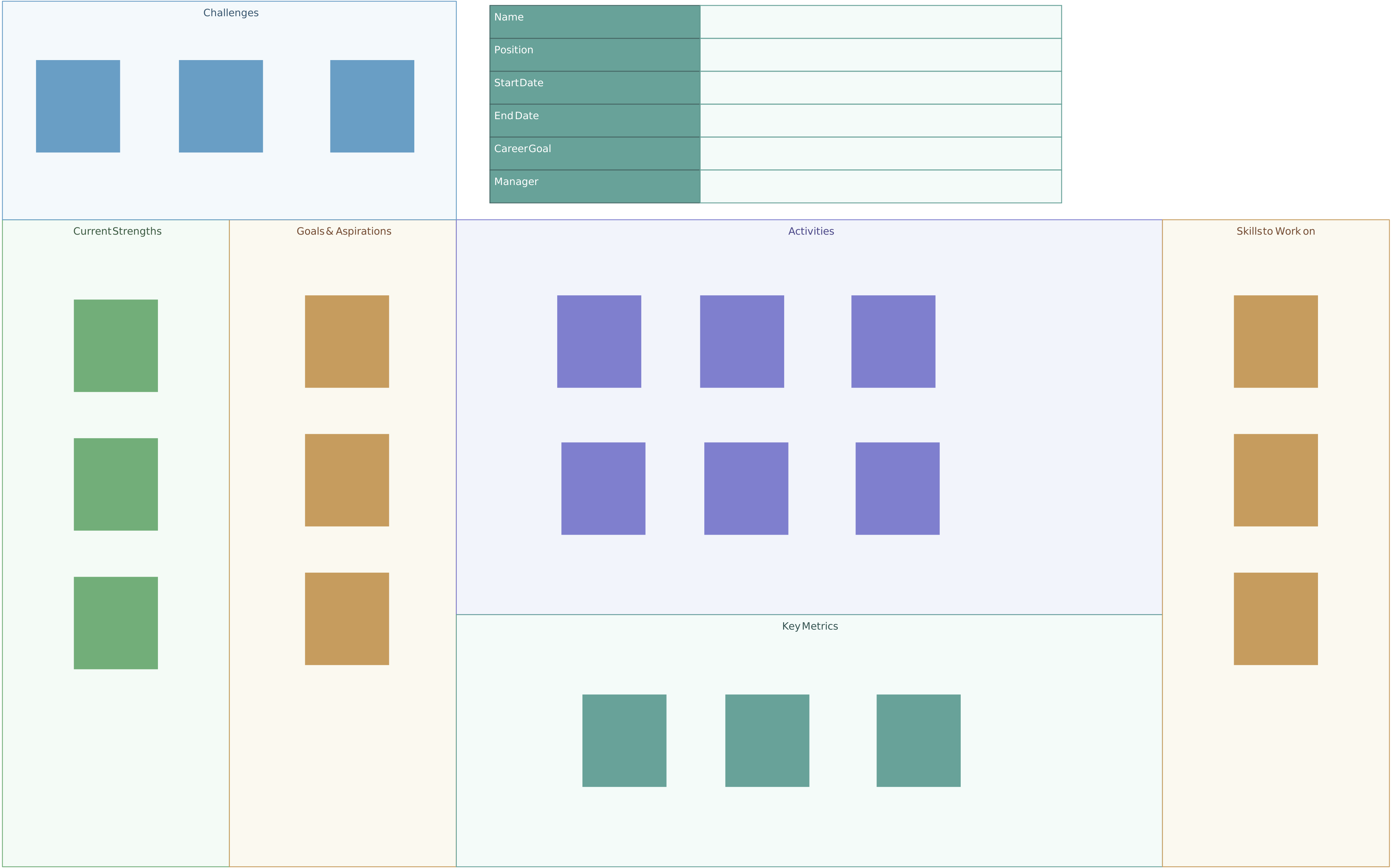
Use this template as a shared planning aid. It does not automatically sync goals or performance results with Atlas. For other formats, explore the employee development plan templates.
Check Availability and Performance Expectations Separately
A skills match is a starting point. Before committing someone to a project, confirm their existing assignments, leave, and the time needed for learning. A roster or reporting line alone cannot tell you whether they have capacity.
Set performance expectations around the work the person can influence. For the workshop example, review preparation, facilitation, and follow-up rather than judging the employee solely on whether the project met its overall deadline.
Atlas includes talent fields such as performance rating and potential, with restricted access. Those fields provide recorded context; they do not automatically collect delivery evidence or conduct appraisals. Confirm which fields a team lead can view and edit, and keep sensitive review details out of broadly shared project materials.
For task sequencing and delivery planning, pair this people review with your project plan. The AI project management guide covers related planning approaches.
Try One Project During Your Atlas Evaluation
Ask for a walkthrough using a representative project and the permissions your team leads will actually have. Confirm that the relevant field packs and workflows are available in the setup you are evaluating.
- Build the roster. Add colleagues from two departments using Pick Members and check that the membership list is accurate.
- Review one skills gap. Compare employee skills with a role profile, then confirm the information with the people involved.
- Plan one stretch assignment. Agree on an outcome, support, available time, and a review date using the development plan template.
- Check access. Verify that project collaborators can see useful team information while restricted talent data stays limited to authorized people.
If staffing needs change, Atlas scenarios let you model organizational changes separately from the live chart. Review the proposed people changes with the relevant managers before updating commitments in your project plan. A scenario does not itself approve staffing or reschedule delivery.
A useful evaluation should leave you with a roster you trust, one supported development assignment, and clear next steps for checking progress.