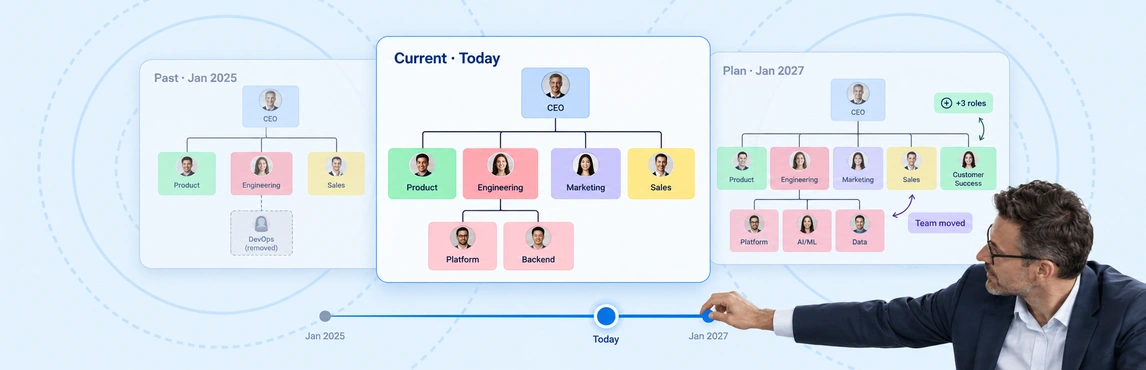
Time-travel org snapshots in Creately Atlas help you review who reported to whom at a selected date. Atlas uses dated relationships and employee join and departure dates to reconstruct that view. For a CHRO reviewing a past restructure, this gives the discussion a clear starting point: the recorded organization at the time.
Choose a change your team can verify, such as a department moving under a new leader. Check the historical view against the records behind that change before using it in a board review.
How the As-of Date Works
Set an as-of date in the assistant panel’s View & Display section, or ask the assistant to show the org at a specific date. Atlas filters relationships by their start and end dates. People who had not joined yet, or who had already departed, are excluded from the selected view.
This depends on having the relevant history in your data. A current employee list cannot tell Atlas who someone’s manager was last year. Reporting lines, team memberships, and project assignments support dated relationships, but those dates need to be recorded accurately.
Treat “snapshot” here as a reconstructed historical view. Do not assume it is a saved image, an immutable audit record, or a complete history of every employee field. Confirm which fields retain historical values in your setup.
Prepare the Records Before Reviewing Change
Start with a small department and two dates you can check. Keep a note of the source records and any missing information so the review does not imply more certainty than the data supports.
| Record to check | Why it matters |
|---|---|
| Reporting relationship start and end dates | Establishes which manager relationship applies at the selected date |
| Employee join and departure dates | Determines who should appear in the historical view |
| Stable employee identifiers | Helps you follow the same person across records |
| Team or project membership dates | Provides context when reviewing cross-functional work |
| Source and refresh process | Makes clear how the data reached Atlas and when it was checked |
Atlas’s documented CSV import workflow can help bring org data onto the canvas. Verify the fields and date formats you need during evaluation, including how older relationships are retained when data changes. Confirm any HRIS connection and refresh schedule separately; historical views do not guarantee automatic synchronization.
For help presenting the structure, use the guide to types of organizational charts.
Review a Leadership Change at Two Dates
Imagine a support team moved from Operations to Customer Experience on April 1. A practical review would look like this:
- Select March 31. Check that the team’s reporting relationships match the records before the move.
- Select April 1. Confirm that the new relationships take effect and that joiners and departures appear correctly.
- Record the differences. Note the changed reporting lines, the people included, and any gaps that need checking.
- Add the decision context. Bring the approved change plan and leadership notes into the discussion to explain why the move happened.
Review the dates in turn. The product guide documents as-of filtering; it does not establish an automatic side-by-side historical diff or a change-reason report. Use your review notes to distinguish what the chart shows from what you know through other records.
An editable org chart can help present the structure in a review document. Label each version with its date and source.
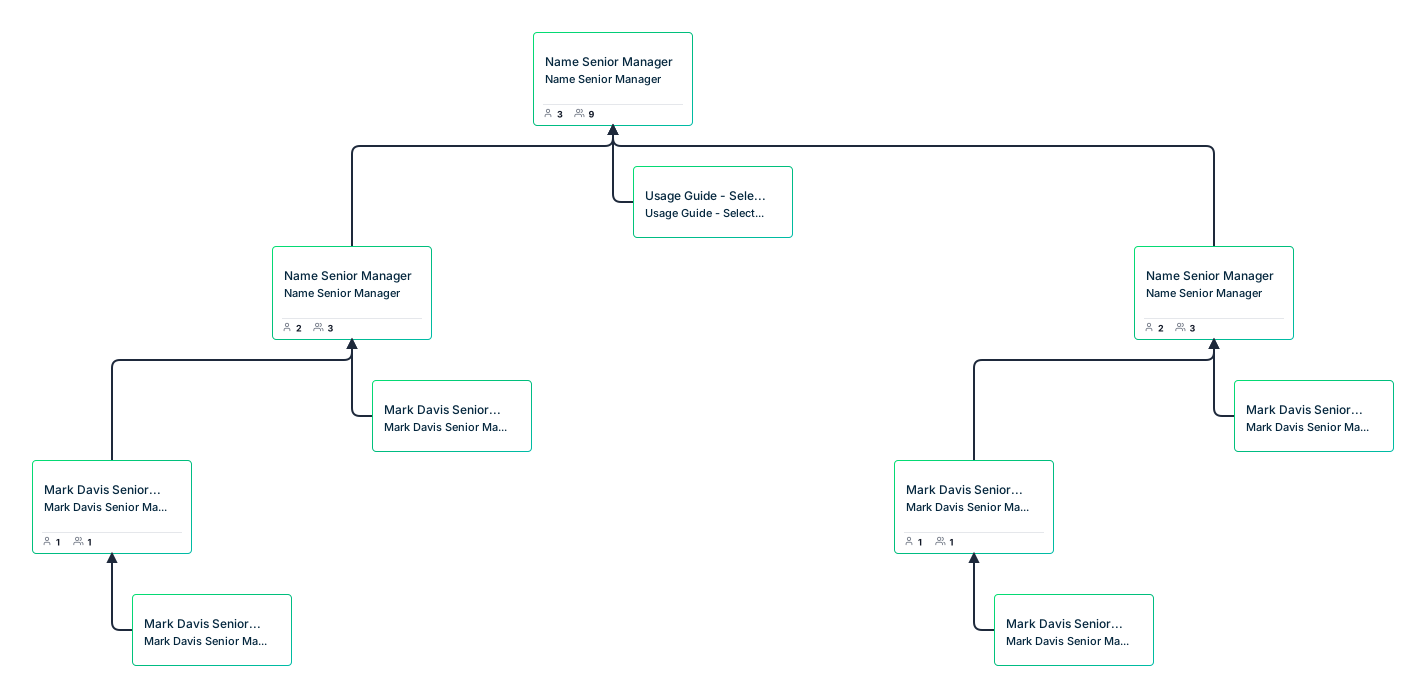

This Creately template is a presentation aid. It does not automatically import Atlas history or provide the as-of control.
Separate Structural Evidence from Outcomes
A reporting change can show that a restructure took effect. It cannot, by itself, prove that decisions became faster or that employee experience improved. Pair the historical view with the outcomes you agreed to measure and feedback from the teams involved.
Use a change management retrospective to capture what worked, what needs follow-up, and who will own each action. Keep the discussion specific: “The team moved on April 1, but escalation ownership remained unclear” is more useful than “the reorganization failed.”
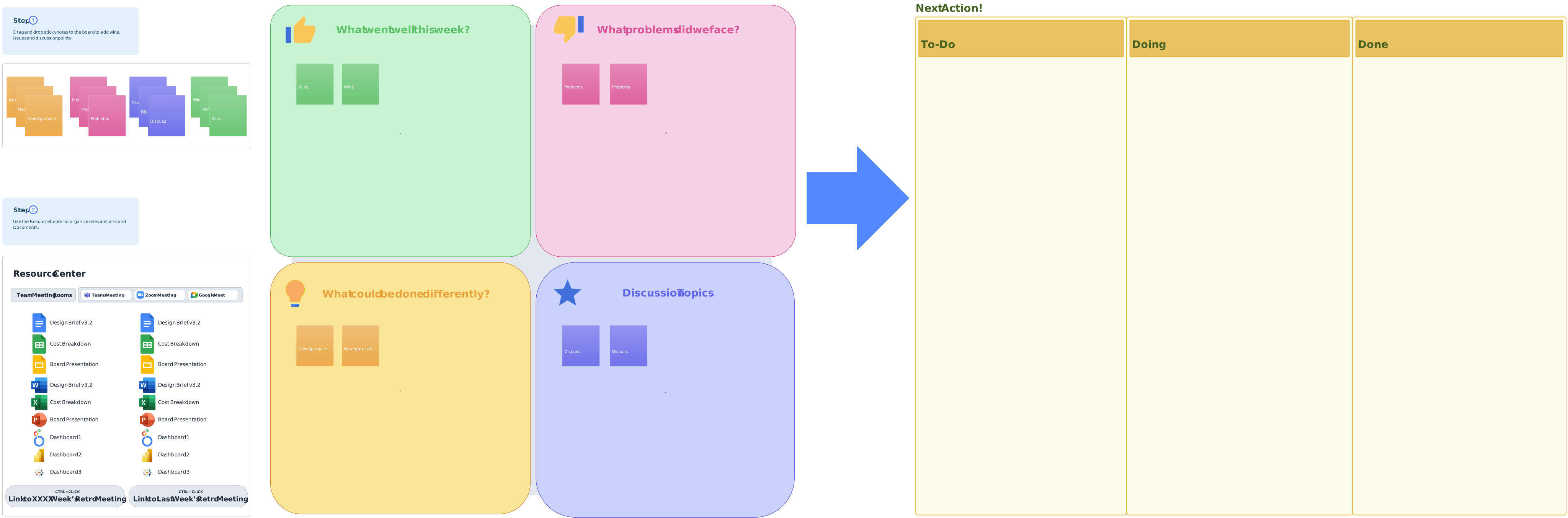
Fill this template with the evidence and feedback from your review. It is separate from Atlas’s historical data model.
Know Which View Answers Your Question
| Your question | Starting point |
|---|---|
| Who reported to this leader at a past date? | An Atlas as-of view with dated relationships |
| What structure are we considering next? | A proposed scenario, reviewed separately from historical records |
| What structural issue deserves attention now? | AI-driven organizational insights in Atlas |
| What staffing decision should we make? | Historical context plus a workforce planning review |
Keep proposed structures clearly labeled. A scenario records an option under consideration; it is not evidence that the organization actually adopted it.
Check Access Before Sharing the Review
Historical org views can reveal departures and reporting changes. Atlas uses sensitivity tiers for employee fields, so review the page with the permissions your audience will have. Confirm how those permissions apply to historical views and any exports used in the meeting.
For your evaluation, ask an HR owner to verify the dated records and a department leader to check the resulting view. Resolve missing dates before relying on the chart for an audit or board narrative. Atlas adds visual context; your HRIS and approved records remain essential sources for the review.