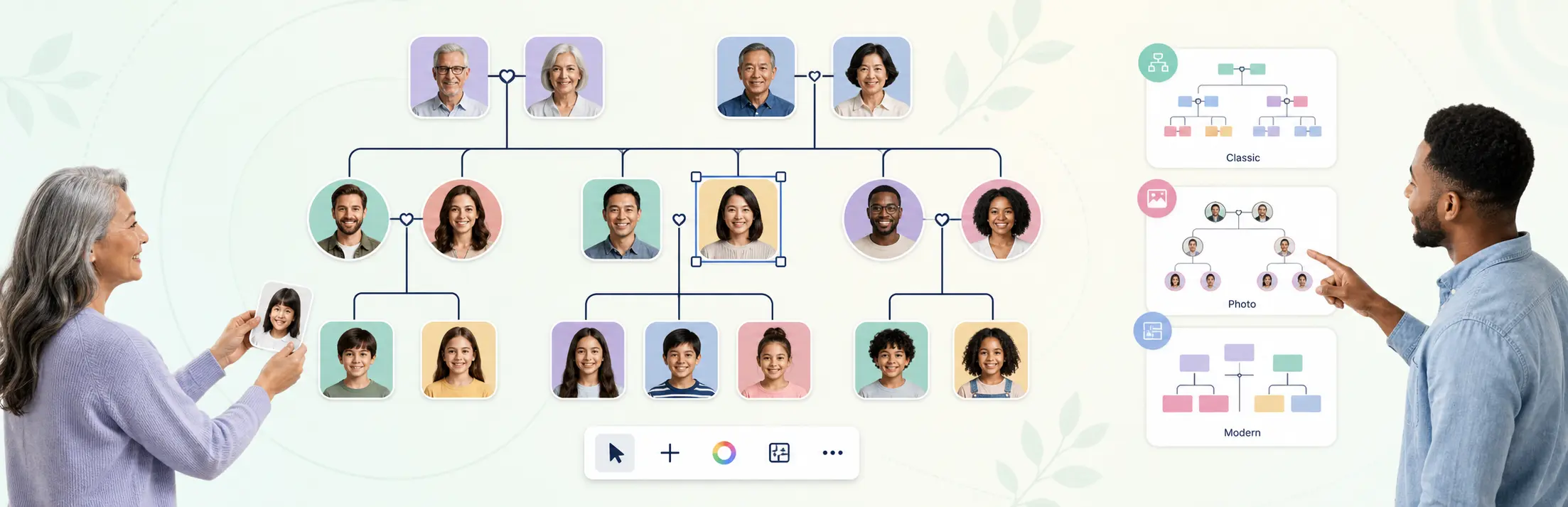
Creately is a visual family tree diagram tool for mapping generations, adding family details, collaborating with relatives, and sharing or exporting the finished tree. It works best when you need a flexible, visual record rather than a genealogy records database.
What Can Creately Do for a Family Tree?
Creately can build a family tree from a template or blank canvas, connect people across generations, store supporting details, and let several contributors review the same tree. You can share the live workspace or export it for a school project, family reunion, research file, presentation, or printed keepsake.
The key distinction is practical. Creately is a visual workspace, not an ancestry-search service. Use it to turn research you already have into a clear, expandable family map. Keep links and source notes beside the people they support, then invite relatives or research partners to fill gaps and correct details.
Is There a Free Family Tree Maker in Creately?
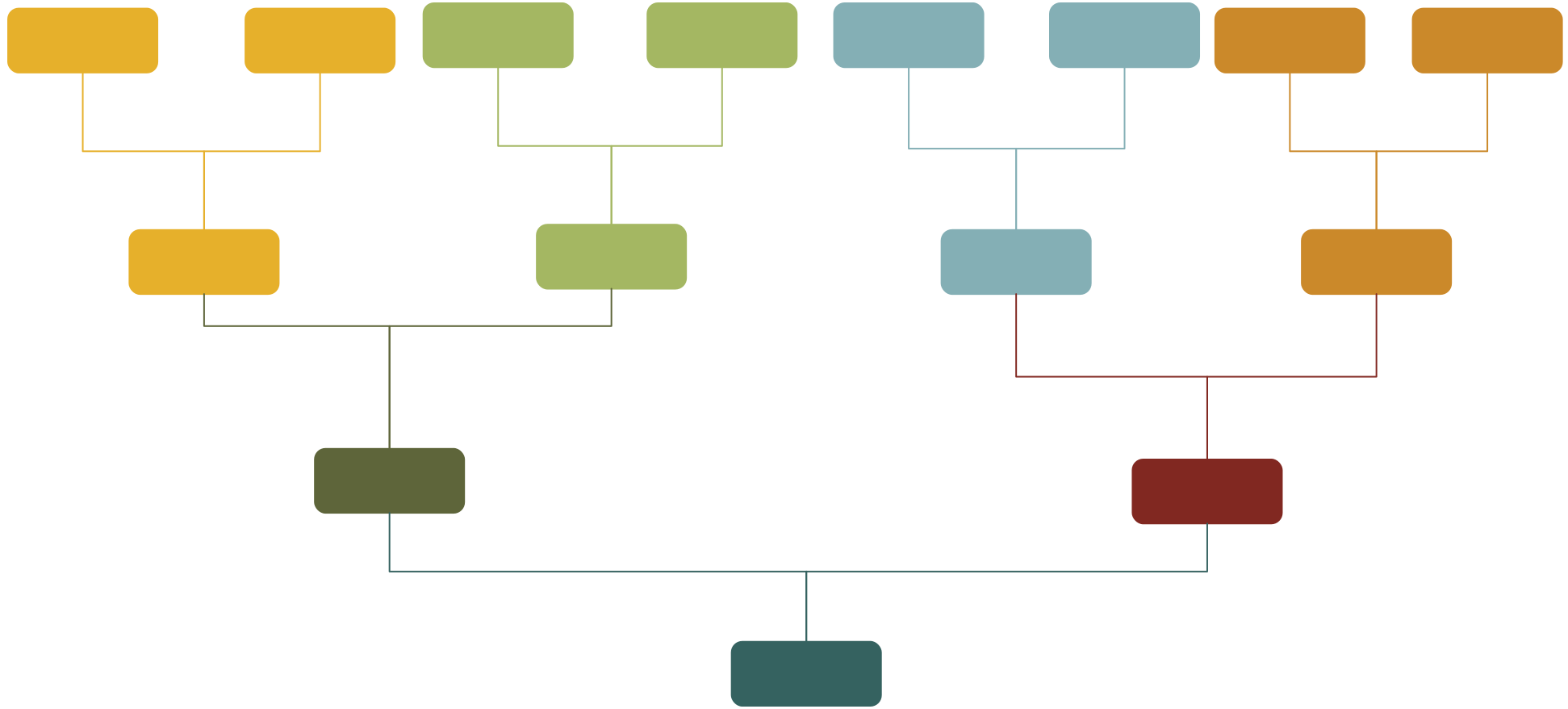
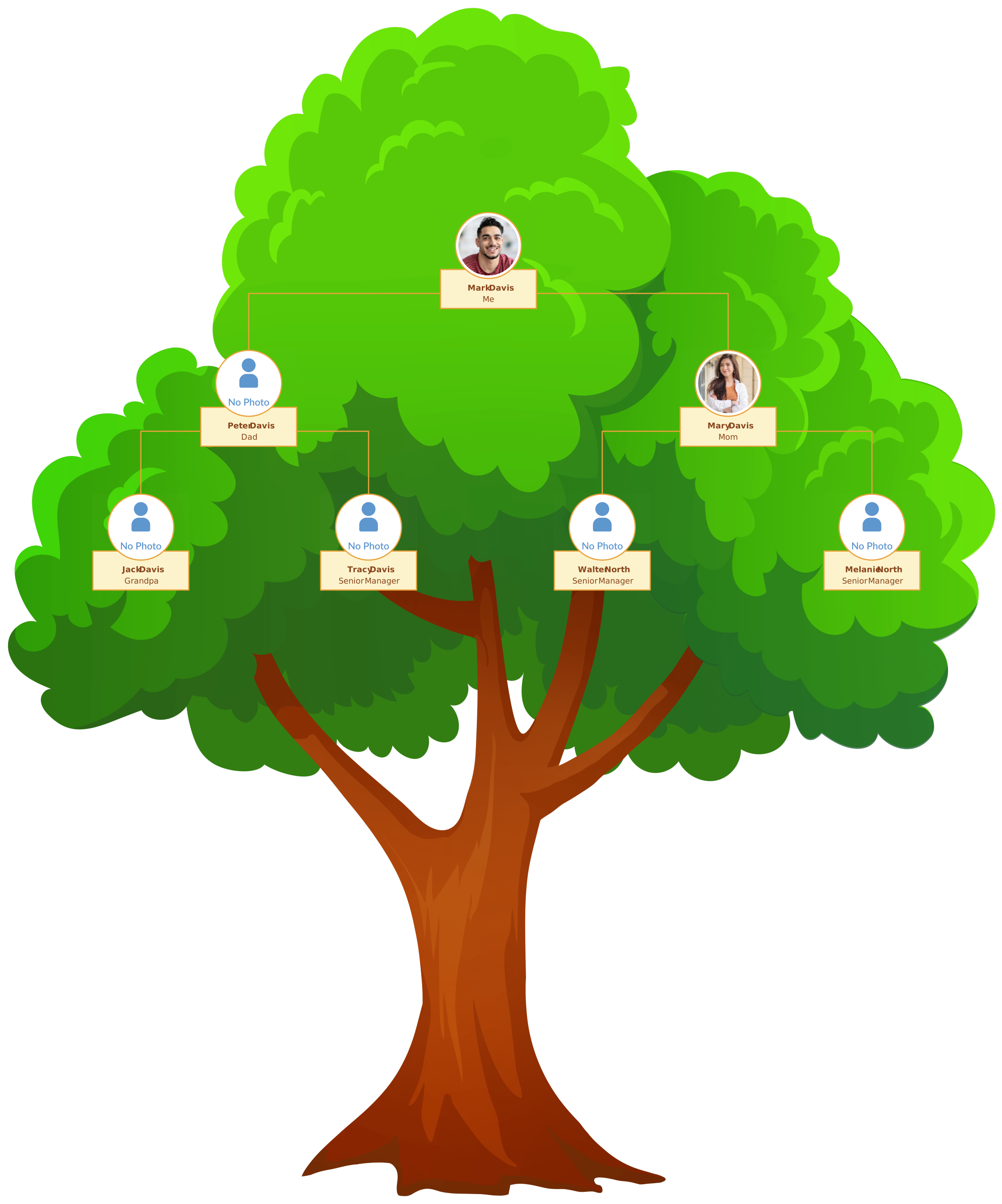
Yes. You can start with an editable family tree template or open a blank canvas and build the structure yourself. A template is the fastest option for a school assignment or a simple three-generation chart. A blank canvas gives you more control when the family has several branches, nontraditional relationships, or a custom presentation format.
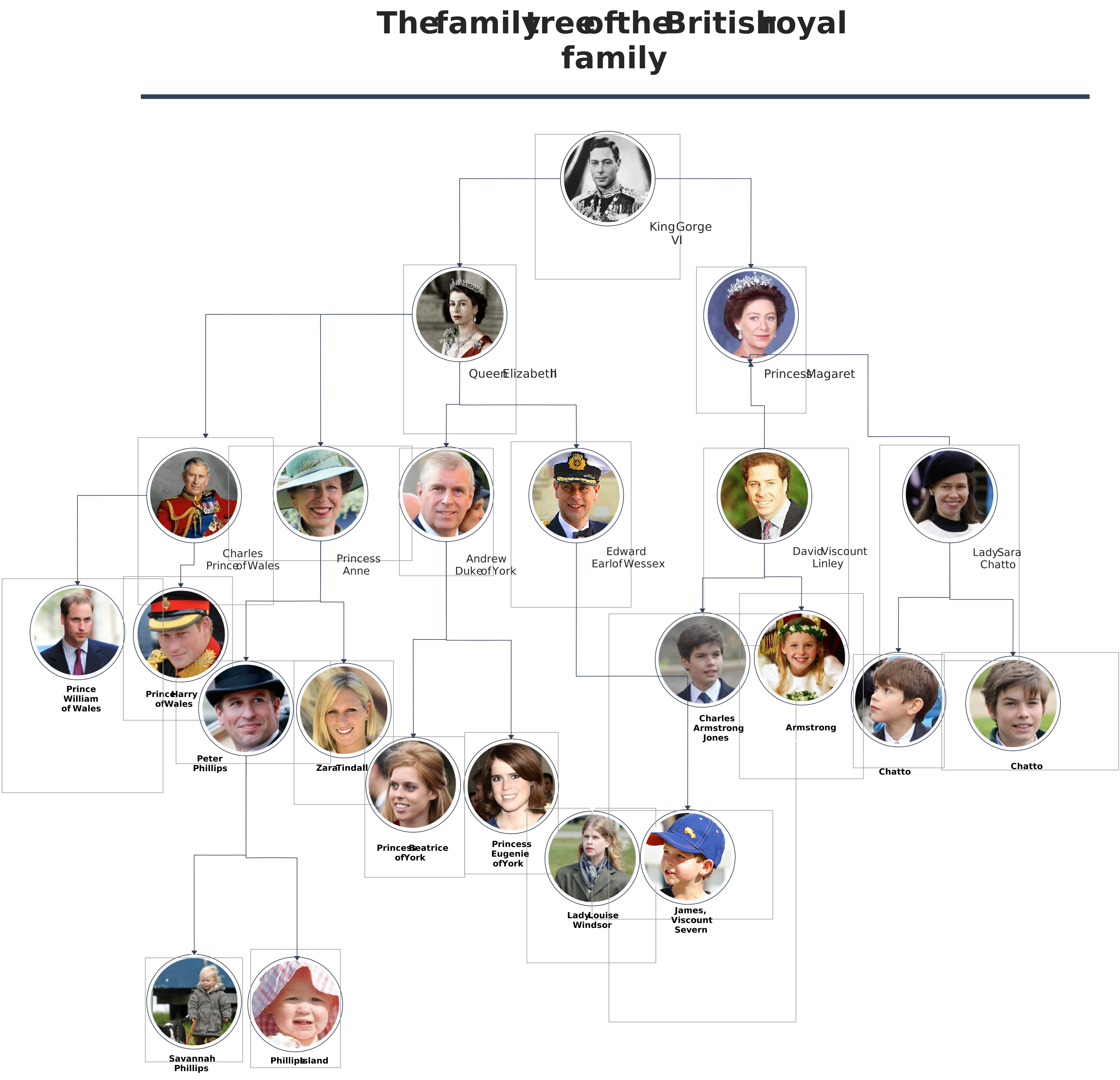
The existing Creately family tree creator provides the safest starting point. It includes ready-made examples and a starter template, so you can test the layout before deciding how much detail to add.
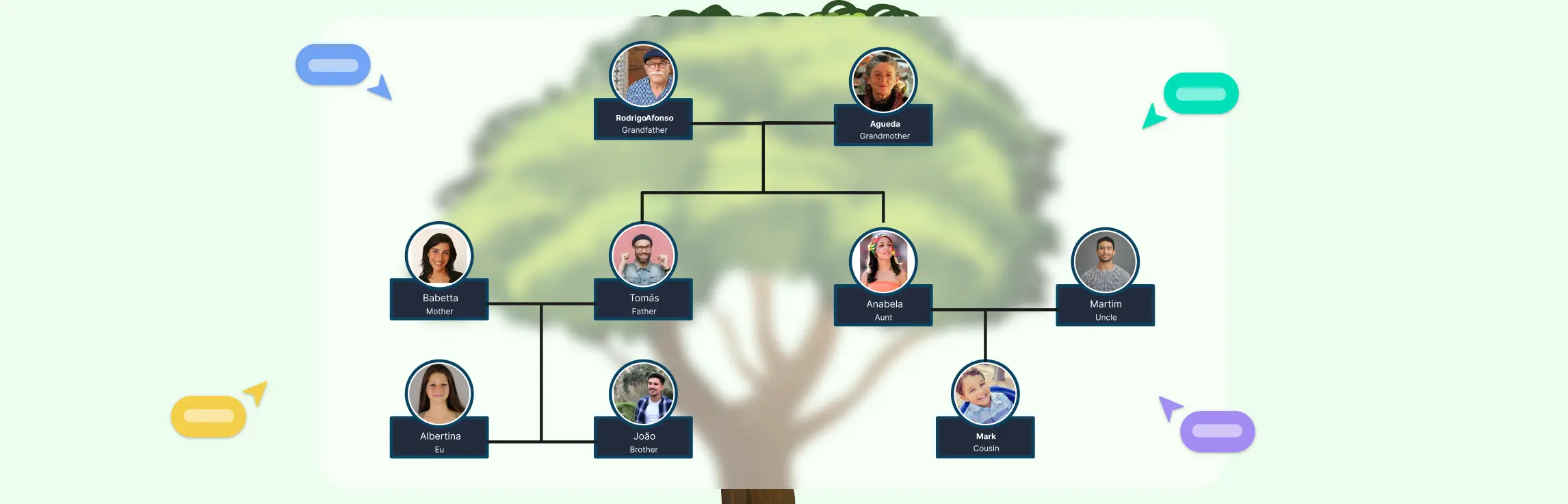
- Add people with shapes and connect parent, child, partner, and sibling relationships.
- Change colors, labels, fonts, and layout rules without rebuilding the tree.
- Start small and expand the same workspace as new information appears.
Can Several Family Members Work on the Same Tree?
Yes. Family members, students, teachers, and research partners can contribute to the same Creately workspace. Real-time editing lets people work together during a call or reunion, while comments and @mentions support slower review across time zones.
Access can match each person’s role. Give edit access to contributors who will add people or records. Use comment access for relatives who should suggest corrections without changing the diagram. Use view access when the tree is ready to share more widely.
This is useful because family knowledge is distributed. One relative may know dates, another may have photographs, and another may remember the story behind a move or marriage. A shared tree keeps those contributions attached to one visual record instead of scattering them across messages and separate files.
Can I Add Photos, Dates, Notes, and Source Records?
Yes. Each person can include visible details such as a name, photograph, and important dates. Notes, links, documents, and other reference material can hold deeper context without crowding the main diagram.
For genealogy research, use a consistent source-note pattern. Record the source title, repository or website, record date, access date, and a short explanation of what the source supports. Link that note to the relevant person or relationship. Creately helps organize this evidence, but it does not search historical archives or verify a record for you.
Two shipped capabilities are especially useful here: supporting files can stay connected to items on the canvas, and the workspace can be searched as the research collection grows. Together, they make the tree more than a static picture while keeping the visible diagram readable.
Can Creately Handle a Large Multi-Generation Family Tree?
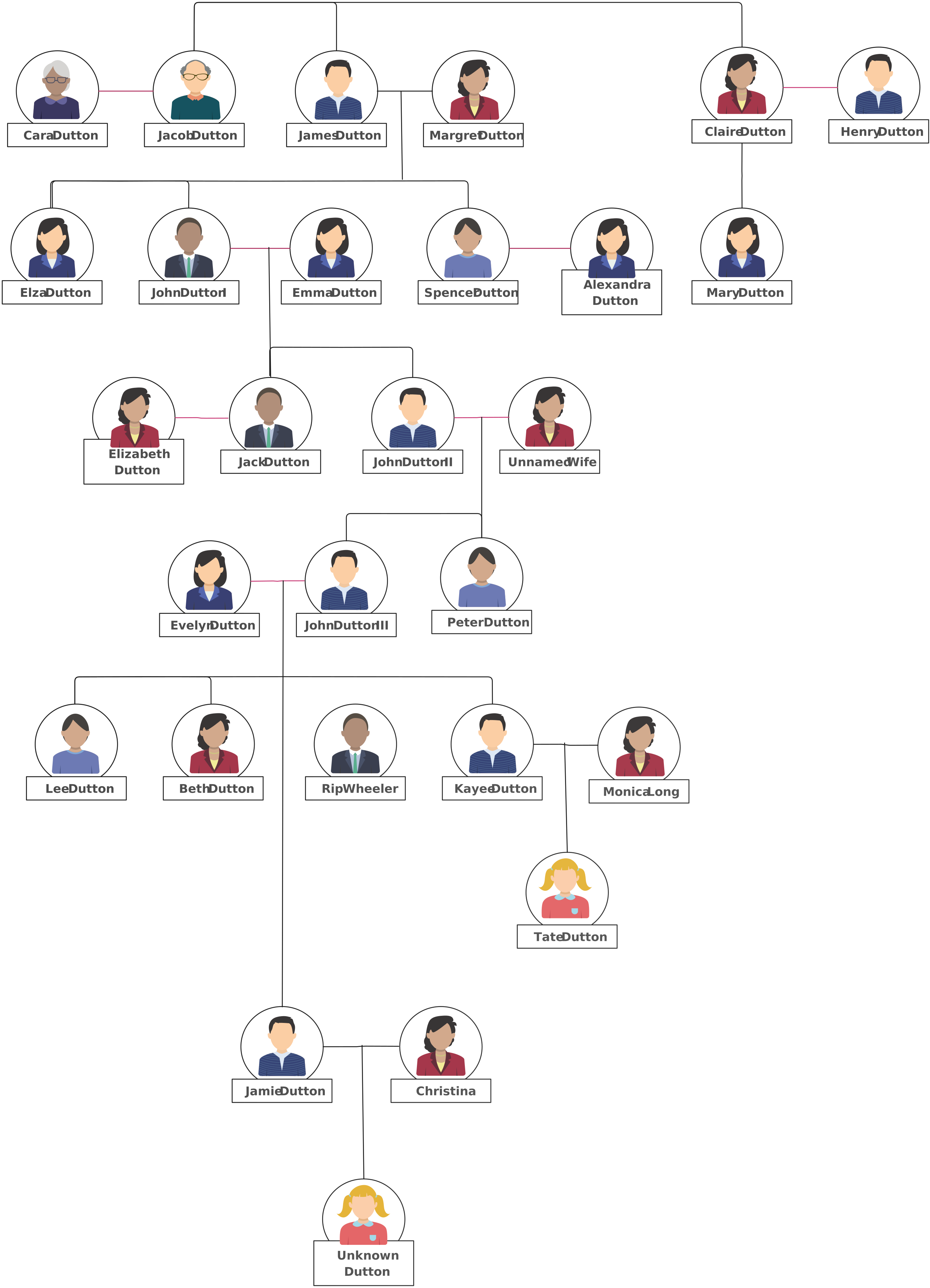
Yes. The infinite, zoomable canvas is designed to expand beyond a fixed page, so you can map many generations without squeezing every person into a print-sized frame. Large trees still need structure, however. Canvas space alone does not make them easy to read.
Use one consistent direction for generations. Group major family lines into labeled sections. Apply color only when it carries meaning, such as distinguishing branches or marking research status. Create focused views for a reunion poster or presentation instead of forcing the entire research tree onto one page.
For very large projects, link related canvases or sections and maintain a simple legend. This makes navigation easier and reduces the risk of duplicate people. Version history also provides a way to review changes and recover from accidental edits during a long-running collaborative project.
How Do Sharing, Export, and Integrations Work?
Share a live link
Share the workspace when people need the current version. A live link avoids sending a new attachment after every correction and lets permitted collaborators continue the research.
Export for print or presentation
Creately supports PDF, PNG, SVG, and JPEG export for family trees. PDF works well for printing and archiving. PNG and JPEG are convenient for slides and documents. SVG preserves vector detail when a designer or publisher needs a scalable graphic.
Embed the diagram
Embed a family tree when it needs to appear in a website, class resource, or shared knowledge page. Check the workspace’s access settings before embedding a tree that includes private information about living people.
Connect supporting material
Use links and attachments to connect cloud folders, scanned records, photographs, interview notes, or related documents. This keeps the diagram visual while the supporting evidence remains accessible from the relevant person or branch.
Protect family information
Treat dates, contact details, medical information, and records about living people as private data. Limit access to the people who need it, remove sensitive details from public exports, and ask permission before sharing personal photographs or stories.
Can I Make a Fictional or Worldbuilding Family Tree?
Yes. A fictional family tree uses the same basic structure as a genealogy chart but can add narrative relationships that do not fit a conventional template. Custom labels, shapes, colors, and connectors can represent dynasties, adoptions, secret parentage, alliances, species, houses, or disputed succession.
Keep the visual rules explicit. Add a legend for relationship types, use consistent line styles, and separate confirmed story canon from planned or uncertain details. Writers and game teams can comment on a character or branch without rewriting the whole chart, which makes the tree useful as a shared continuity reference.
Family Tree or Genogram: Which One Should I Use?
Use a family tree for lineage, genealogy, school projects, reunions, and fictional histories. Use a genogram when the purpose is clinical or analytical and you need standardized notation for emotional relationships, medical conditions, behavioral patterns, or case documentation.
| Need | Family tree | Genogram |
|---|---|---|
| Show ancestors and descendants | Yes | Yes |
| Record names, dates, photos, and stories | Yes | Yes |
| Map emotional relationship patterns | Limited custom notation | Yes |
| Use clinical symbols and conventions | No | Yes |
| Best fit | Genealogy, education, reunions, worldbuilding | Therapy, social work, genetic counseling, clinical documentation |
If your goal is family history, stay with the family tree creator. If your work requires clinical relationship mapping, review the Creately genogram maker instead. The genogram pathway is purpose-built for that deeper context; it should not be treated as a more complicated family tree by default.
What Creately Does Not Do
Creately does not replace Ancestry, FamilySearch, or another historical-records database. It will not automatically prove lineage, search census collections, or resolve conflicting evidence. Its role is to help you organize known relationships and research materials in a visual, collaborative workspace.
That boundary matters. Use a genealogy database or archive to discover and evaluate records. Use Creately to map what those records show, expose missing links, prepare a clear family narrative, and collaborate on the resulting tree.