Developer teams often spread requirements, architecture diagrams, review comments, and technical decisions across different tools. Creately gives the team a shared visual workspace for modeling a system, discussing design choices, and keeping supporting context connected to the diagrams. This guide shows where it fits in the development process and how to set up a practical workflow.
What Developer Teams Can Use Creately For
Creately can support visual work from early requirements through implementation and documentation.
| Development need | Useful visual | What it helps the team clarify |
| Define requirements | Use case diagram or user flow | Actors, system boundaries, goals, and expected behavior |
| Design domain structure | Class or object diagram | Classes, attributes, methods, and relationships |
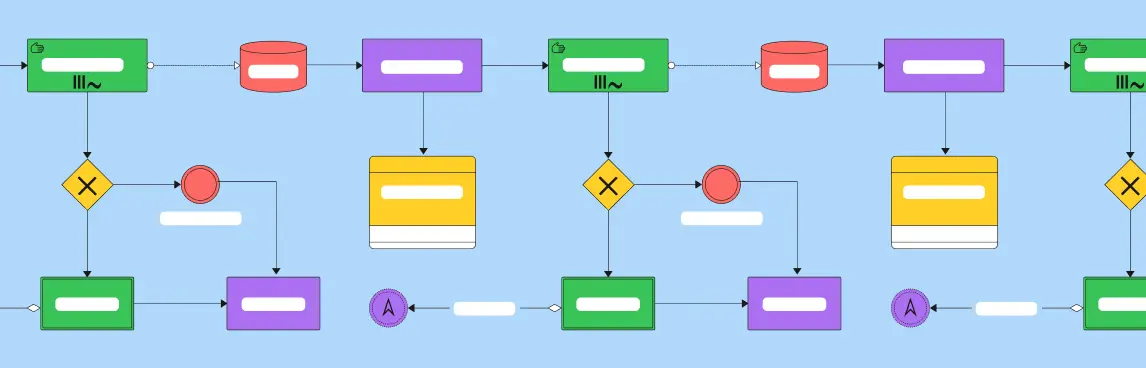
| Map application behavior | Activity or state machine diagram | Decisions, workflows, events, and state changes |
| Explain service interactions | Sequence or communication diagram | Message order, API calls, and dependencies |
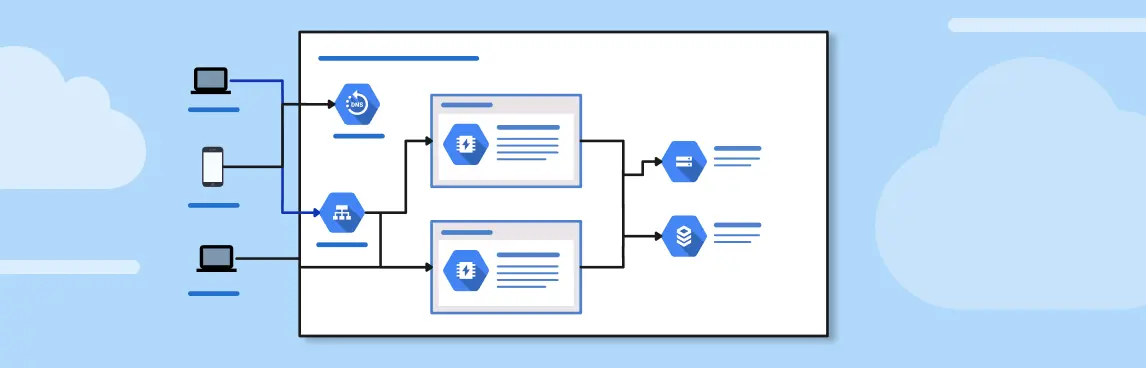
| Plan system architecture | Component or package diagram | Modules, interfaces, ownership, and dependencies |
| Map infrastructure | Deployment or network diagram | Environments, nodes, services, and connections |
| Plan delivery | Sprint board, roadmap, or flowchart | Work sequence, responsibilities, and blockers |
The goal is not to create every available diagram. Choose the smallest set of views that answers the questions the team needs to resolve.
How to Use Creately in a Developer Workflow
1. Define the purpose and audience
Start with the decision the diagram needs to support. A developer debugging a service interaction needs a different level of detail from a product manager reviewing a feature scope.
Clarify:
- What question should the diagram answer?
- Who will create, review, and maintain it?
- Is it for planning, implementation, onboarding, or long-term documentation?
- What level of technical detail does the audience need?
This prevents one canvas from becoming a crowded master diagram that tries to explain the entire system to every audience.
2. Choose the right diagram type
Match the diagram to the aspect of the system under discussion. Use a use case diagram for user goals, a class diagram for static structure, a sequence diagram for message order, or a deployment diagram for runtime infrastructure.
For a large system, create several connected views instead of forcing requirements, behavior, architecture, and deployment into one diagram. Frames or separate linked workspaces can help organize views by feature, service, or level of detail.
3. Start from a template or shape library
Open a relevant UML or software architecture template, or enable the shape library required for the diagram. Templates provide an initial structure, while standard shapes and connectors help the team use notation consistently.
Before adding detail, agree on basic conventions such as:
- Naming services, classes, and interfaces
- Showing external systems
- Marking current and proposed components
- Using colors and line styles
- Recording owners or review status
Treat color as supporting information, not the only way to communicate meaning.
4. Build the simplest useful version first
Add only the elements needed to explain the main structure or interaction. For example, begin a sequence diagram with the essential actors, services, and messages before adding retries, failures, and alternate paths.
Use connectors carefully and label relationships or messages when their meaning is not obvious. Group related elements and maintain enough spacing for reviewers to follow the flow without repeatedly zooming and panning.
5. Connect technical context to the diagram
A diagram becomes more useful when the team can understand why a design choice was made. Creately lets teams connect notes, links, files, and custom fields to relevant visual elements.
Use this context to record:
- Requirements and acceptance criteria
- API or schema references
- Assumptions and constraints
- Service or component owners
- Design decisions and unresolved questions
- Review or implementation status
Keep the visible diagram concise and place longer explanations in the connected context.
6. Review the design with the team
Invite the people who will implement, approve, or depend on the design. Give each participant the appropriate view, comment, or edit access.
During the review:
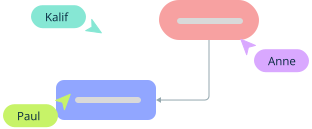
- Use comments and @mentions on the relevant part of the diagram.
- Check system boundaries, responsibilities, dependencies, and failure paths.
- Record decisions instead of relying on meeting memory.
- Resolve or retain comments according to the team’s review practice.
- Use version history when the team needs to understand how the design changed.
Comments tied to diagram elements make feedback easier to interpret than a list of disconnected notes.
7. Share, export, and maintain the diagram
Use the shared workspace as the editable source. Share or embed it where the team keeps project documentation so readers can return to the current version.
Creately supports PDF, PNG, SVG, and JPEG exports for specifications, reports, presentations, and other fixed records. An export captures a point in time, so include a link to the maintained workspace when readers may need the latest design.
Assign an owner and update the diagram when the implementation changes. Add a review date or status if the team needs to distinguish proposed, approved, implemented, and retired designs.
Practical Ways to Organize a Software Design Workspace
For a small feature, one workspace may be enough. A larger system is easier to navigate when the views follow a consistent structure.
One practical arrangement is:
- System overview: Major users, external systems, services, and boundaries.
- Requirements: Use cases, user flows, and links to supporting specifications.
- Structure: Class, component, package, or data models.
- Behavior: Sequence, activity, and state views for important flows.
- Deployment: Environments, infrastructure, and runtime dependencies.
- Decisions: Assumptions, open questions, review notes, and approved choices.
Link related views so a reader can move from the high-level architecture to the detailed interaction or component that explains it.
How Creately Supports Team Collaboration and Documentation
Real-time and asynchronous reviews
Team members can edit a shared workspace together or review it later using comments and mentions. Sharing permissions help separate people who maintain the design from stakeholders who only need to view or comment.
Technical context beside the visual model
Notes, links, files, requirements, and custom fields can be associated with diagram elements. This helps the team keep the model readable without losing the details needed for implementation or review.
Integrations with team tools
Creately publishes integrations for several tools commonly used around development work:
| Integration | Example use |
| Slack | Share diagram links and work with Creately comment notifications in a channel. |
| Microsoft Teams | Access visual planning and collaboration within the team environment. |
| Google Drive | Manage Creately documents and control view or edit access through Drive sharing. |
| Confluence | Place diagrams alongside specifications and project documentation. |
Integration availability and behavior can change. Check the Creately integrations directory before making an integration essential to the team’s process.
What to Check Before Adopting Creately
Run a small pilot with a real diagram rather than evaluating the tool only from a feature list.
- Diagram coverage: Confirm that the required notation, shapes, connectors, templates, and exports fit the team’s standards.
- Collaboration: Test how maintainers, reviewers, and stakeholders edit, comment, and access the workspace.
- Documentation workflow: Decide where the live diagram will be linked or embedded and when fixed exports are required.
- Plan limits: Check current limits for users, canvases, items, folders, history, collaboration, and administration.
- Integrations: Verify the exact capabilities of the integrations the team needs.
- Security and governance: Review data protection, access, deployment, residency, and procurement requirements with the relevant internal team.
- Ownership: Decide who updates each diagram and how readers can tell whether it is current.
Creately Pricing and Security
Creately currently lists Free, Starter, Team, Business, and Enterprise options. The plans differ in areas such as canvas limits, collaboration, version history, administration, toolkits, and support. Because prices and packaging can change, use the Creately Plans page for the current details rather than relying on figures copied into a guide.
Creately’s published security information includes SOC 2 Type 2 and ISO 27001. The company also documents encryption, data residency, backups, and other safeguards on its Security page. Teams should verify plan- and deployment-specific requirements during their own security and procurement review.
Common Mistakes to Avoid
- Creating one oversized diagram for every audience and purpose
- Adding detail before establishing the main structure or flow
- Using colors or connectors without a shared convention
- Keeping design decisions in separate messages with no link to the model
- Treating an exported image as the maintained source
- Leaving diagrams without an owner, status, or review date
- Assuming an integration or plan feature is available without checking its current requirements
Is Creately the Right Fit for Your Developer Team?
Creately is most useful when a team needs visual modeling and collaborative review in the same workspace. It can help connect UML and architecture diagrams with the requirements, references, and decisions that explain them.
Before rolling it out, test one representative workflow from creation through review, documentation, and maintenance. The result should be a diagram the team can understand, find, and keep current—not simply a polished visual created once and forgotten.
FAQ About Creately for Developer Teams
Is Creately a good fit for software development teams?
How much does Creately cost for a developer team?
Which integrations are available for developer teams?
Can developers collaborate on UML diagrams in real time?
How does Creately handle file storage and technical context?
Can a team control who views or edits a workspace?
Can Creately diagrams be exported for documentation?