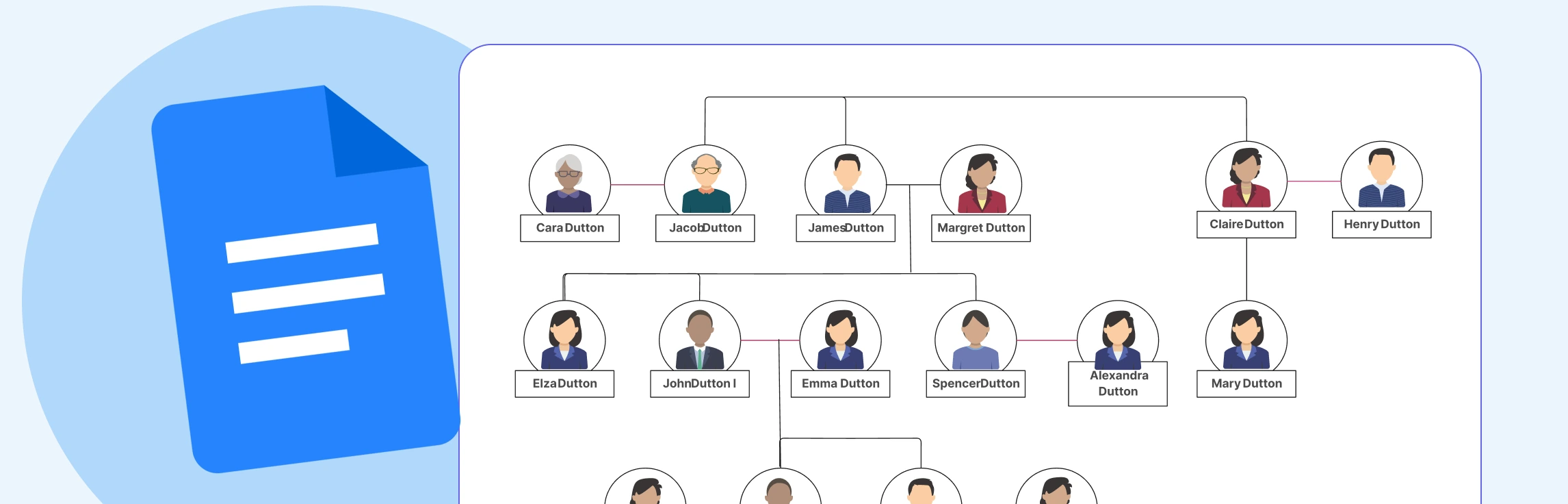
If you’re trying to figure out how to make a family tree in Google Docs, you’re likely looking for a simple way to map out family relationships using tools you already have. Google Docs can create basic diagrams, but it does require some manual work to structure generations and keep everything aligned. This guide walks you through the steps, explains the limitations you may run into as your tree expands, and offers alternative options and free templates if you need something more flexible.
What Is a Family Tree?
A family tree is a simple visual that helps you see how your family is connected across different generations. It lays out your parents, grandparents, siblings, cousins, and more, showing how one branch leads to another. You can draw it by hand or create a digital version with photos, dates, and personal notes. In the end, it’s really just a clear way to understand your roots and see how everyone fits into your family story.
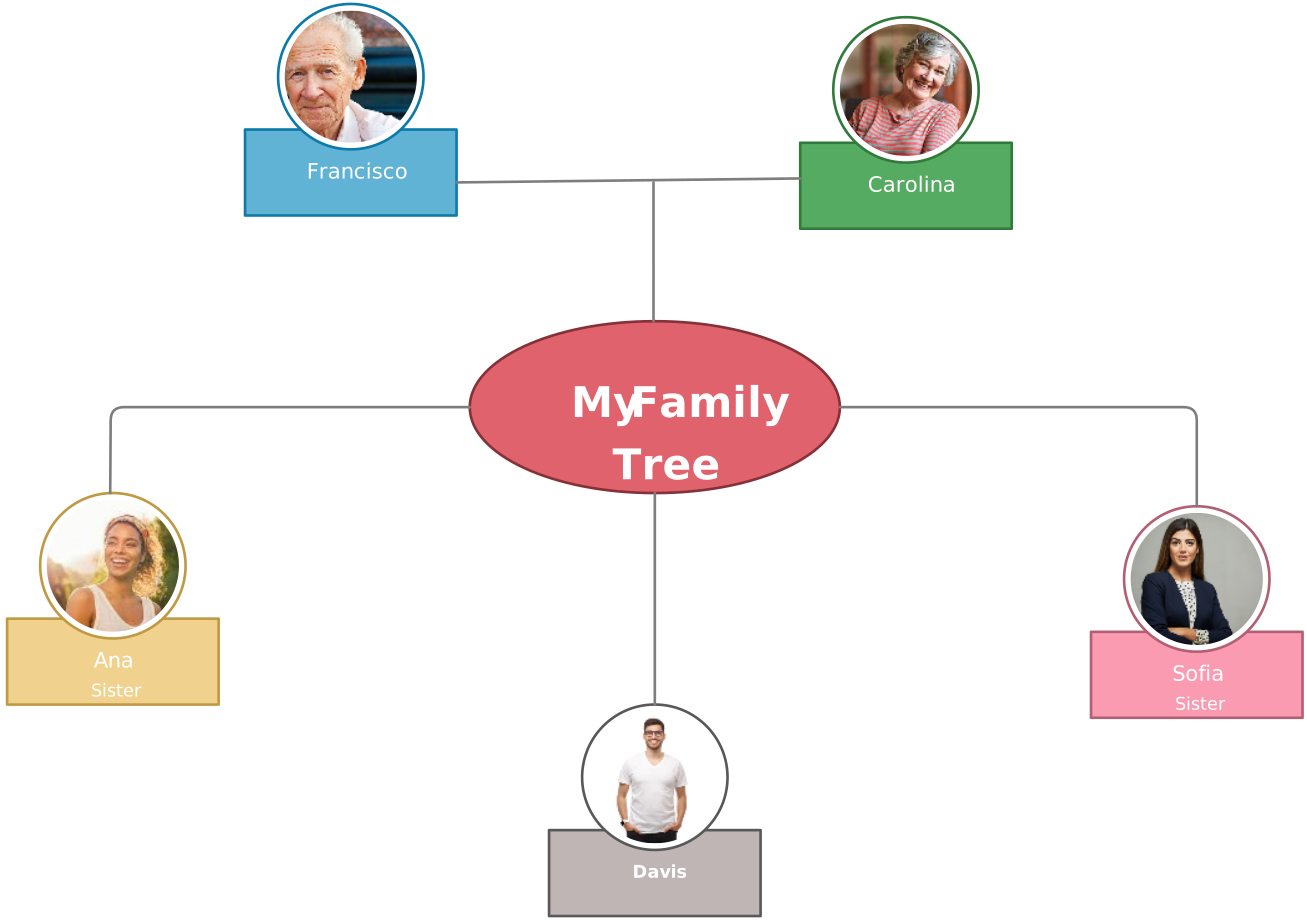

How to Create a Family Tree in Google Docs
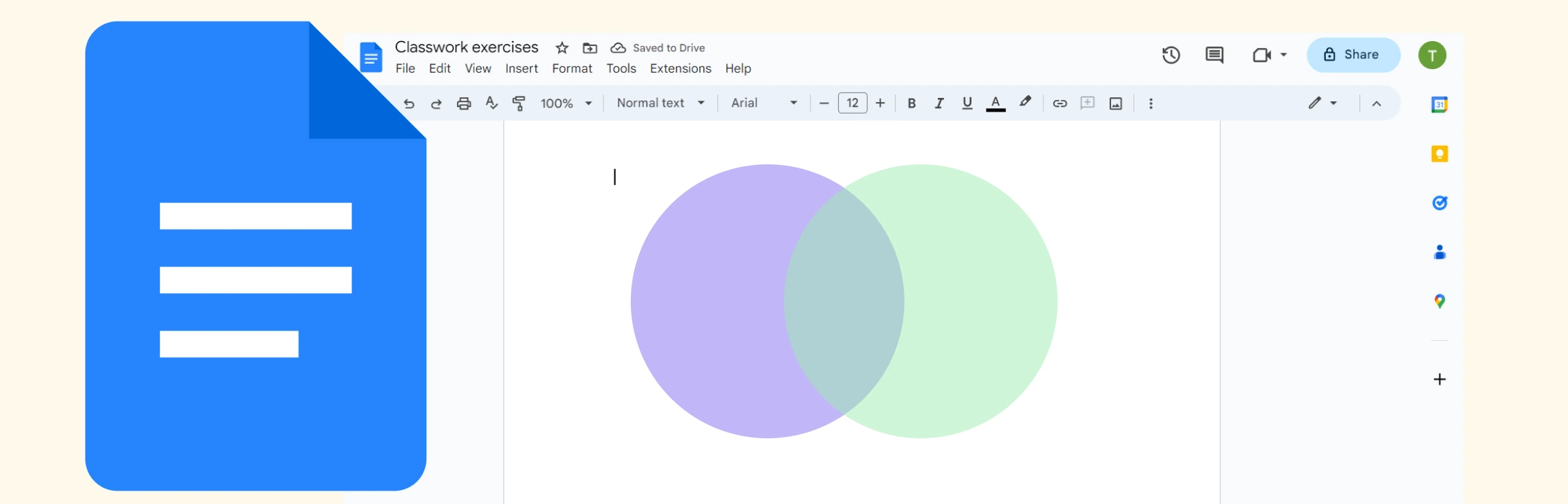
If you want to build a simple, shareable family tree using tools you already have, here’s how you can put one together in Google Docs with its built-in drawing features. You can also insert an existing Google Drawing from Drive and keep the linked drawing updated when the source is edited.
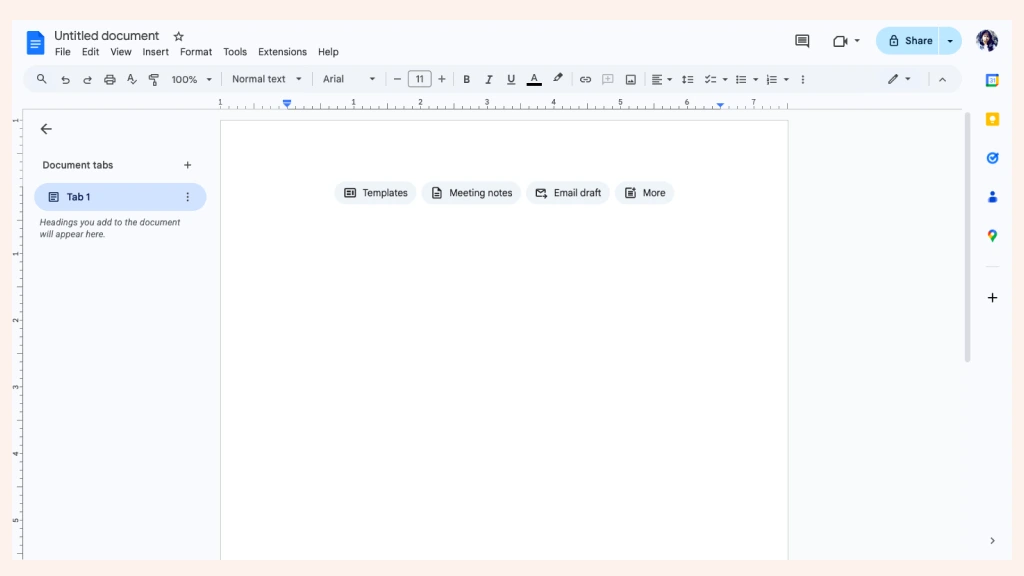
Step 1: Open a Blank Google Doc
Start with a fresh document so you have enough room to build your layout. Google Docs isn’t built for diagrams, so having open space helps.
Step 2: Insert a Drawing Canvas
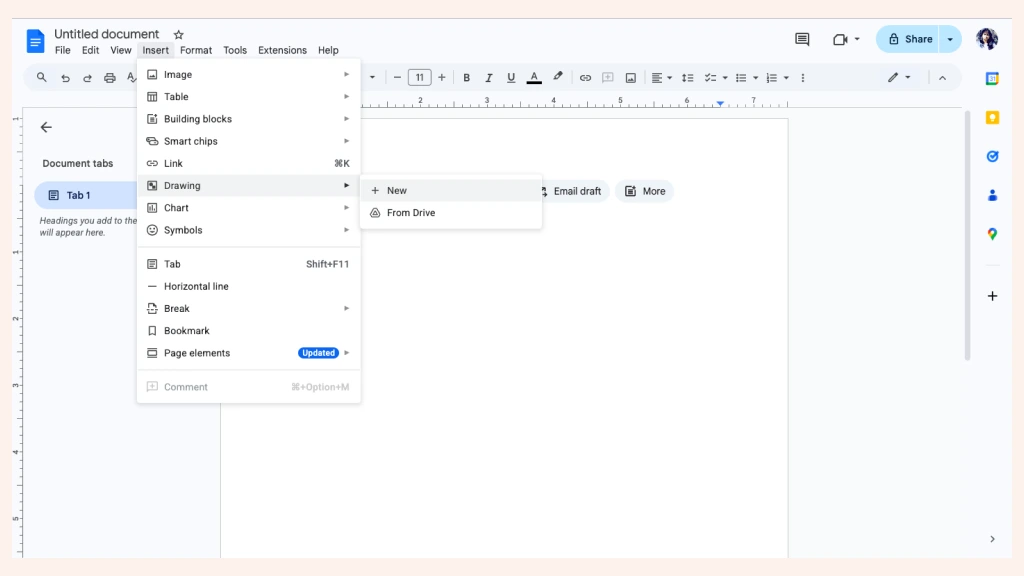
Go to Insert → Drawing → + New. This drawing window acts as your workspace, though it can feel a bit limited for larger family trees.
Step 3: Add Shapes for Each Family Member
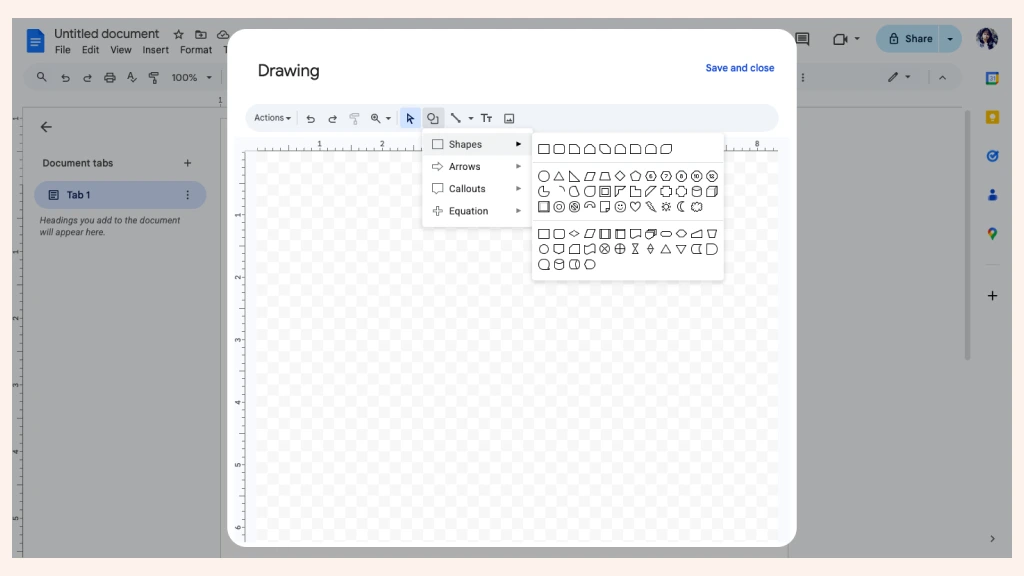
Inside the drawing tool, click Shape → Shapes and add a box for each person.
Step 4: Add Family Member Names
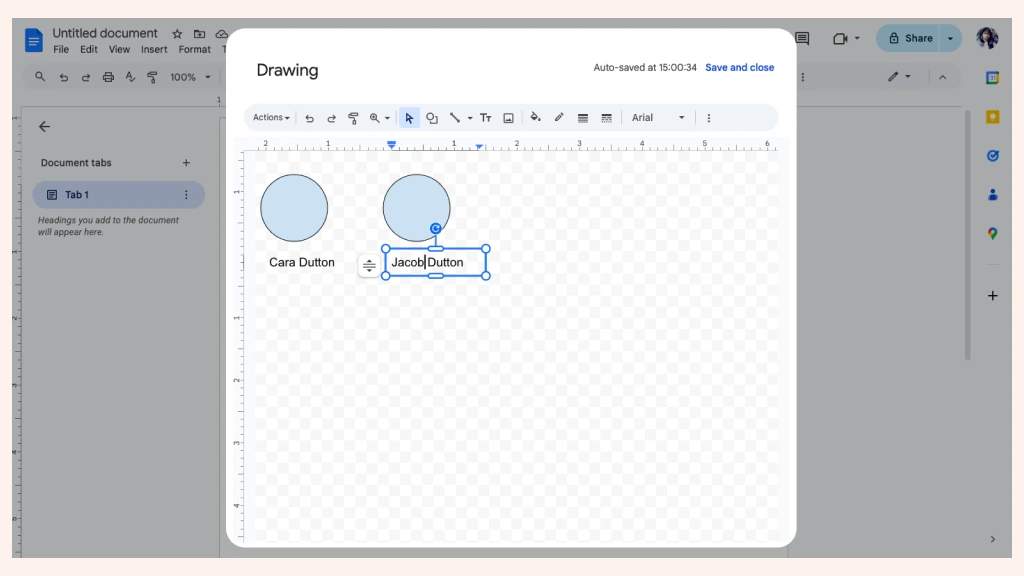
Type in their names and basic details. Keeping text short helps, since the canvas can get crowded quickly.
Step 5: Connect Family Members with Lines
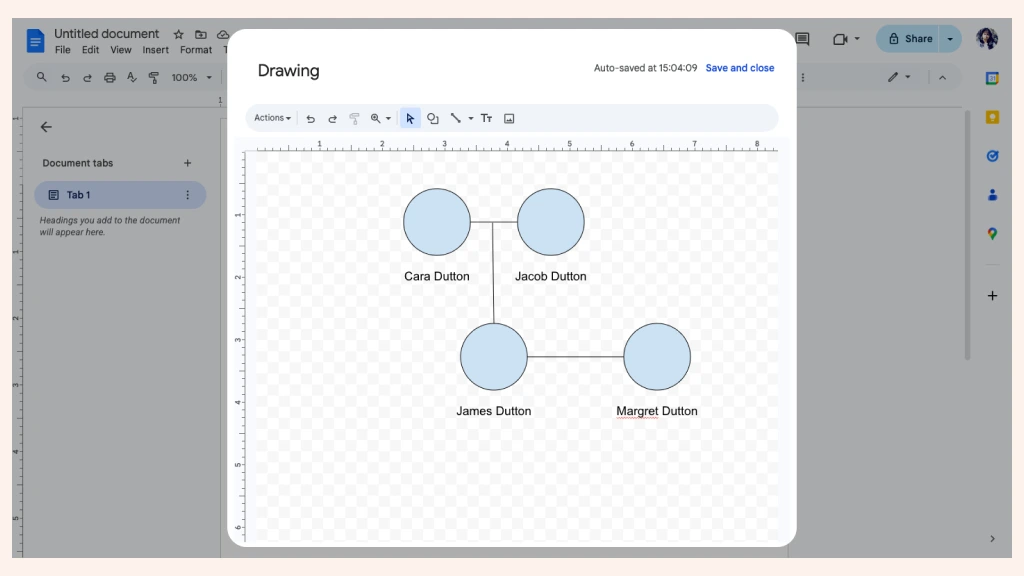
Use Line → Connector to show parent–child and sibling relationships. Attach connectors to connection points where available; unattached lines may need repositioning as you arrange family members.
Step 6: Add Colors or Styles
Use fill colors or borders to distinguish branches or sides of the family. This makes your diagram easier to read as more relatives are added to the canvas.
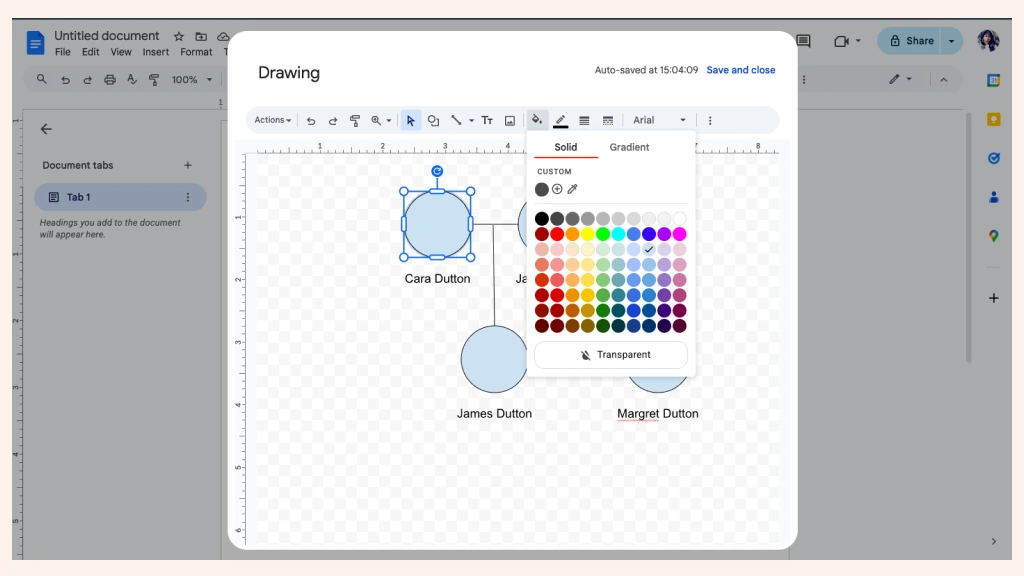
Step 7: Save and Share Your Diagram
Click Save and Close to add the family tree to your Google Doc. You can then share the document with others using the Share button, making it easy for family members to view or contribute if needed.
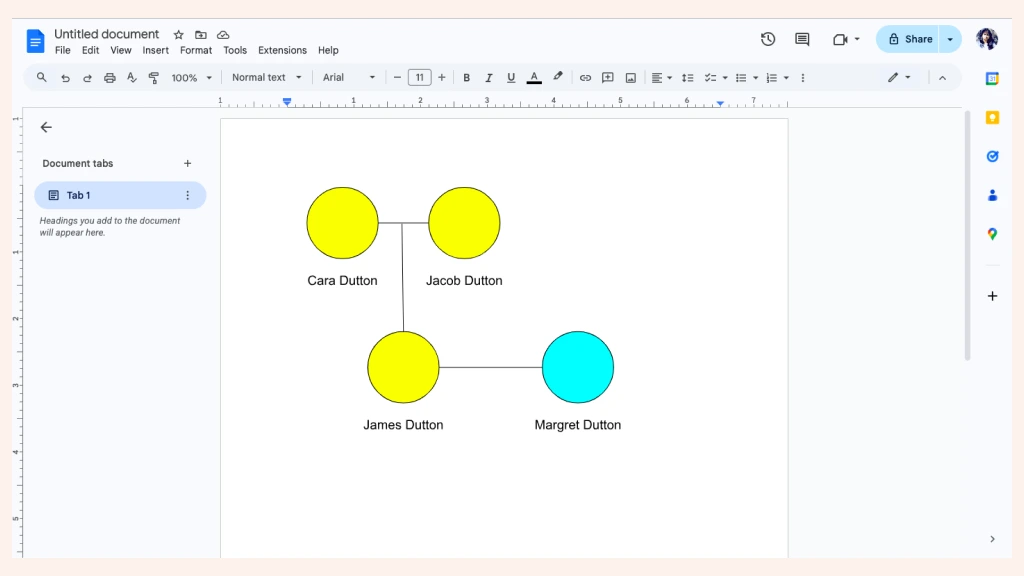
If your family tree grows beyond a few generations, you may find it easier to move to a dedicated family tree creator where branches, connectors, and layouts are easier to update.
Drawbacks of Making a Family Tree in Google Docs
Creating a family tree in Google Docs can work for simple layouts, but once you start adding more relatives and generations, a few challenges like the following become hard to ignore.
Not designed for diagrams: Google Docs is made for text documents, so building structured visuals like family trees requires workarounds using the Drawing tool.
Limited canvas space: The Drawing window has a fixed-size canvas, making it difficult to fit multiple generations or wide branches without constant resizing.
No automatic alignment or layout: Every box and connector must be arranged manually, which becomes time-consuming as the tree grows.
Layout requires manual care: Unattached lines need repositioning when shapes move; connectors attached to connection points are more reliable, but complex layouts still require manual adjustment.
Hard to represent complex families: Step-relations, multiple spouses, adopted children, or blended families require manual layout changes that can quickly become messy.
Visual clutter increases quickly: Adding photos, notes, or dates can make the diagram cramped, since Docs doesn’t handle layered visual details well.
Editing large trees is slow and tedious: You may need to constantly re-open the Drawing tool and reorganize elements as more members are added.
Limited export and printing options: Large diagrams might get cropped or lose clarity when exported or printed from Docs.
Benefits of Using Creately for Drawing a Family Tree
Creately’s AI genogram app can also be used to create clear, editable family trees, giving you a faster and more flexible option than Google Docs. Instead of manually drawing every box and connector, you can use AI to build a family tree from text, start with a family tree template, and then expand or customize the structure as your family history grows.
Generate a family tree from text with AI
Creately lets you turn a written family description into a visual family tree. Add details such as parents, children, siblings, grandparents, spouses, dates, and family branches, and Creately’s AI can generate a first draft that you can edit, expand, and refine.
Start faster with family tree templates
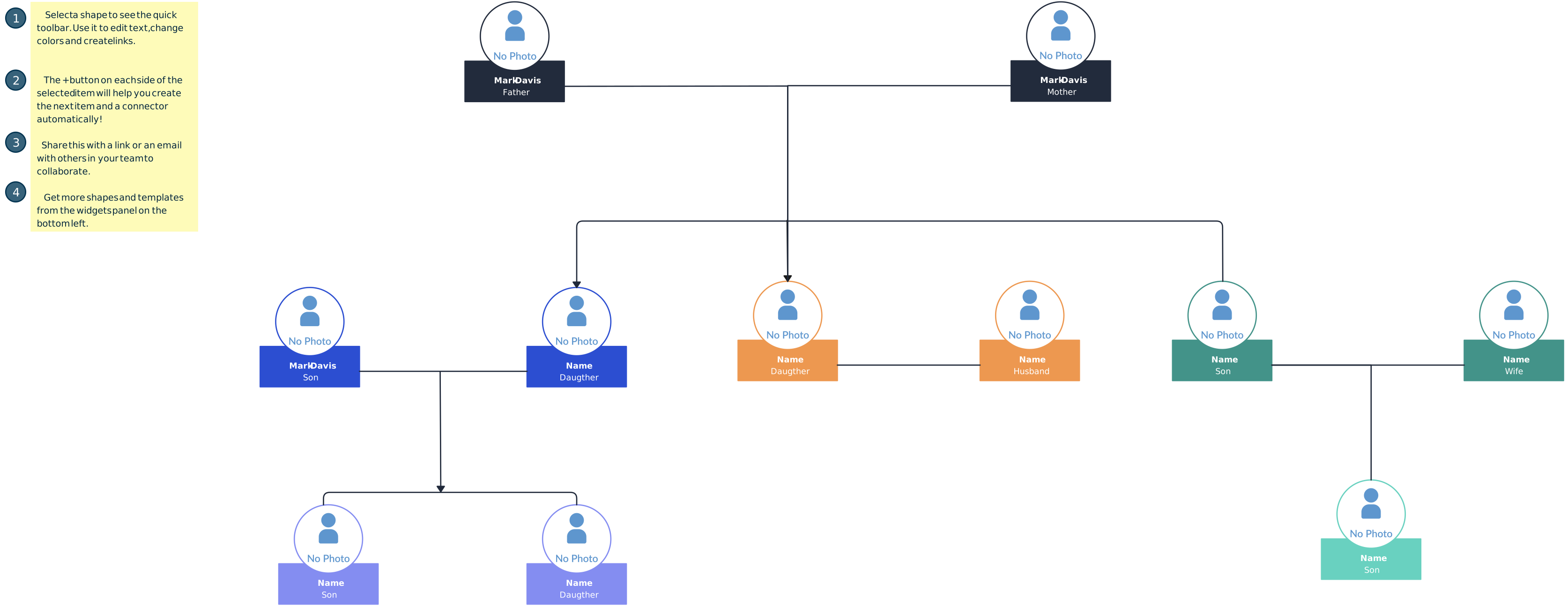
Creately offers ready-made family tree templates that help you avoid building every box, branch, and connector from scratch. You can start with a simple family tree layout, then customize names, photos, dates, stories, notes, colors, and branches to match your family structure.
Build and update family trees more easily
As your family tree grows, Creately makes it easier to add new relatives, rearrange branches, and keep generations organized. You can map simple lineage or more complex family structures without constantly resizing a drawing canvas or manually fixing every connector.
Handle complex family relationships
Creately is useful for blended families, step-relations, multiple marriages, adoption, foster relationships, and non-linear family structures. When your family tree needs more detail, you can use Creately’s genogram features to show relationship types, emotional dynamics, health history, cultural heritage, and other family patterns more clearly.
Add details beyond names and dates
You can include photos, notes, stories, locations, dates, and supporting context for each family member. For deeper family mapping, Creately also supports structured field packs, health and culture views, and clinical relationship notation, helping you turn a basic family tree into a more complete family map when needed.
Collaborate with family members
Invite relatives to review, add, or verify information in real time. Comments and shared editing make it easier to collect family history without sending multiple document versions back and forth.
Export and share clearly
Once your family tree is ready, you can export it as PDF, PNG, JPEG, or SVG for printing, sharing, presentations, or documentation. If you expand the family tree into a genogram, Creately also supports additional export options such as DOCX and JSON for more structured use cases.
Creately Vs Google Docs Family Tree Features Comparison
Google Docs can work for a simple family tree, but Creately AI genogram tool gives you more flexibility when you want to generate a family tree with AI, manage larger family structures, add richer details, or expand the tree into a genogram later.
| Feature / Capability | Creately | Google Docs |
| Canvas and space | Flexible visual workspace for growing family trees and genograms | Small drawing canvas that can feel cramped |
| AI generation | Generate a family tree from a written family description using AI | No AI family tree generation |
| Starting point | AI-generated family tree drafts, family tree templates, and genogram templates | No dedicated family tree template in Google Docs |
| Ease of editing | Easier to add relatives, update branches, and reorganize generations | Manual positioning for every shape and line |
| Family relationships | Supports simple family trees, blended families, step-relations, adoption, foster relationships, and more complex family maps | Complex family structures require manual layout work |
| Genogram expansion | Can expand a family tree into a genogram with relationship types, health history, emotional dynamics, cultural heritage, and structured fields | Requires manually created symbols, labels, colors, and connectors |
| Family details | Add names, photos, dates, stories, notes, and supporting context | Extra details can quickly clutter the drawing |
| Collaboration | Real-time collaboration with comments and shared editing | Document sharing is available, but drawing edits are limited |
| Updates and growth | Easier to maintain as more relatives and generations are added | Large trees require frequent resizing and rearranging |
| Sharing and export | Export as PDF, PNG, JPEG, or SVG; genograms can also be exported in DOCX or JSON | Large diagrams may crop, distort, or lose clarity when printed or exported |
| Best for | Family trees that need to grow, stay organized, or expand into richer genograms | Small, simple family trees created inside a document |
Check out our guide on how to make a family tree to learn how to build one in Creately, along with practical tips for arranging generations clearly and showing family relationships accurately as your tree expands.
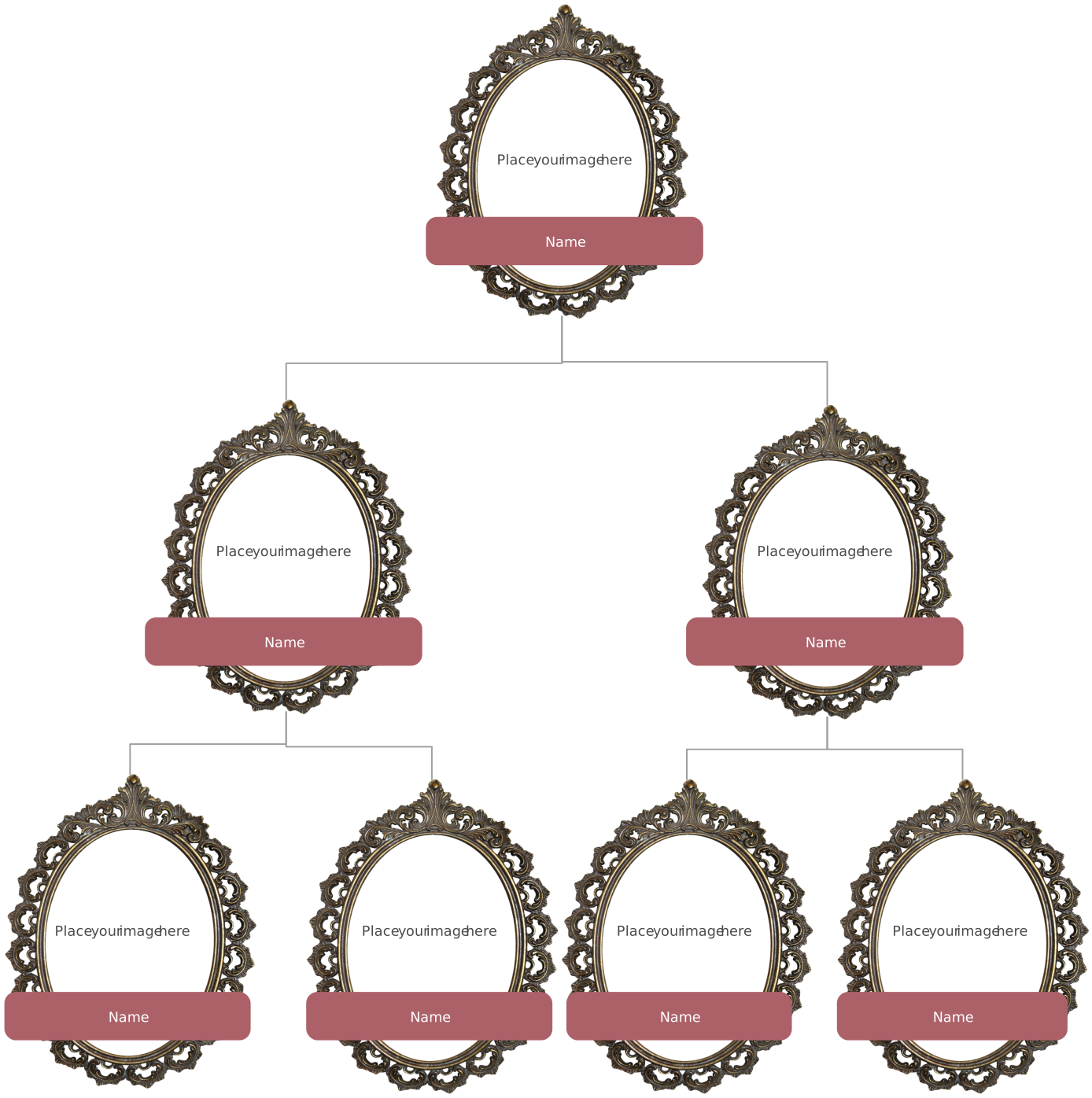
Free Family Tree Templates to Get Started


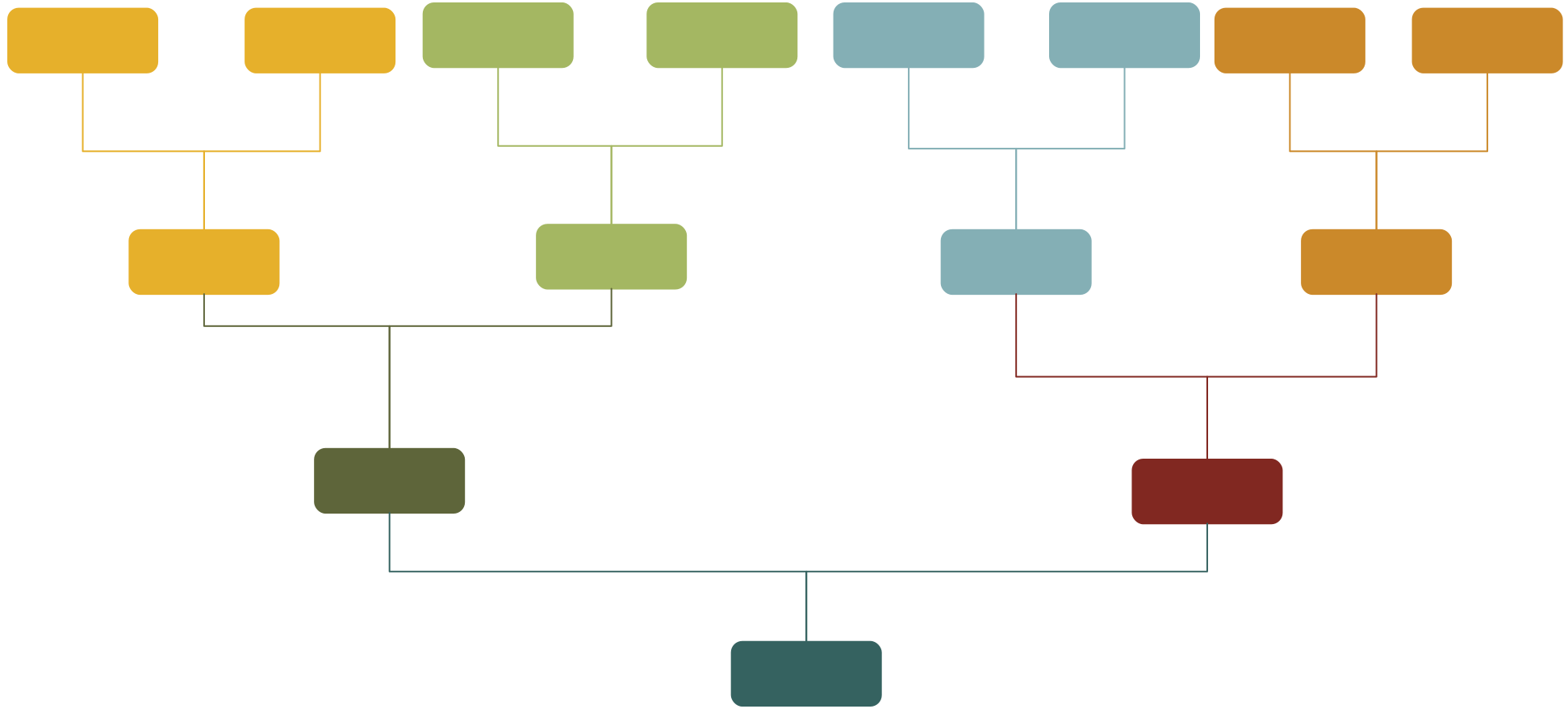
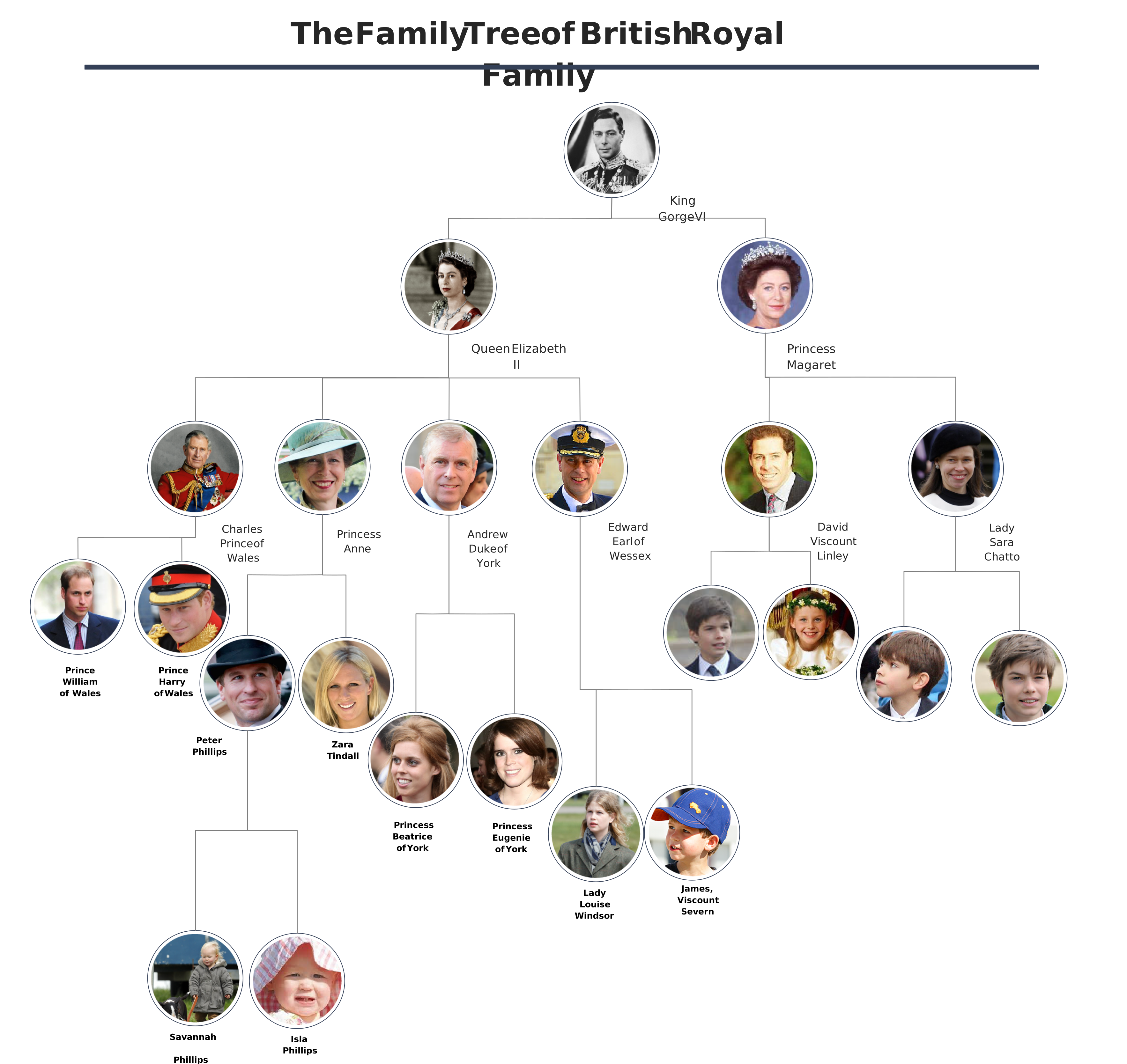
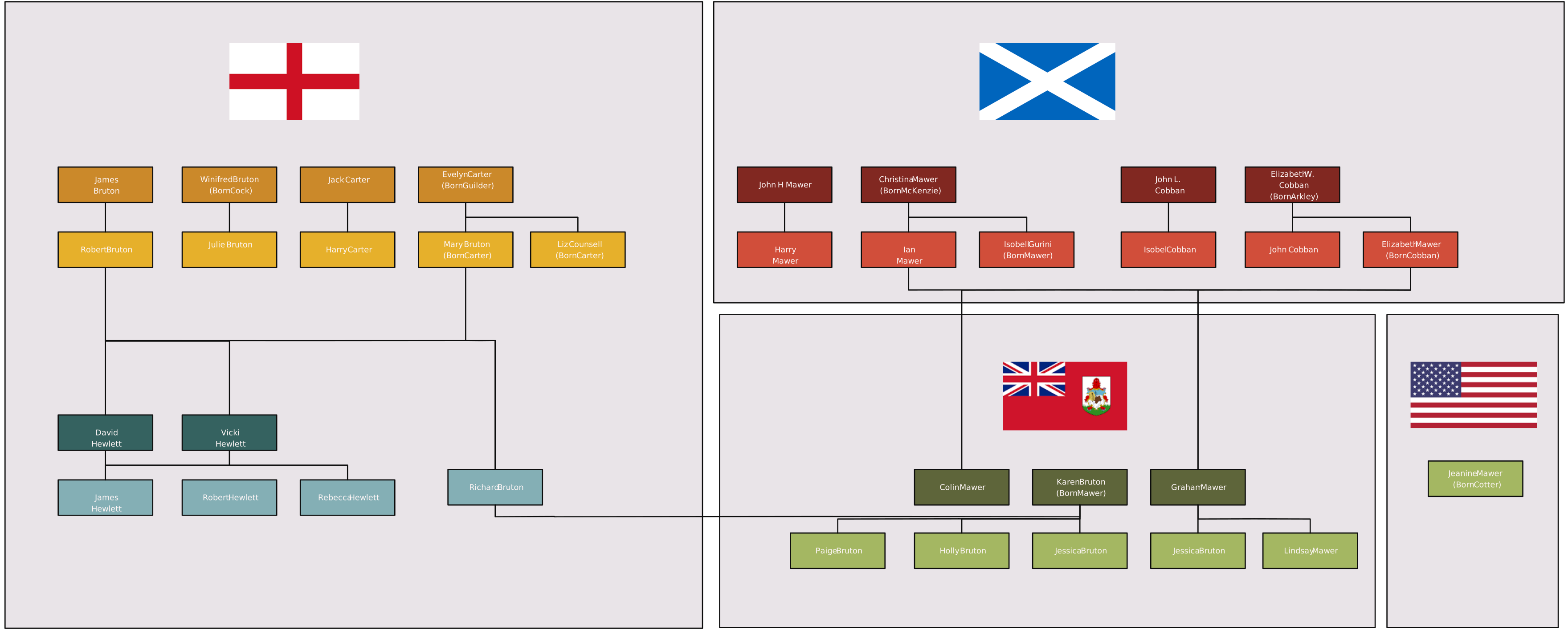
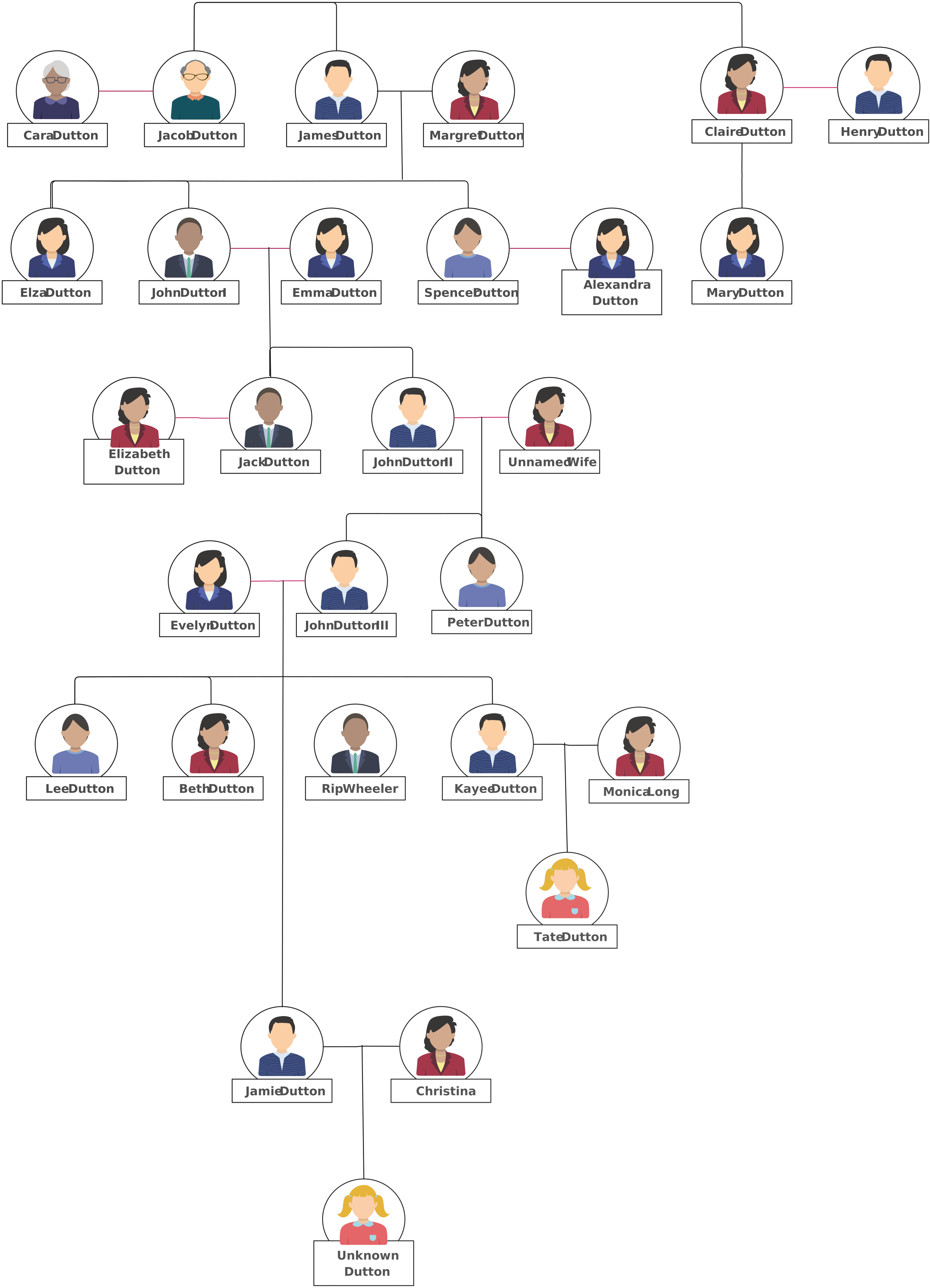
Helpful Resources for Building Family Trees
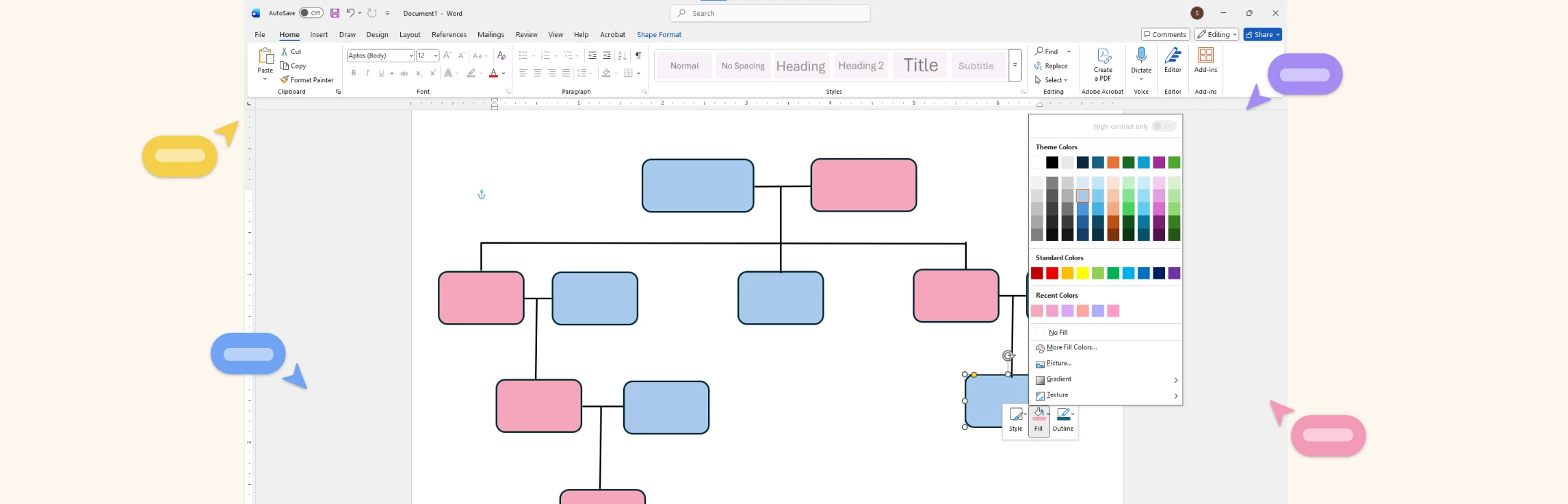
Discover the steps of making a Family Tree in Microsoft Word.
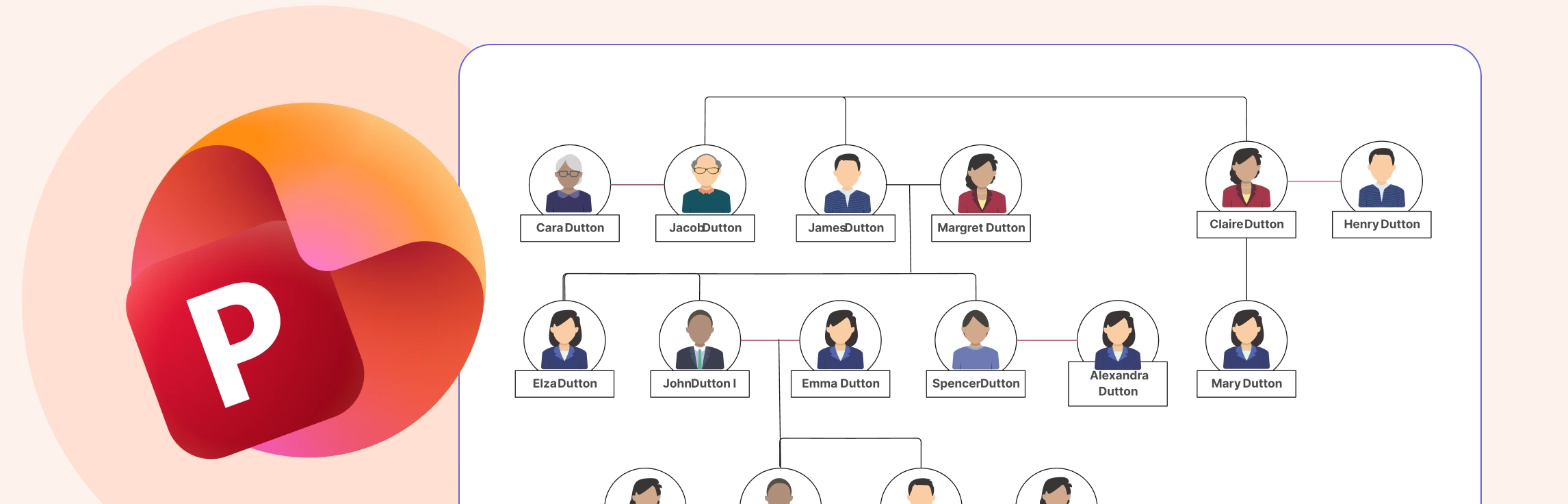
Learn how to make a Family Tree in Microsoft PowerPoint.
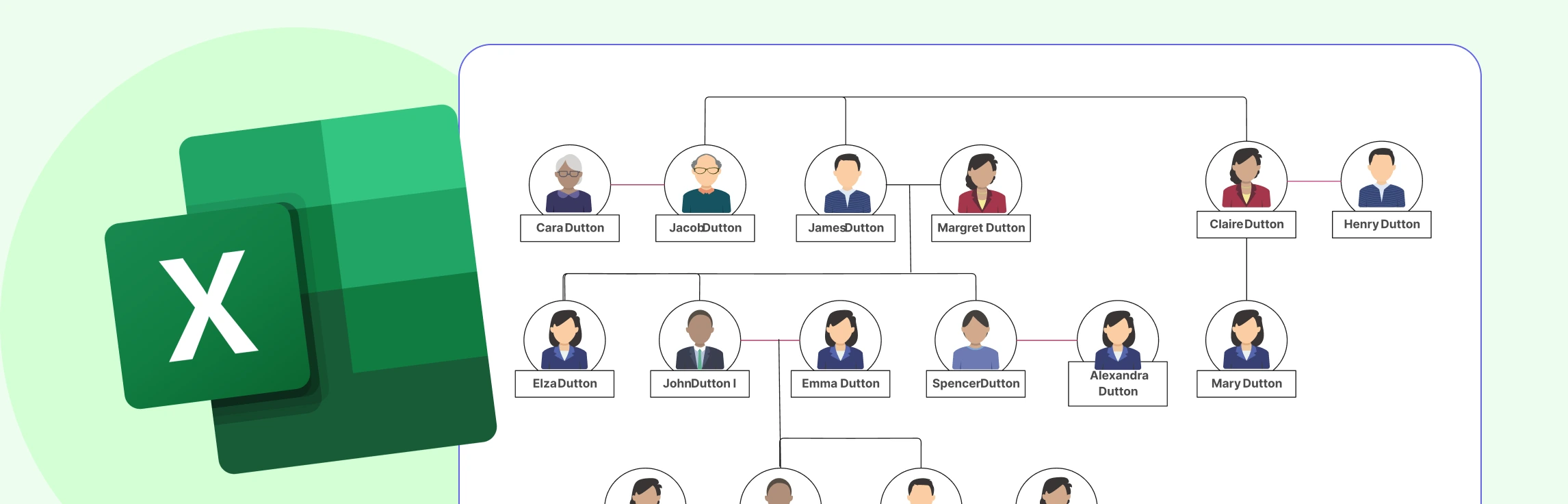
Find out how to make a Family Tree in Microsoft Excel.