Network diagrams are the backbone of modern IT infrastructure work. They help teams design networks, document what’s actually deployed, troubleshoot issues faster, and explain complex setups without long meetings or guesswork. But not all diagramming tools are built for this kind of work. The right tool makes it easier to be precise, keep diagrams up to date as the network evolves, and ensure network engineers, operations, and security teams are aligned around a single source of truth. The wrong one leads to messy diagrams, outdated documentation, and costly misalignment when it matters most.
What Infrastructure Teams Really Need in a Network Diagram Tool
A network diagram tool isn’t just a drawing app—it’s a critical part of how IT teams design, manage, and communicate complex infrastructures. Here’s what to look for:
1. Diagramming Fundamentals
A network diagram tool should give you full control over placement and layout, making it easy to represent complex infrastructures clearly.
Drag-and-drop canvas with precise placement: Quickly position devices, servers, and network components exactly where they belong.
Alignment guides, grids, and snap-to behavior: Keep everything neat and aligned automatically, saving time and reducing errors.
Zooming and navigation for large diagrams: Move effortlessly between high-level overviews and detailed subnet-level diagrams without losing context.
2. Network-Specific Shape Libraries
Engineers need the right symbols at their fingertips to make diagrams accurate and easy to understand.
Standard symbols for routers, switches, firewalls, and load balancers: Represent real-world infrastructure consistently.
Vendor-specific and cloud icons (AWS, Azure, GCP): Ensure diagrams match the technologies in your environment and communicate clearly with your team.
Ability to customize or extend shape libraries: Add new devices or adapt symbols for specialized network components.
3. Connectors and Link Behavior
Connections are the backbone of a network diagram. Precision here keeps diagrams readable and meaningful.
Straight, elbow, and curved connectors: Represent different types of network links clearly.
Auto-routing and reflow when shapes move: Connections automatically adjust as you update the diagram, preventing clutter.
Labeled links for bandwidth, protocol, VLAN, or direction: Provide essential context directly on each connection for faster troubleshooting and planning.
4. Scalability and Complexity Handling
Large networks can quickly become overwhelming, so the tool must help you manage complexity.
Performance with large node counts: Diagrams should remain smooth and responsive even for enterprise-scale networks.
Grouping, layers, and containers: Organize components logically, making it easier to focus on sections of the network.
Collapsing/expanding sections of the network: Zoom in on details without losing sight of the bigger picture.
5. Annotation and Metadata Support
Diagrams are more useful when they carry more than just visual information.
Notes and descriptions on devices and links: Add key details directly on the diagram.
Structured fields (IP address, hostname, role): Keep important technical information attached to each element for easy reference.
Attaching supporting documentation: Link manuals, configuration files, or other reference documents directly to diagram elements.
6. Sharing and Access Control
Sharing diagrams safely and efficiently is critical for IT teams.
Internal vs external sharing options: Distribute diagrams securely within the team or with outside stakeholders.
Permission levels (view, comment, edit): Control who can see or modify your diagrams.
Secure link access: Keep sensitive infrastructure information protected.
7. Export and Documentation Output
Diagrams are often used beyond the tool itself, so export and integration capabilities are vital.
Export to PDF, SVG, PNG, and image formats: Include diagrams in presentations, documentation, or reports.
Print-friendly layouts: Generate diagrams for physical audits or team reviews.
Embedding diagrams into documentation tools: Integrate directly into wikis, knowledge bases, or intranet platforms for easy access.
8. Non-Functional Considerations
Beyond features, the tool itself must be reliable and fit into your workflow.
Performance and reliability: It should handle large diagrams without crashing or lagging.
Browser-based vs desktop tools: Choose based on team needs, accessibility, and device flexibility.
Cross-platform support: Ensure the tool works across Windows, Mac, and mobile devices if necessary.
9. Security and Governance
Protecting sensitive network information is non-negotiable.
Data ownership and retention: Maintain control over who owns and can access the diagrams.
Access logging and auditability: Track changes and views for accountability and compliance.
Compliance considerations for infrastructure diagrams: Make sure diagrams meet internal policies or industry regulations.
10. Integration with IT Workflows
The tool should fit seamlessly into existing IT processes.
Alignment with documentation systems and wikis: Keep diagrams connected to broader knowledge systems.
Support for change management and incident response: Make diagrams actionable in operational workflows.
Handoff between design and operations: Ensure diagrams are ready for both planning and live network management.
How Creately Supports Key Network Diagram Needs
Creately’s network diagram software brings all the capabilities that IT infrastructure teams care about into a single, easy-to-use diagramming platform — from visual building blocks to collaboration and export — with a focus on clear diagrams and smooth teamwork. Here’s how it supports the features engineers need:
Feature-Rich Templates and Shape Libraries
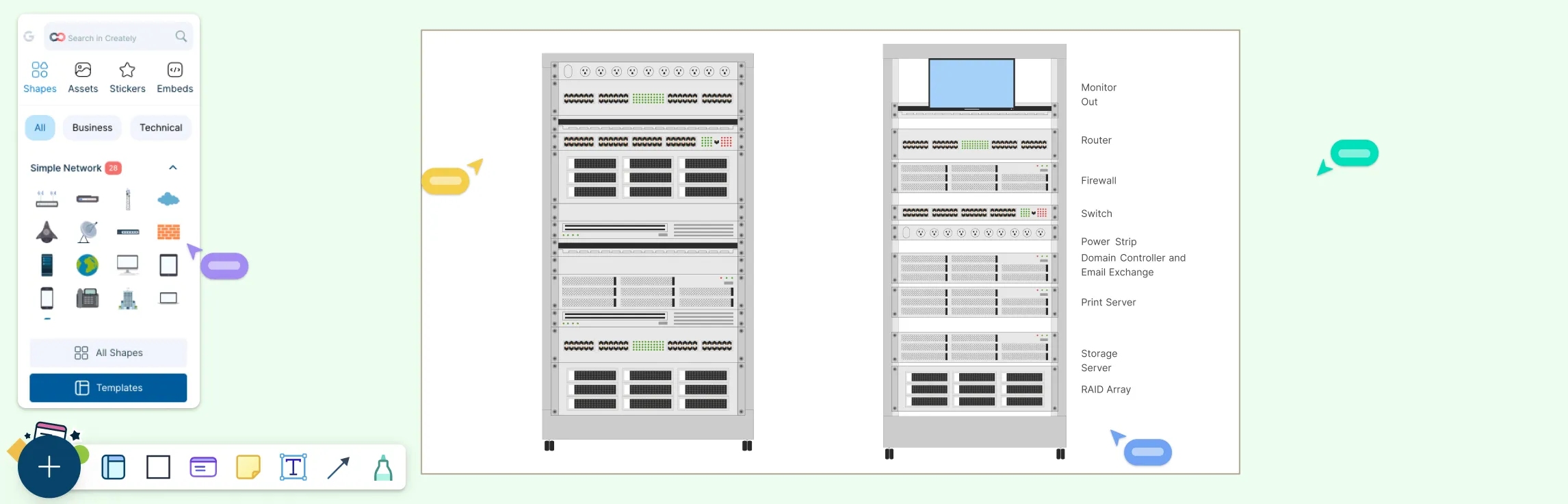
Creately provides a wide set of ready-made network diagram templates, including simple network layouts, cloud architecture, and high-level designs, so teams can get started fast. Its library includes industry-standard symbols and shapes for network elements and supports cloud and vendor-specific icons such as AWS, Azure, Cisco, GCP, and Kubernetes, making it easier to represent actual infrastructure accurately.
Intuitive Diagramming Canvas and Connectors
The drag-and-drop canvas allows precise placement of devices and components, guided by smart alignment and snapping. Creately’s connectors support multiple styles (straight, curved, elbow) and intelligent auto-routing that keeps lines tidy as your layout evolves.
Scaling and Handling Complexity
Creately’s network diagram tool online handles diagrams of all sizes while keeping complex maps organized. You can zoom and navigate large canvases easily, and leverage containers, grouping, and layers to break down extensive networks into understandable sections. Its intuitive workspace helps maintain clarity even as diagrams expand.
Annotation and Metadata Support
Elements in network diagrams can be enriched with notes and structured data fields such as IP addresses, hostnames, and roles, turning visuals into living documentation that carries essential technical details. This makes diagrams more useful for ongoing operations, not just design.
Real-Time Collaboration and Version Controls
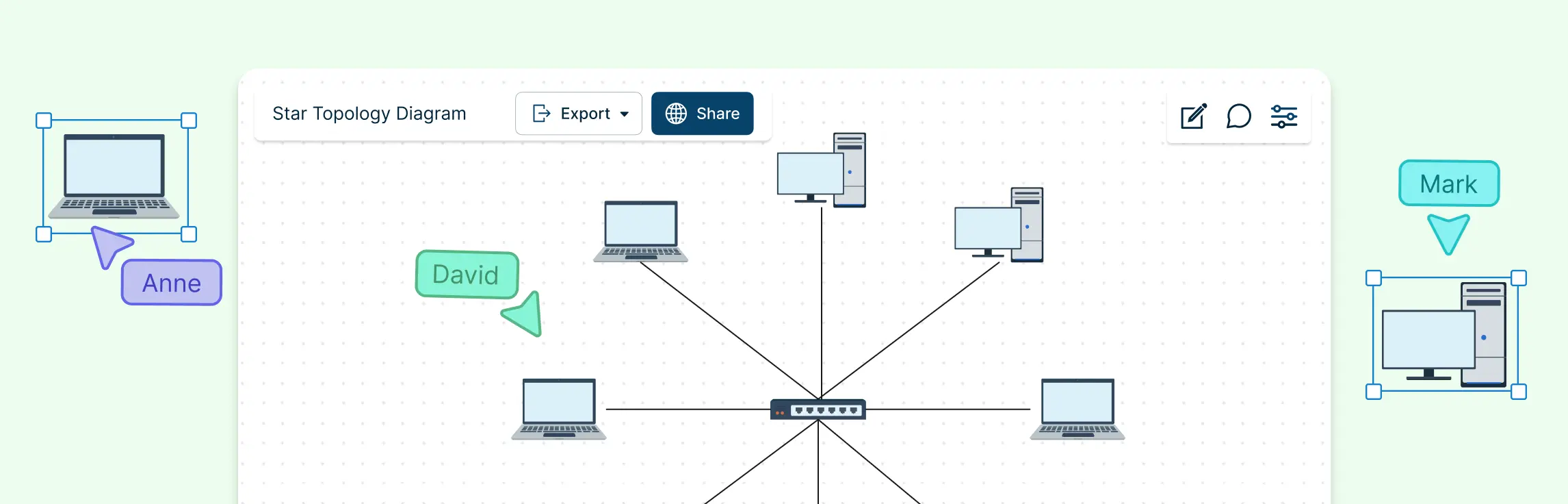
Multiple engineers can edit the same diagram simultaneously, leave inline comments, and track all changes with version history so nothing is lost. Real-time collaboration ensures remote or distributed teams stay in sync throughout design and review cycles.
Sharing, Access Control, and Export
Creately offers secure sharing options via links with controlled permissions or embedding in documentation and presentations. Export formats include PDF, SVG, PNG, and image types for high-quality output in reports, slide decks, or internal documentation.
Workflow Integration and Extensibility
Creately’s free network diagram tool integrates with tools your team already uses, making it easy to fit diagrams into broader workflows. This ensures diagrams live alongside other operational artifacts and supports smoother collaboration across teams.
Free Network Diagram Templates to Start Right Away
Simple Network Diagram Example
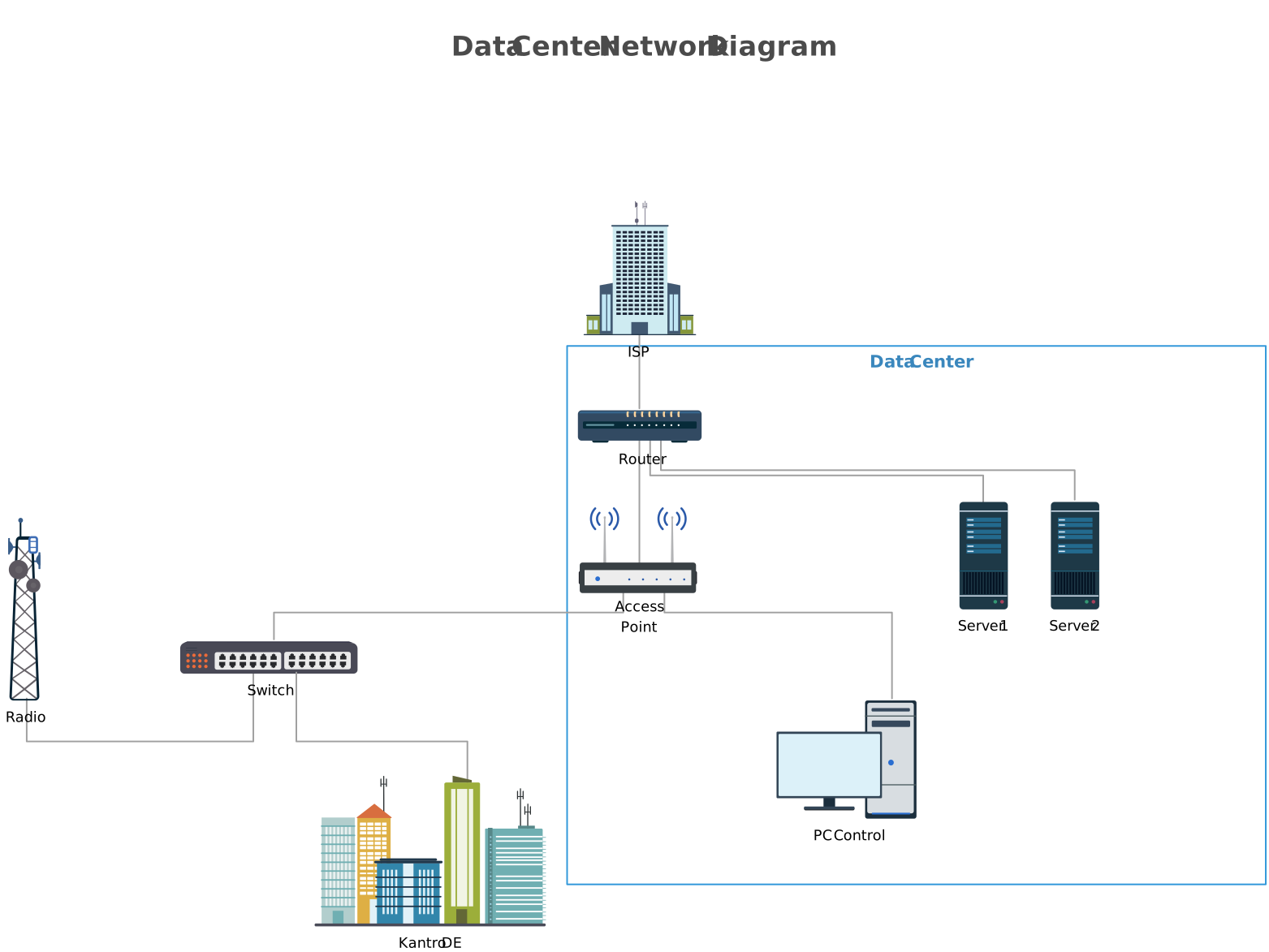

Information Logical Network Diagram
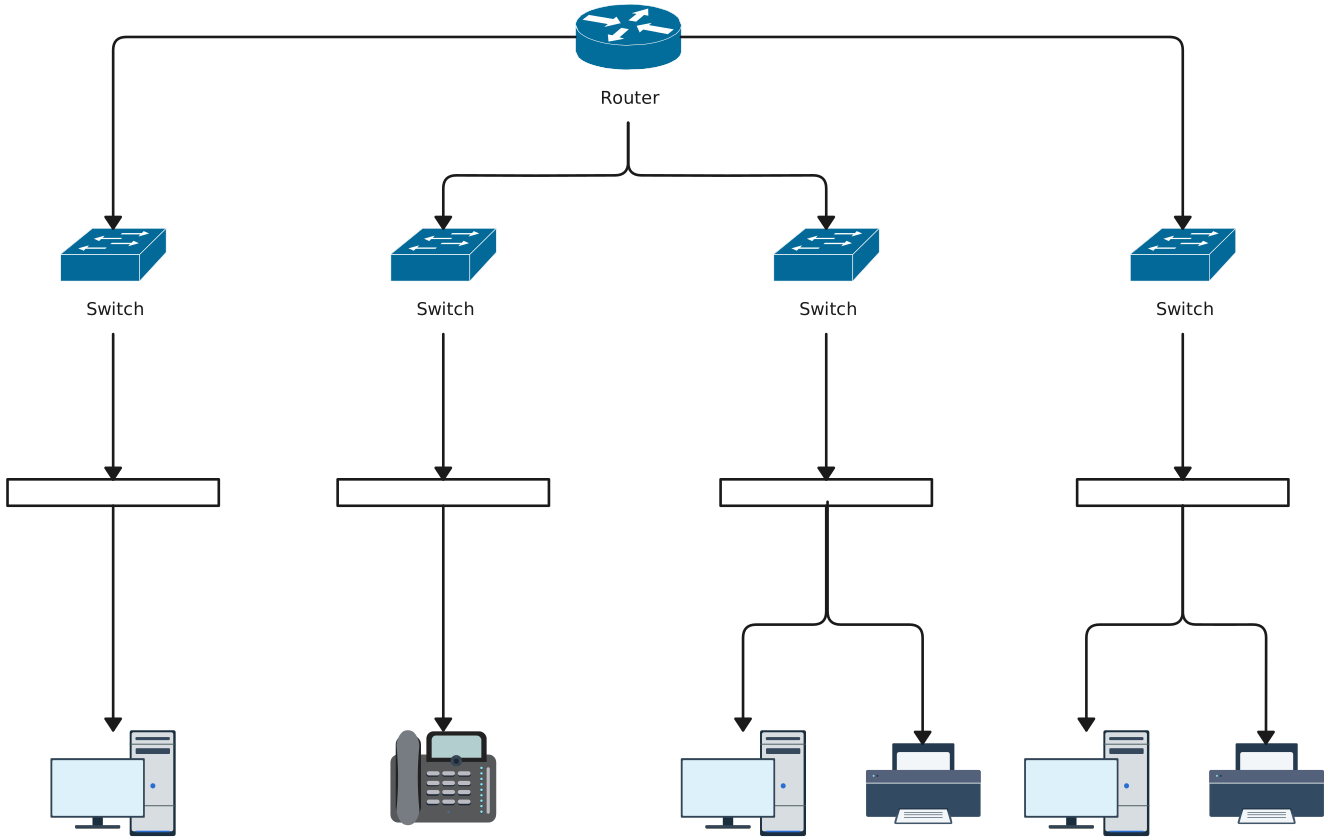
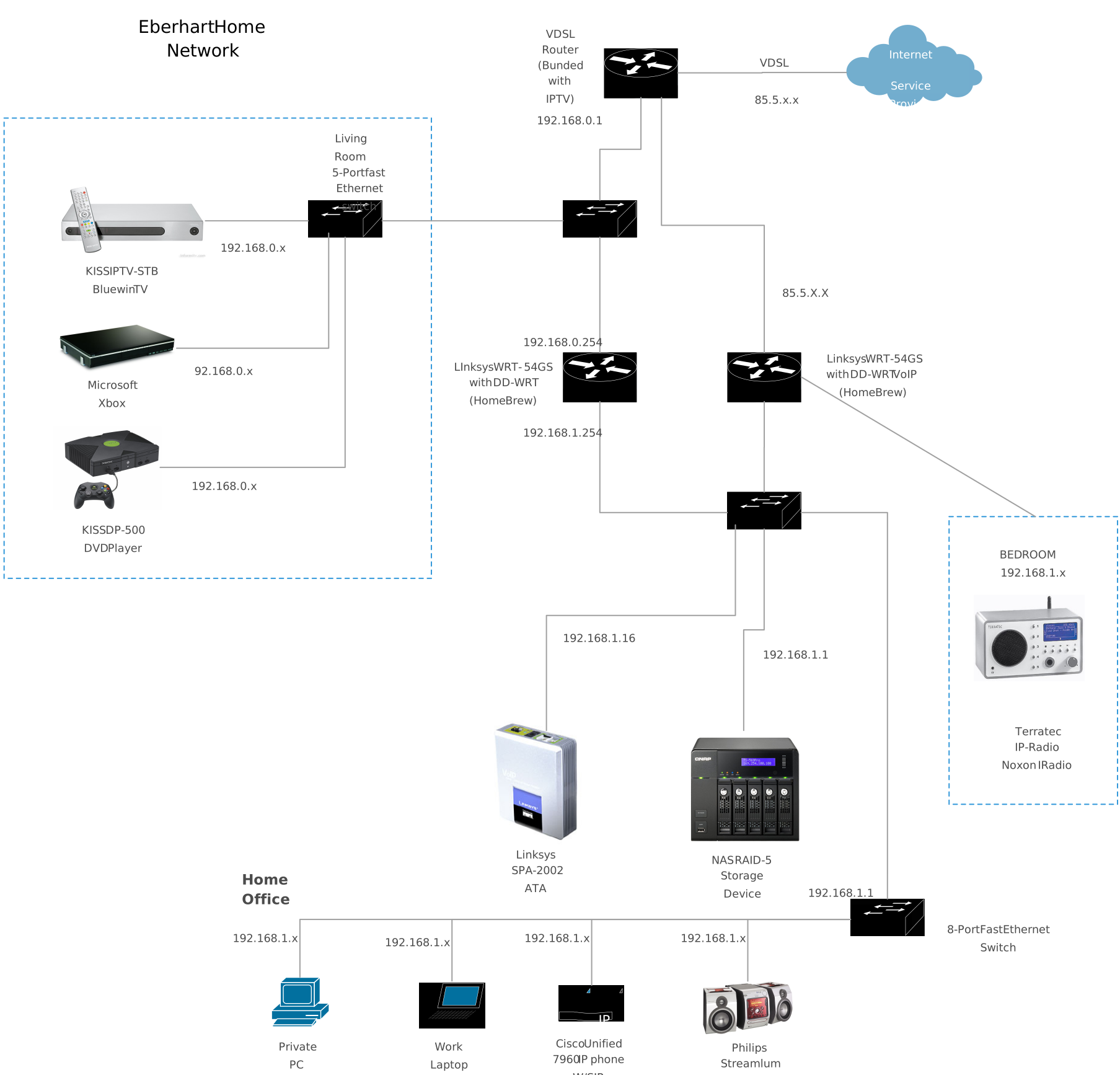
Advance Home Network With Cisco
Office Network Diagram Template
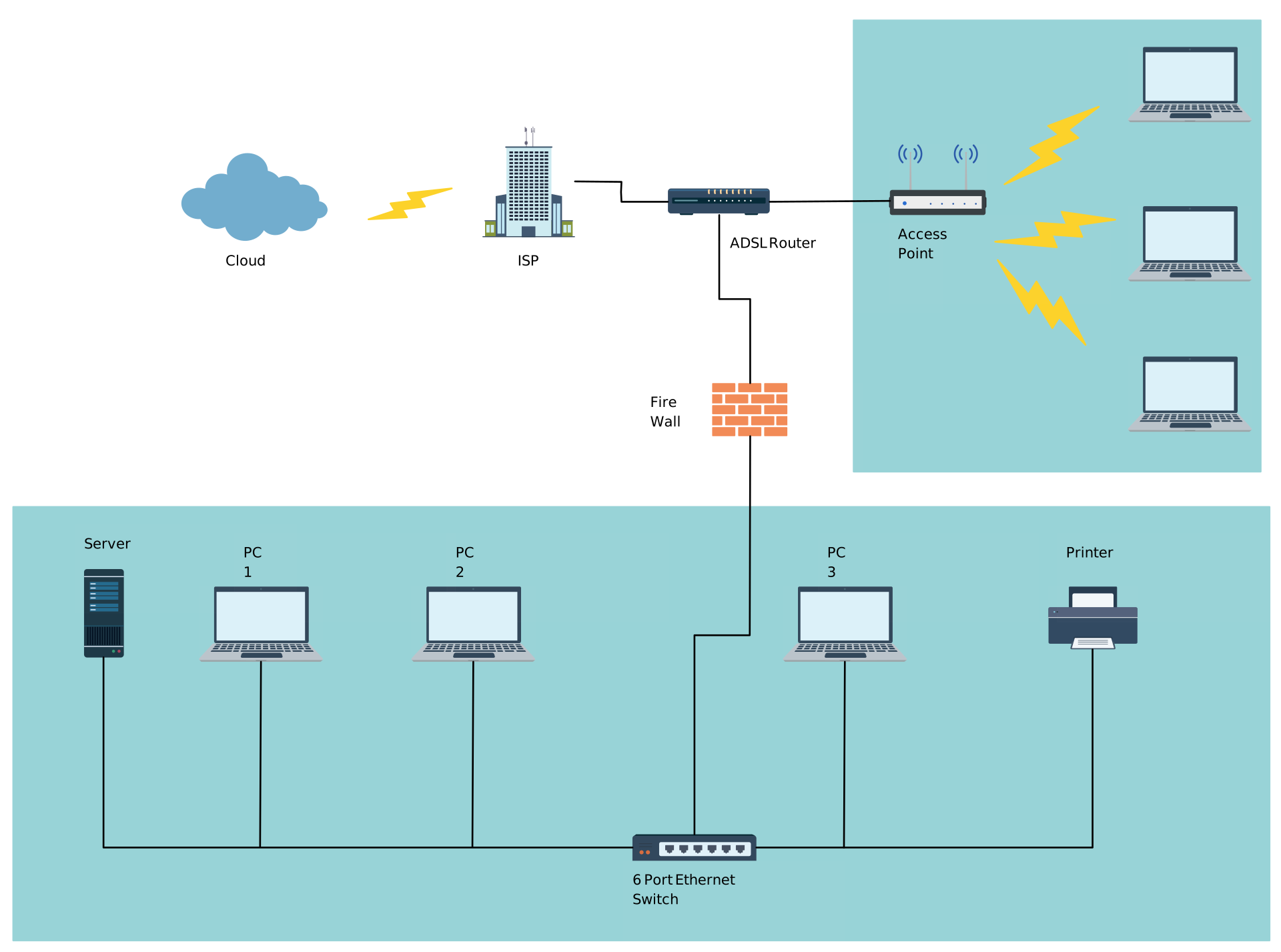
Network Security Diagram Example

FAQs About Network Diagramming Tools
What is a network diagram tool used for?
How do network diagram tools improve accuracy and maintainability?
Can network diagram tools help with compliance and audits?
Can I use custom shapes in Creately?
Can I link diagrams to other documentation or systems in Creately?