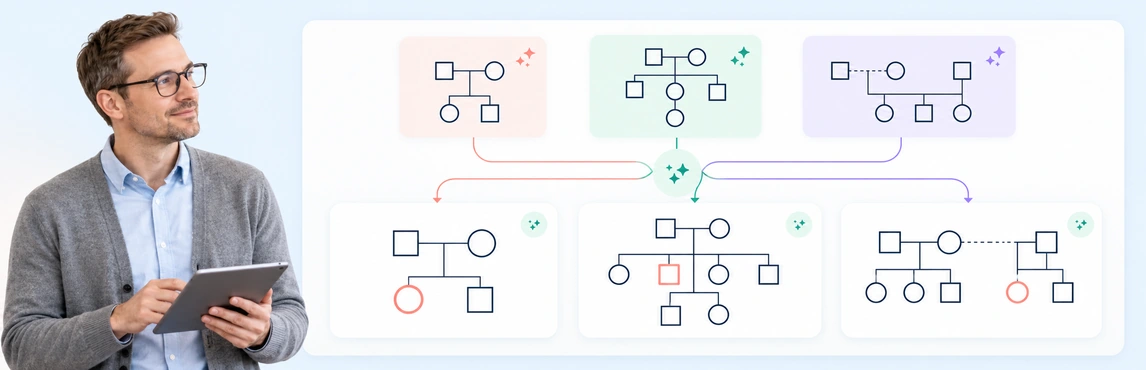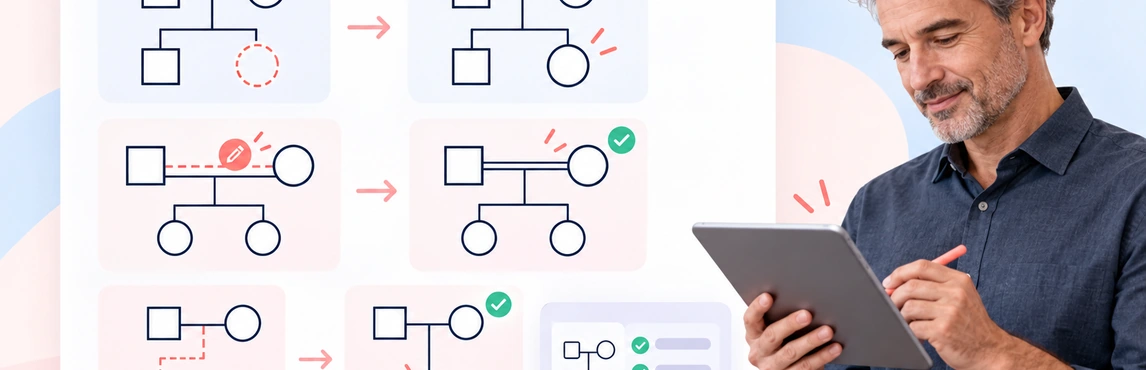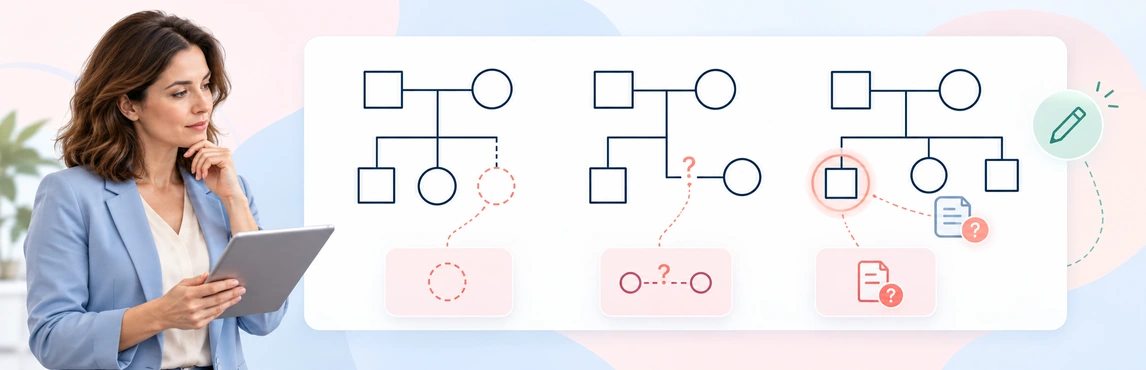
AI can help turn written family information into a genogram draft, but it can also make a diagram look certain when the source is not. The safest way to use the draft is to set clear limits, preserve uncertainty, and check every relationship and symbol before relying on it.
These examples focus on mistakes that arise when AI is part of the workflow. They do not replace a general guide to genogram notation or the steps for creating a genogram from scratch.
Prompt Mistakes: Leaving the Task Too Open
A prompt such as “Make a genogram from these notes” does not say which details to include, how to handle uncertainty, or what the AI must not infer. A model may turn vague wording into a specific relationship or add an interpretation the source never made.
Set the purpose, scope, evidence limits, and review instructions. For example, use a prompt with short, wrapped lines so the full instruction remains easy to read:
Create a genogram draft from these fictional or approved notes.
Show the family structure and only relationships stated explicitly.
Do not infer parentage, diagnosis, motive, or cause.
Keep reported information distinct from confirmed information.
Leave unclear people and connections unlabelled for my review.
Use a consistent symbol convention and include a legend.
For more prompt patterns by use case, see AI genogram prompts and examples. For the complete note-to-draft process, follow how to create a genogram using AI.
Relationship Mistakes: Turning Ambiguity into Fact
AI can confuse a reported event with a confirmed family relationship, or assign an emotional label based on limited wording. “They have not spoken much since the move” does not by itself establish estrangement, hostility, or a reason for the change.
When the source is unclear, ask for a neutral note rather than a stronger connection. Record who provided the information and whether it is reported, confirmed, disputed, or unknown, following your documentation practice. Do not let a clean diagram conceal disagreement between sources.
The AI-from-text guide explains the generation process; this page focuses on how to catch overinterpretation in its output.
Symbol Mistakes: Using a Mark Without Checking Its Meaning
An AI-generated line or symbol can be visually plausible and still communicate the wrong relationship. Teams may also use different conventions, or add colors and labels that are not explained to the next reader.
Check the diagram against the convention used in your setting. Verify each relationship line and person symbol, and add a legend for any custom notation. If the output does not clearly distinguish the relationships you need, edit it or ask for a simpler draft rather than relying on the visual appearance. Use the genogram symbols guide to review common marks and their meanings.
Privacy Mistakes: Pasting More Information Than Needed
Copying a full case note into an AI prompt can expose identifiers and sensitive details that are not needed to map the family. Removing names may not be enough if dates, locations, rare events, or family context can still identify people.
Before entering real information, confirm that your organization has approved the particular tool and workflow for it. Use fictional or approved de-identified examples for exploration, remove details that are unnecessary for the task, and follow your team’s rules for sensitive information. See Is It Safe to Create Genograms with AI? for checks on service terms, access, sharing, and exports.
Review Mistakes: Accepting a Polished Draft Without Checking It
Do not treat a generated diagram as a verified record. AI may omit a person, connect the wrong relatives, place information in the wrong generation, or turn a suggestion into a statement. It can also output unsupported diagnoses, causes, or relationship dynamics.
Before using or sharing a draft:
- Compare people, relationships, dates, and attributes with the approved source; keep reported or disputed details distinct from confirmed facts.
- Correct unsupported statements and check the revised diagram before sharing it.
- Get a qualified colleague’s or supervisor’s review when your use requires it.
For a full verification workflow, see How to Review and Correct an AI-Generated Genogram.
Corrected Examples
Use this fictional source note to see how an unsupported relationship can enter a polished draft: “Mara is Leah’s mother. Jonah is Mara’s brother. Leah’s other parent is unknown.”
| Incorrect AI-generated draft | Corrected output |
|---|---|
| Jonah is shown as Leah’s father because he appears in the same family note. | Mara is connected to Leah as her mother; Jonah is connected to Mara as her brother. Leah’s other parent remains unknown. |
To generate a safer replacement draft, copy this complete prompt with the fictional note:
| Mistake | Better instruction or action |
|---|---|
| “Make a genogram from these notes.” | “Map only the people and relationships stated in these fictional notes. Leave unclear connections unlabelled for my review; do not infer parentage or emotional dynamics.” |
| Treating “less contact after a move” as a cutoff. | Record the source wording neutrally; add an emotional relationship symbol only if the source explicitly describes that dynamic and the reviewer confirms it. |
| Accepting a symbol without checking its meaning. | Compare the mark with the team’s convention and label custom symbols in a legend. |
| Pasting a complete identifiable case note to save time. | Use only the minimum information approved for the tool; use fictional or approved de-identified notes when testing. |
| Sharing a polished AI draft as if it were final. | Verify it against the source, correct errors, preserve unknowns, and obtain the required review before sharing. |
Templates for Practicing Mistake Prevention
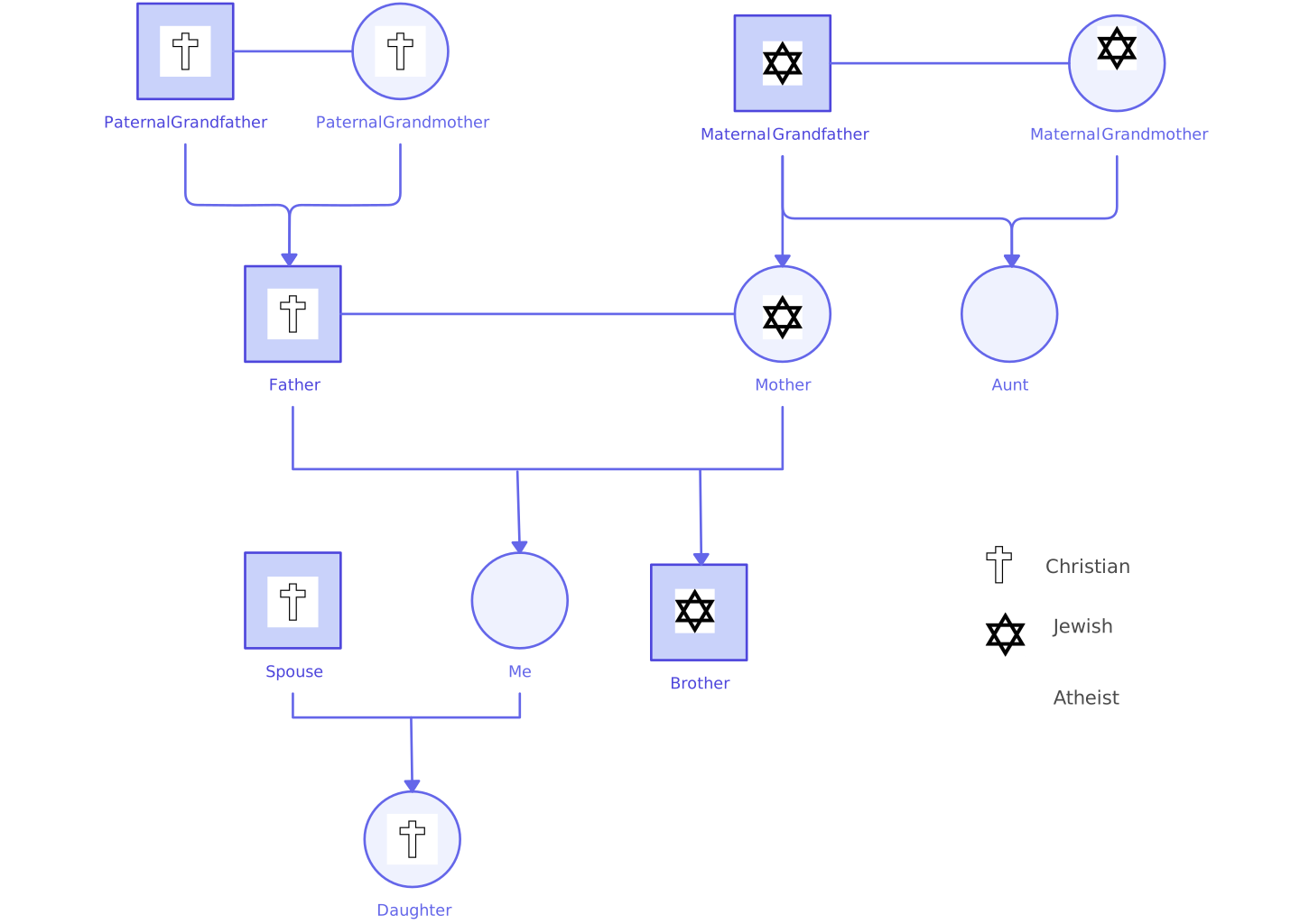
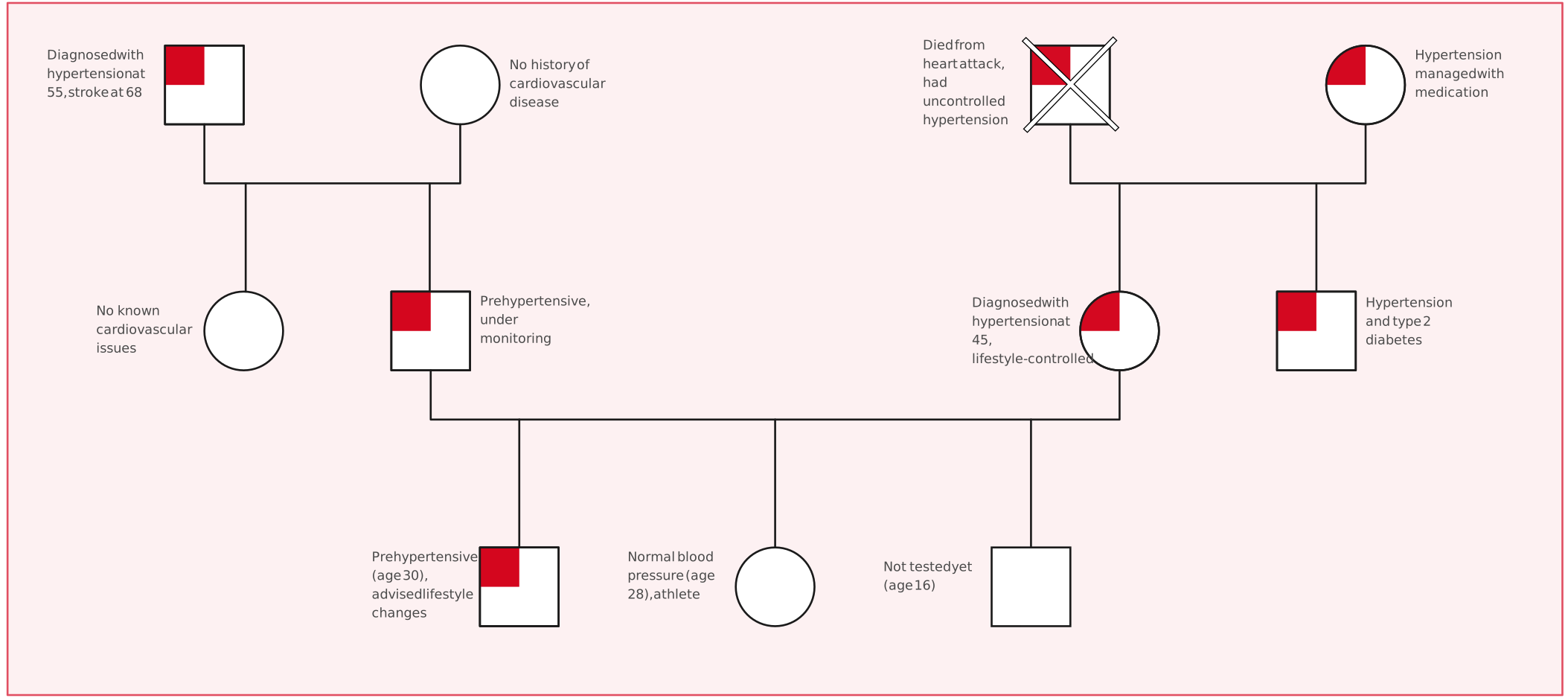
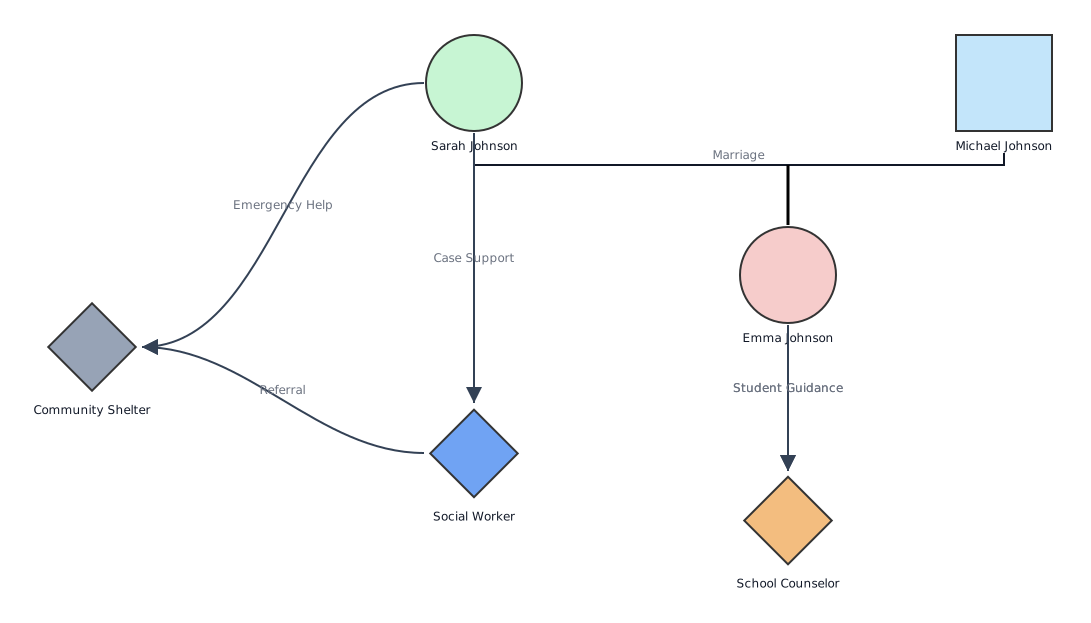
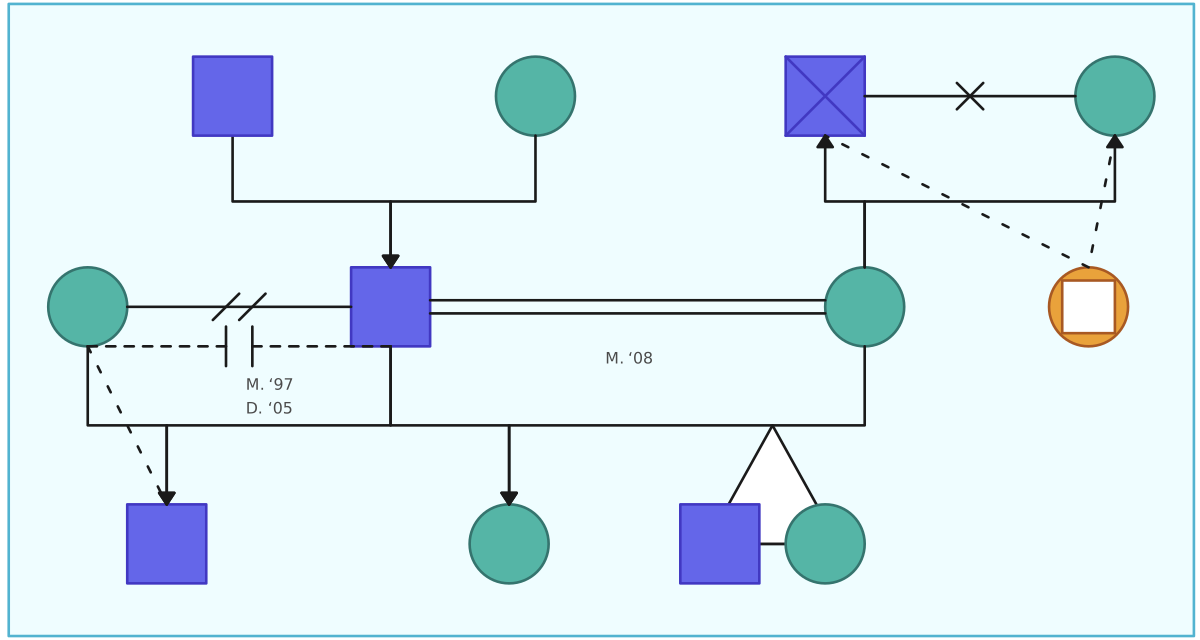
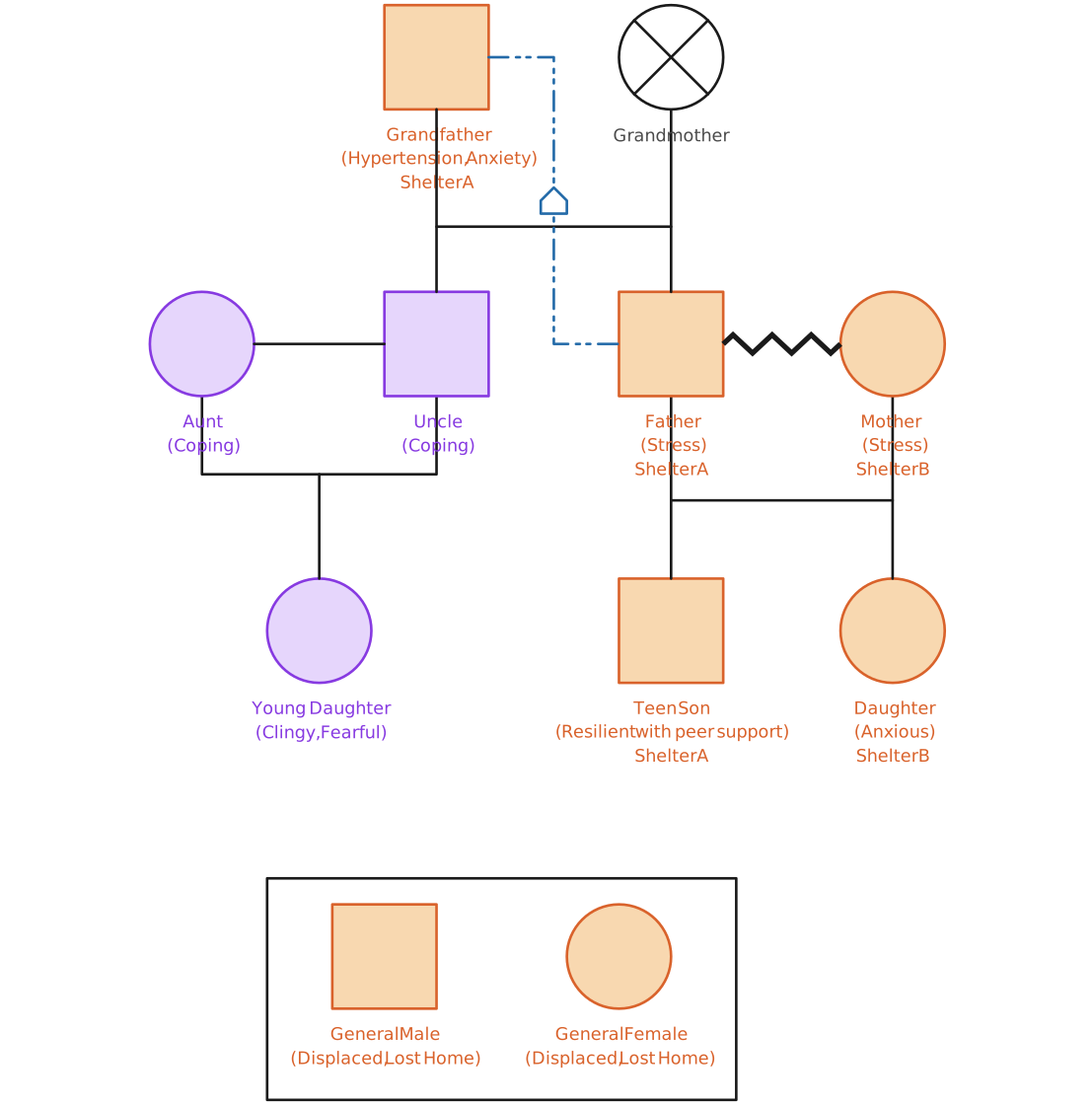
Use the multi-faith and displacement examples to practice spotting inferred family dynamics, the medical example to check for unsupported conditions, the social work example to check support roles, and the relationship-types example to verify symbols. These are starting layouts, not validated AI outputs or evidence about any family. Use fictional or approved information when testing an AI workflow.


Related AI Genogram Guides
Use bounded prompt examples for different family-mapping contexts.
Follow a hands-on workflow from a sample note through generation, review, editing, and sharing.
Understand the text-to-genogram process and the limits to check in a generated draft.
Review common genogram symbols and relationship lines.
Compare workflows and use a review checklist before relying on a genogram.