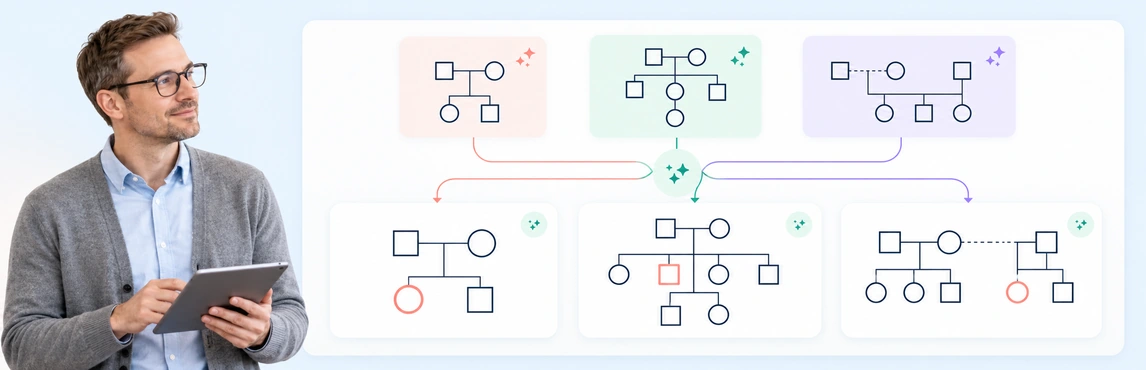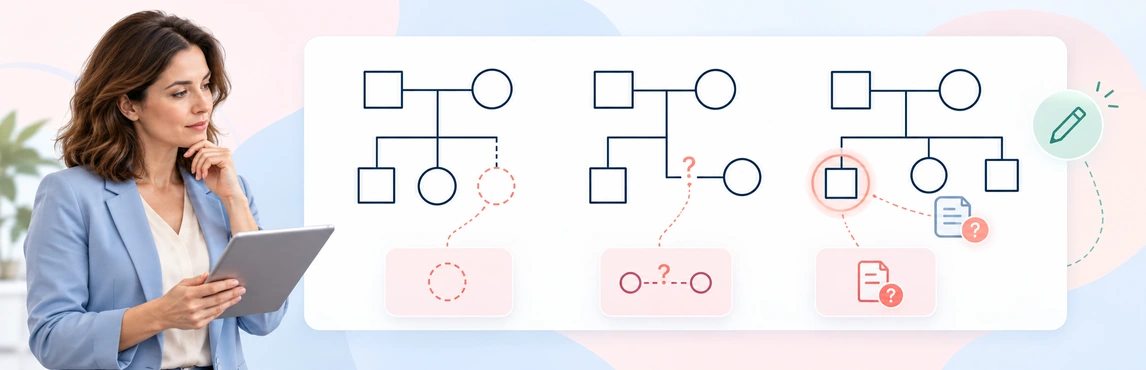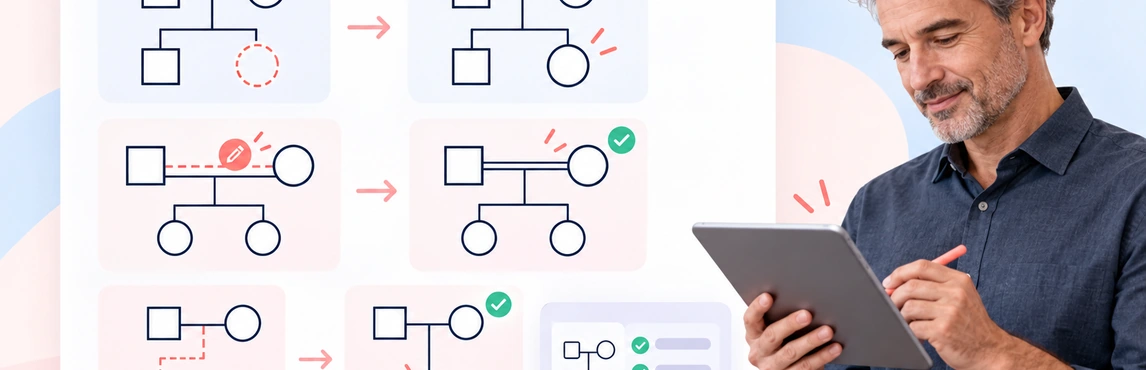
An AI-generated genogram is a draft to verify, not a record to accept at a glance. Review it against the notes used to create it, correct what is clearly wrong, and flag anything that needs confirmation. This guide focuses on that quality-control work after generation. For the creation steps, see how to create a genogram using AI; for errors to prevent earlier, see common AI genogram mistakes.
Use fictional or de-identified examples when practicing. When working with real family, clinical, or case information, follow the privacy, documentation, and review policies that apply to your role.
Start with a First-Pass Review
Before interpreting patterns, check whether the diagram represents the source notes faithfully. Keep the source beside the draft and review one person or connection at a time.
- People: Is everyone in scope represented once? Check labels, duplicates, and whether people with similar names have been kept distinct.
- Generations: Are parents, children, and grandparents placed in the right generation? Check that the layout has not made a connection look like a different family relationship.
- Family structure: Verify marriages, partnerships, separations, divorces, adoptions, foster relationships, and other stated family links against the notes.
- Events and dates: Check dates, ages, and major events only where the source provides them. Correct transcription errors and remove details that have no supporting source.
- Scope: Confirm the draft includes only the people and information needed for the stated purpose.
Do not treat a neat layout as evidence that the underlying relationships are correct. A clear diagram can still contain a mistaken link or an unsupported detail.
Audit Relationships One Connection at a Time
Trace each line from one person to another and ask what source information supports it. Check biological, legal, caregiving, and emotional connections separately; they describe different things and should not be substituted for one another.
For each connection, record whether it is confirmed, needs clarification, or not supported by the source. Correct a connection when the notes clearly establish the intended relationship. If the source is ambiguous, leave the relationship unresolved and note the question for follow-up rather than selecting the most plausible answer.
Emotional relationship lines need the same care. Include closeness, conflict, distance, or other dynamics only when they were explicitly reported or documented for the exercise. Do not infer motive, diagnosis, attachment style, or cause from family structure or from a visual pattern. The genogram relationship types guide explains how different connections are represented.
Correct a Wrong Parent-Child Connection
Use this fictional source note: “Mara is Leah’s mother. Jonah is Mara’s brother. Leah’s other parent is not identified.” Suppose an AI draft links Jonah to Leah as a parent and omits his sibling relationship with Mara. The draft has turned an uncle into a parent.
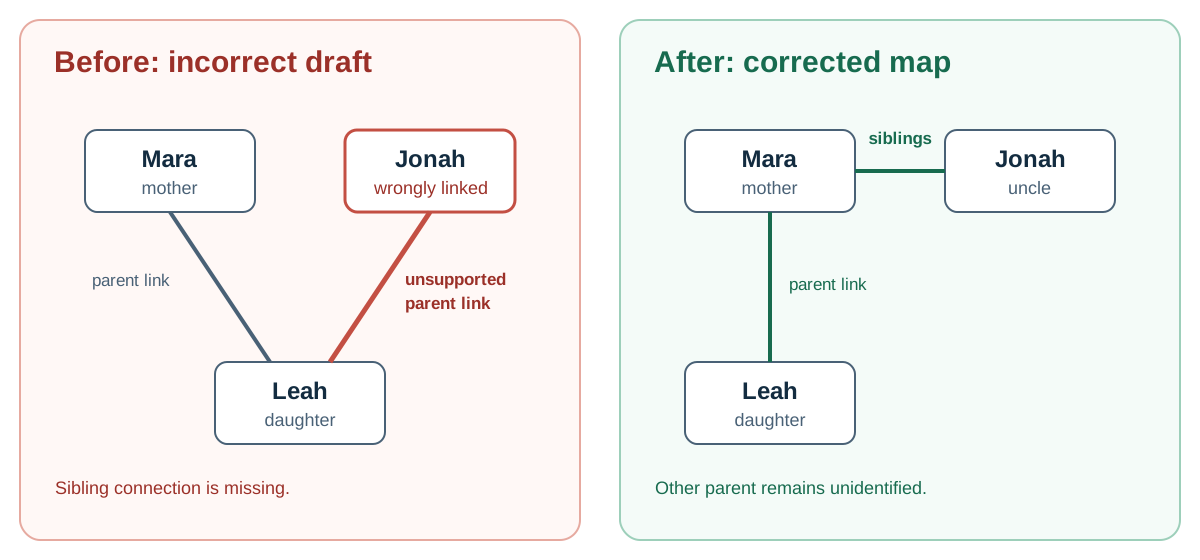
The illustration is a simplified, intentionally incorrect practice draft, not a screenshot of an AI output or the Creately editor. Apply the correction to an editable genogram as follows:
| Source fact | Error in the practice draft | Edit in Creately | Verify the result |
|---|---|---|---|
| Jonah is Mara’s brother. | Jonah has a parent-child connection to Leah; the Mara–Jonah sibling connection is missing. | Select the unsupported Jonah–Leah connection and remove it. Select Mara and Jonah, then choose the sibling relationship from the relationship library. | Jonah connects to Mara as her brother, and only Mara is shown as Leah’s named parent. |
| Leah’s other parent is not identified. | Jonah’s incorrect link implies he is that parent. | Leave the other-parent identity unresolved and add a follow-up note if your documentation practice requires one. | No second parent is assigned without a source. |
Check the edited lines against the note once more. If a relationship type or line style does not match your team’s notation, correct it using the genogram symbols reference before treating the draft as reviewed.
Copy this small correction log for your own review record:
- Item: [person or connection]
- Source fact: [exact fact and note or approved record]
- Detected issue: [what the AI showed]
- Correction: [what you changed and how you checked it]
- Reviewer/date: [name and date]
- Unresolved details: [question and owner, or none]
Check Symbols and Visual Meaning
Review the legend and compare each symbol or line style with the meaning assigned to it. Confirm that people, partnerships, parent-child links, and any health or emotional markers use the intended notation consistently. Correct inconsistent symbols, misplaced markers, or connections that cross in a way that makes the diagram hard to follow.
If a symbol’s meaning is not clear to the intended reader, add or revise the legend using the conventions required for your context. Do not assume all genogram traditions use exactly the same notation; consult the genogram symbols reference and state any project-specific conventions.
Review Notes, Fields, and Sensitive Details
Check each note and data field against its source. Confirm that a detail belongs to the person or relationship it is attached to, and distinguish a reported fact from an observation or a question for follow-up. Correct misplaced information, duplicated notes, and wording that presents an uncertain detail as established fact.
Keep the diagram limited to information relevant to its purpose. Remove sensitive details that are unnecessary or not authorized for this use. If the source contains a gap, mark it as unknown or pending clarification; do not let the AI fill it with a guess. For medical, clinical, or child-welfare contexts, use the recordkeeping and supervision process required by your organization.
For a separate check of missing fields and source coverage, see genogram data completeness. For decisions about entering sensitive information into an AI tool, see Is It Safe to Create Genograms with AI?.
Use Templates to Practice Different Reviews
These editable examples can help you practice checking generation order, family structure, relationship notation, health details, and contextual information. Replace the sample content in an editable copy with a fictional note before reviewing it; the templates alone are not evidence of what an AI draft should contain.
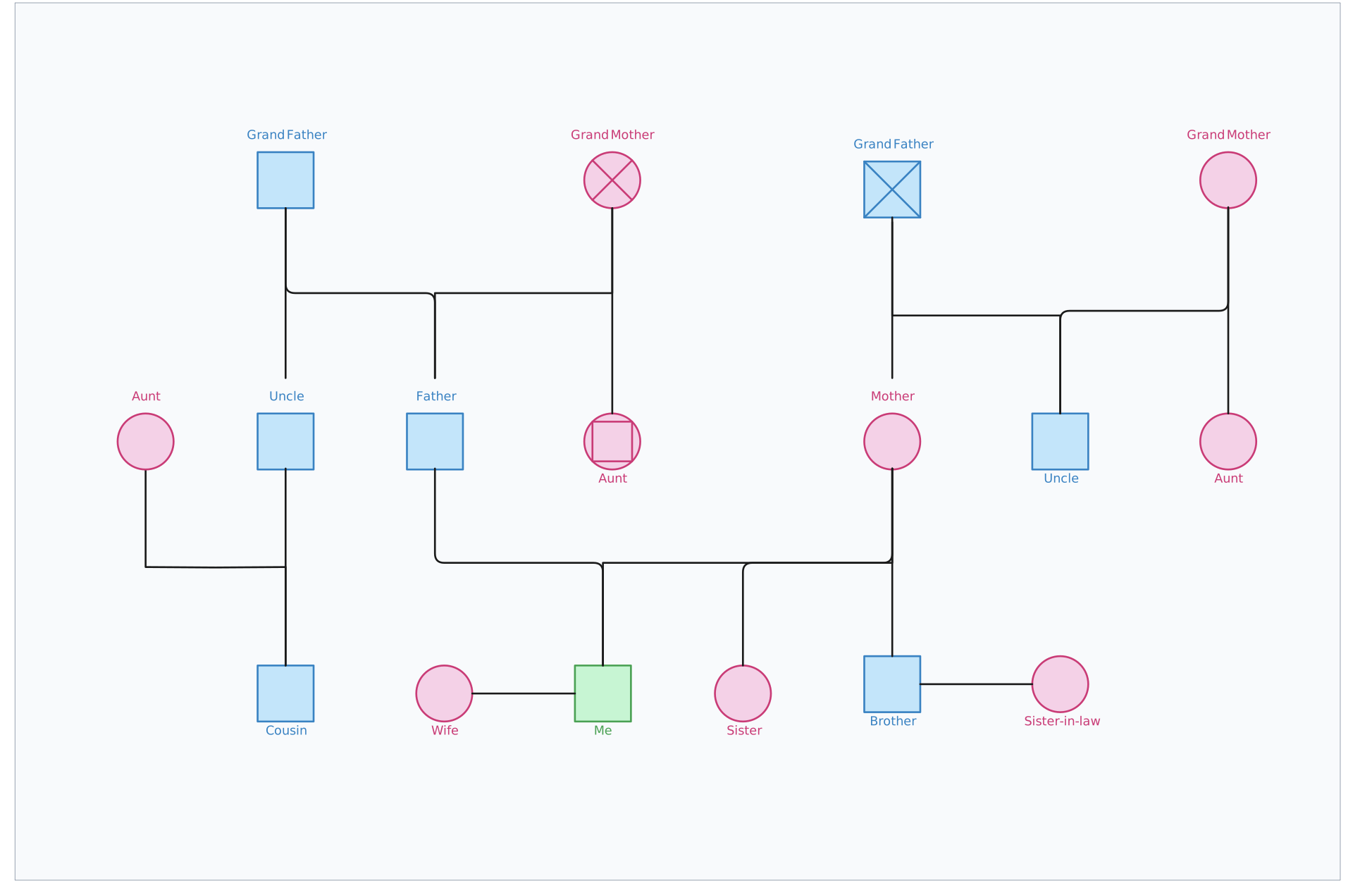


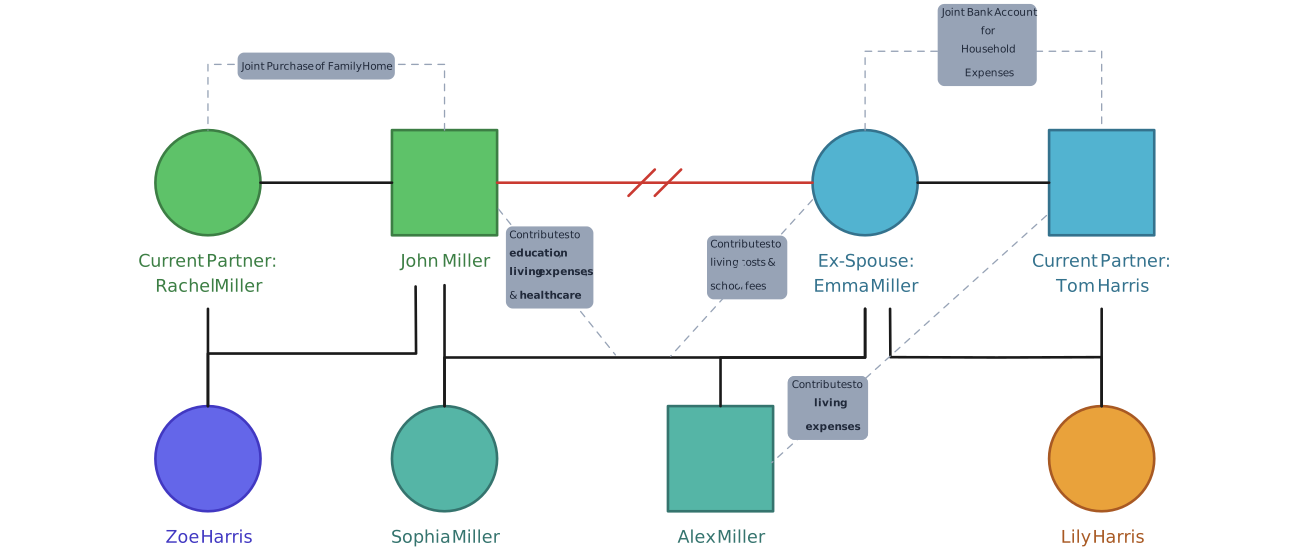
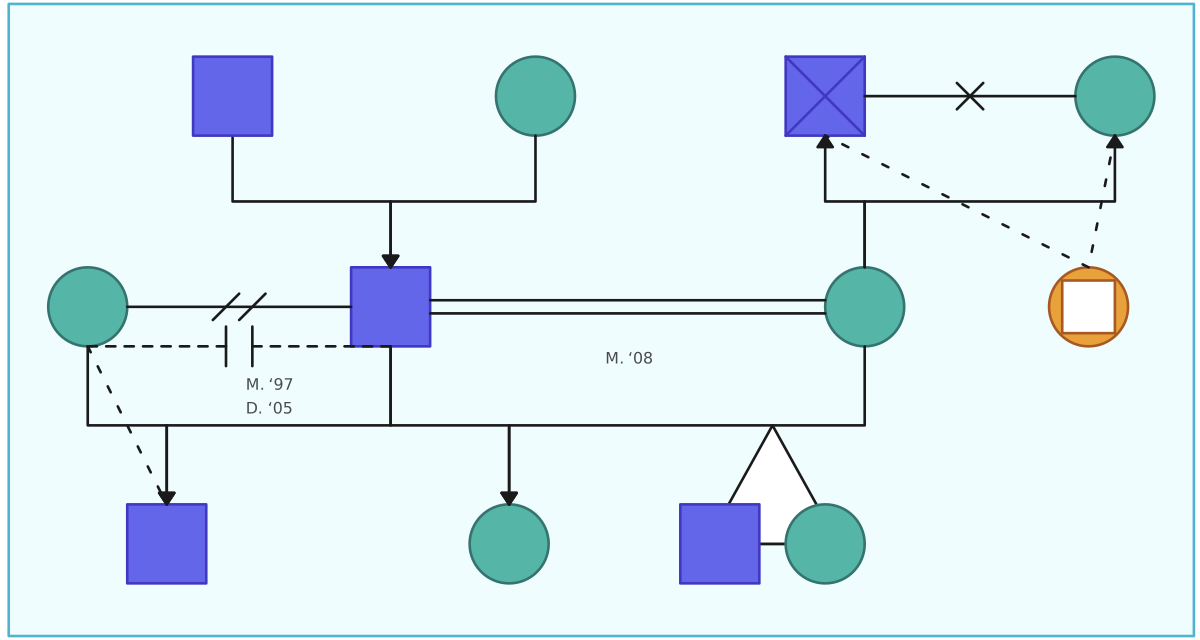
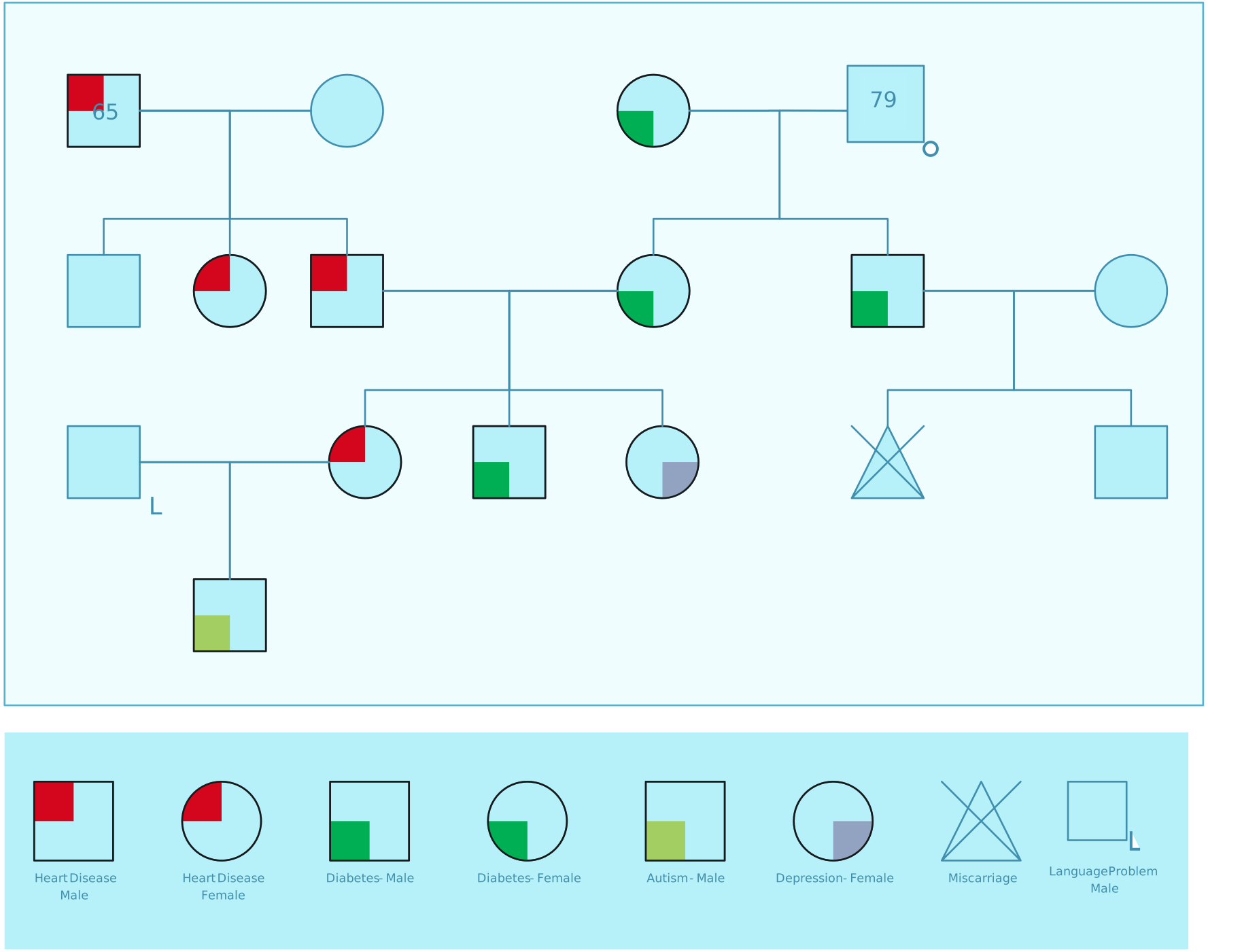
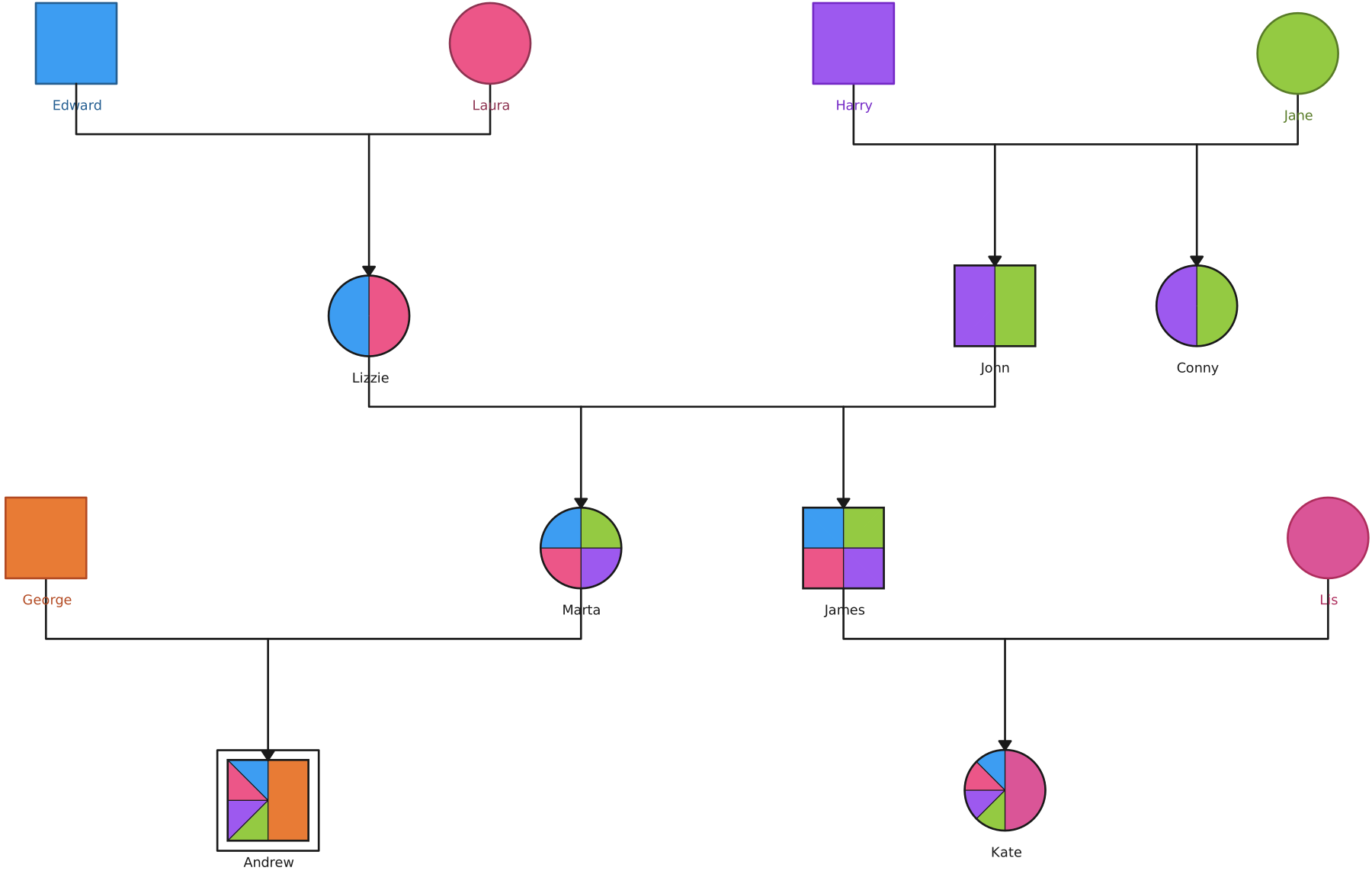
Try one source note and expected finding for each layout:
- Three-Generation Genogram: “Asha is Lina’s parent, and Lina is Bo’s parent.” Check that Bo appears one generation below Lina and two below Asha.
- Blended-Family Genogram: “Mia is Elle’s child. Kai later became Mia’s step-parent.” Check that the draft does not turn the step-parent relationship into biological parentage.
- Relationship Types Genogram: “Rae reports being close to Pat; Rae’s relationship with Kim is not described.” Check that only the reported connection has an emotional label.
- Medical Genogram: “Sam has a confirmed asthma diagnosis; no condition is reported for Jules.” Check that the condition appears on Sam alone.
- Cultural Genogram Example: “Ava reports a Filipino background; Ben’s background is not recorded.” Check that the draft leaves Ben’s background unknown rather than inferring it from Ava’s.
Handle Uncertainty Transparently
Keep uncertainty visible throughout review. Use labels such as “not reported,” “unknown,” or “confirm with source” when that matches your documentation standards. Separate direct information from interpretation, and note who needs to confirm an unresolved detail and when.
If two sources conflict, preserve the discrepancy for review rather than silently choosing one. Do not let the AI-generated layout imply certainty where the information remains incomplete. A supervisor or qualified reviewer should resolve questions that fall outside your role.
Final Review Before Export or Sharing
Before exporting or sharing the reviewed diagram, use this checklist:
- Every person and connection in scope has been compared with the source.
- Unclear, conflicting, or unsupported details are marked for follow-up or removed.
- Symbols and the legend use consistent, understood conventions.
- Notes and fields are attached to the right people and relationships.
- Sensitive information is limited to what is necessary and permitted.
- The diagram is readable at the intended size, and names or labels are not obscured.
- The recipient, access settings, and export destination are appropriate under your organization’s policy.
- The final version is identified clearly so readers can distinguish it from an unreviewed draft.
For a separate walkthrough of creating the draft, read How to Create a Genogram Using AI and AI Genogram Prompts and Examples. For documentation and report preparation, see How to Write a Genogram Assessment Report.
Related Genogram Review Resources
Compare common family and emotional connections and check how they are represented.
Organize documented information, observations, evidence limits, and follow-up questions in a report.
Understand how a text description can become a draft diagram before you begin review.