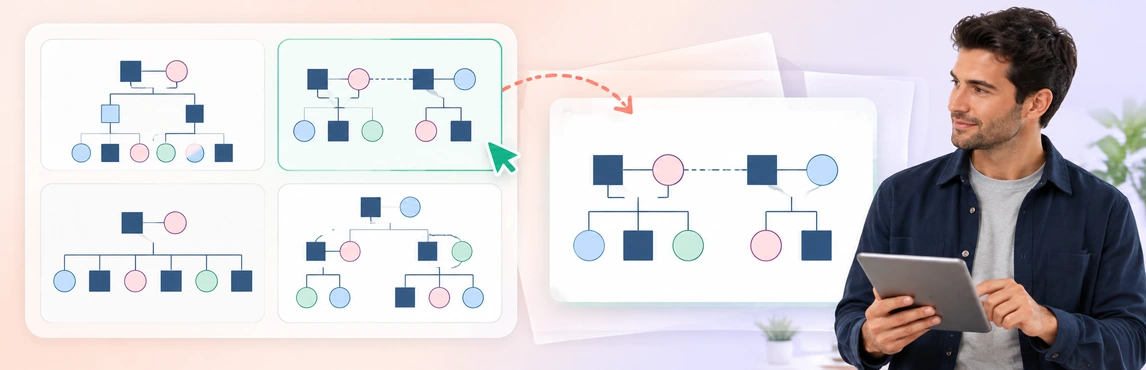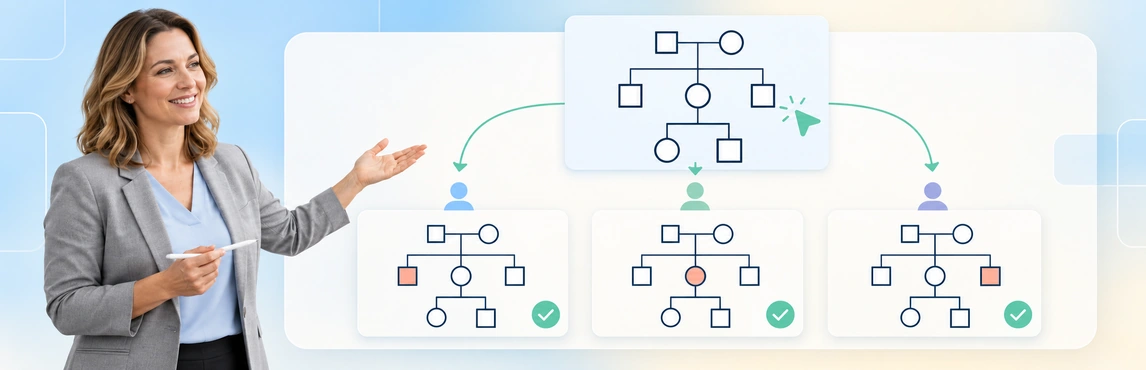
Restricting access to sensitive genogram information requires two decisions: who may use the map, and which details their task requires. Apply the available permissions, keep separately restricted notes in an appropriate record system, and test the actual recipient experience with fictional information. A hidden field, read-only role or report label should not be treated as proof that every sensitive detail is protected.
This guide focuses on access decisions and verification before identifiable case information is introduced. For the wider workflow, see genograms for child-welfare case management; for invitations and review collaboration, use sharing genograms with supervisors and legal teams.
Identify What Needs Protection Before Adding It
A genogram can disclose more than names. A relationship label, household combination or dated event can identify people or reveal sensitive information about relatives who are not the main subject of the map.
The ICO’s data-minimisation guidance explains that information should be sufficient for its purpose, relevant to that purpose and limited to what is necessary. Applied to a family map, this supports checking why each detail is needed while retaining enough context to avoid a misleading account. This is a UK regulatory reference, not a universal rule for every jurisdiction. Source: ICO, Data minimisation.
| Information | Question before inclusion |
|---|---|
| Names and identifiers | Is the identifier needed for this task and approved audience? |
| Care and legal-status details | Which record supports the label, and who needs to see it? |
| Health or hereditary information | Is this information necessary for the review purpose? |
| Relationship observations | Whose account is represented, and what remains unconfirmed? |
| Cultural and family context | Is the description relevant, attributed and appropriate to include? |
| Notes about another person | Does the reader need the detail or only a reference to an authorized record? |
Use the 3 Generations Family Genogram to practice an information inventory with fictional details. Check each generation: information about a grandparent or sibling should have a purpose just as information about the child does.


Define Access by Task, Not Job Title Alone
List what each reader must do and what information that requires. A supervisor, administrator and external reviewer may have different tasks even when they work on the same case.
NIST defines least privilege as limiting access privileges to what is needed for the assigned task. For a genogram workflow, that means considering viewing, editing and permission management separately rather than granting broad access for convenience. Source: NIST, Least privilege.
The table below is an example planning aid, not a description of automatic product rules:
| Task | Information needed | Access to confirm |
|---|---|---|
| Correct a care relationship | The relevant people, sources and current arrangement | Editing where authorized |
| Review an uncertain account | The attributed label and necessary context | Appropriate review access and supported feedback method |
| Prepare an external attachment | The approved subset and version | Access to the reviewed artifact |
| Maintain permissions | The approved reader list and responsibilities | Permission-management authority |
Use the Foster-to-Adopt System Genogram for a fictional access exercise. One reviewer may need to check current care, while another needs a sourced adoption-status note; neither task automatically requires every internal observation.

Treat Private Notes as an Access Requirement
A sticky note marked “private” is still content. Its wording, placement or color does not establish who can read it, and the same applies to a comment or person-level note.
Before using a note for material requiring separate restrictions, confirm:
- Which roles can see the note and its surrounding context.
- Whether the information appears in any generated report or export.
- Whether comments or linked records expose the same detail elsewhere.
- Which approved system should hold information the diagram cannot restrict appropriately.
If the required separation is not confirmed, keep the detail in the authorized record system and add only a permitted reference where useful. For example, a fictional map might say “relationship account requires review; see authorized case note” rather than copying the full narrative into a broadly accessible annotation.
The Counseling Genogram is useful for checking sensitive emotional-relationship labels and supporting notes. Keep observations attributed and uncertain information explicit; the sensitive documentation guide covers wording and source references in more detail.

Distinguish Role Controls, Restricted Fields and Display Settings
Creately Clinical Maps supports Viewer, Editor, Moderator and Owner roles per diagram. Viewer access prevents editing; it does not by itself authorize disclosure or guarantee that a recipient cannot copy what they see.
In an authorized workspace, restricted-pack fields are unavailable to viewers without the required authorization. Ask the workspace owner or administrator to confirm and configure that authorization for the relevant field pack, then test with a permitted and an unpermitted account. This is different from switching off a field pack: deactivation hides fields without deleting their data. Do not infer arbitrary per-person, per-relationship or per-note permissions from those capabilities.
| Mechanism | Supported purpose | What must not be assumed |
|---|---|---|
| Diagram role | Controls available actions for a role | Every visible detail is appropriate for that reader |
| Restricted-pack authorization | Limits access to restricted fields for unauthorized viewers | Granular permissions for every canvas element |
| Field-pack activation or view selection | Changes the information shown while working | Secure deletion or verified redaction |
| A selected-area export | Narrows the chosen output area | All sensitive information is absent from the resulting artifact |
| A named report type | Organizes a generated output | Automatic removal of every identifier or internal observation |
For example, a fictional map contains a general family structure and a medical field pack. The owner confirms that the medical pack is restricted and assigns its required authorization only to the clinical reviewer. In a test, that reviewer should see the permitted fields; a second reader without authorization should not. Export a copy through each permitted route and inspect the resulting file for medical details. If the workspace cannot enforce the intended separation, keep those details in the approved separate record and share only a reviewed artifact. Do not represent a hidden canvas view as an access rule.
Use the Cultural Genogram Example to test what a permitted reader actually sees. With fictional labels, compare the intended scope with the visible content and available output; changing the display is only one part of that check.

Test Access Before Entering Identifiable Case Information
Restricting access is only useful when the observed result matches the intended rule. Run an approved test with fictional information and the help of the workspace owner or authorized administrator; do not use real client details to discover how permissions behave.
- Identify the sensitive content and purpose. Record which details the workflow needs.
- Define readers and actions. Specify who should view, edit or manage access.
- Confirm the available controls. Check the actual roles and restricted-field behavior required by the task.
- Test both allowed and denied access. Use approved test identities or an administrator-supported process without sharing credentials.
- Record the result and review point. Note any gap that prevents the intended workflow from being used.
| Test | Expected rule | Observed result to record | Owner and decision |
|---|---|---|---|
| Intended reader opens the map | Approved information and actions are available | Role, date, visible content and available actions | [Owner]; go only if matched |
| Uninvited test identity follows the same path | Access is denied where required | Denied access or unexpected visibility | [Owner]; no-go if exposed |
| Reader checks notes and restricted fields | Visibility matches confirmed authorization | Fields and notes actually visible | [Owner]; no-go if exposed |
| Authorized user creates a permitted output | Only approved material appears | File version and all included sections | [Owner]; no-go if exposed |
| Responsible owner changes access | Later access matches the new rule | Retest result and copies still held | [Owner]; record unresolved gap |
If the test exposes more information than intended, stop that workflow and have the responsible owner resolve the gap. A separately reviewed artifact or another approved system may be necessary when the available controls do not support the required separation.
The Relationship Types Genogram provides a practice map with different connection labels. Add fictional source notes and test the whole information path, including what a reader can see around a connector, rather than checking only that editing is disabled.

Review Reports and Copies as Separate Artifacts
A report can contain profiles, relationship tables and observations beyond the visible map. Review the entire output before release, including a report labeled for teaching or a particular professional audience.
- Check direct identifiers and combinations that could identify a family.
- Review notes, profiles and generated observations for the intended recipient.
- Keep needed source context and uncertainty intact.
- Use the approved redaction process when information must be removed.
- Record where copies are stored and how superseded versions are handled.
Basic drawing, text-to-genogram and image export are available in Creately Clinical Maps on every plan, with a lifetime allowance for assisted generation. Advanced field packs, views and reports require Enterprise, a Genogram grant and protected-data clearance. Product access does not replace authorization to process or disclose particular case information.
AI observations are heuristic, not diagnoses or validated risk scores. Neither a teaching-report label nor replacing names establishes anonymity; use fictional material for training unless another approach has been approved. See the genogram export guide for output and packet checks.
Recheck Restrictions When Responsibilities Change
An access decision needs an owner and a review point. Revisit it when staff leave a case, responsibilities change, an external review ends or new categories of information are added.
| Event | Follow-up |
|---|---|
| Worker transfers off the case | Review whether continued access is authorized |
| New reviewer joins | Confirm task, necessary information and appropriate permissions |
| Sensitive detail is added | Check whether the existing audience remains suitable |
| Review concludes | Adjust access through the approved process and retain required records |
| Unexpected disclosure is found | Follow the organization’s incident-response process |
Changing permissions does not recall downloaded files or screenshots. Record the result in the required system rather than assuming comments or version history provide a complete access audit. Have the responsible security or privacy team confirm any regulatory requirements and product assurances needed for your organization.
Practice restricting access with one of the fictional examples above or browse the genogram template collection. Explore social-work genogram software to assess the workflow against your organization’s requirements; templates themselves do not apply security policies.