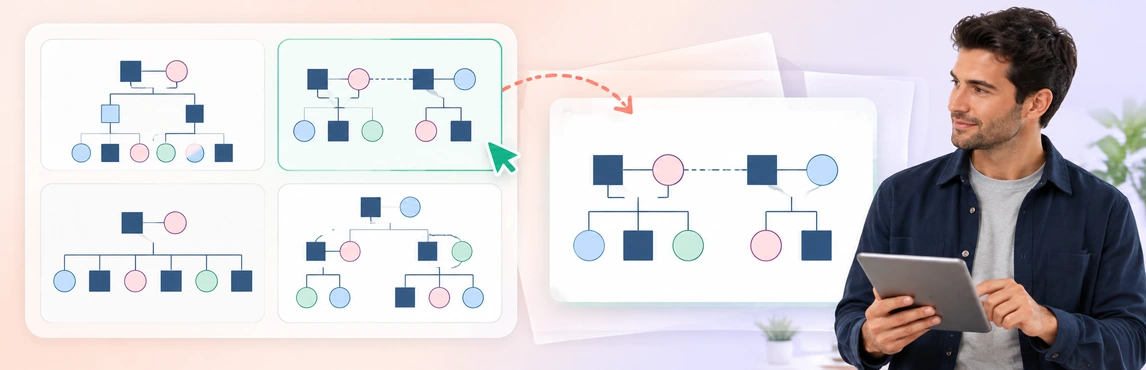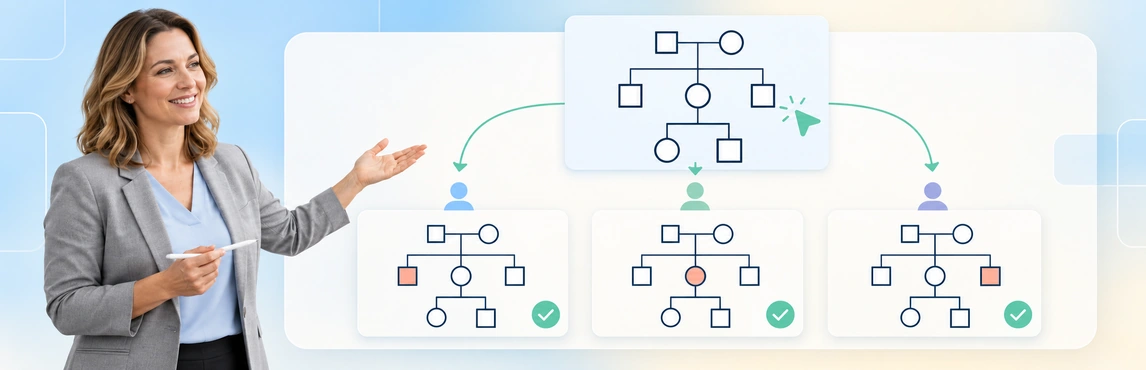
Exporting genograms starts with the recipient’s needs: confirm the required format, review the information being shared and check the downloaded file at its intended size. Include a readable legend, version date and enough source context for the reader to understand the map. A PDF or generated report still needs the review required for its case-file, supervision or court use.
This guide covers the handoff from a working diagram to an exported artifact. Use the child-welfare case-management guide for the wider workflow and the guide to explaining family relationships in case reviews and court reports for the accompanying explanation.
Confirm the Audience and Packet Requirements First
An internal supervision copy, a case-file attachment and a court submission can require different information. Decide who will receive the export before choosing what to include.
| Destination | Confirm before exporting | Check in the final packet |
|---|---|---|
| Case file | Required format, identifier and storage process | The map matches the dated record it describes |
| Supervision or case review | Review question and authorized participants | Sources, unknowns and discussion points remain distinguishable |
| Family-facing discussion | Purpose, suitable information and explanation | Labels and legend are understandable to the intended reader |
| Court submission | Applicable directions, format and required approval | The attachment agrees with the reviewed report and permitted disclosure |
Victoria’s Child Protection Manual says court reports should provide the information necessary for a decision, including information beyond that supporting the department’s recommendation. Applied to a genogram attachment, this is a reason to check that simplifying the display has not removed material context; the guidance is jurisdiction-specific. Source: Victoria Child Protection Manual, Preparing the court report.
Use the Family Genogram Template to practice defining a review scope. Add fictional identifiers, a legend and a version date, then decide what a reader needs to understand without opening the workspace.


Choose Between an Image and a Report
Choose a format for the receiving process rather than assuming one export works for every use. A diagram image and a generated report are different outputs: a report may contain profiles, relationship details and observations beyond the visible map.
| Output | Useful when | Check before handoff |
|---|---|---|
| PNG or JPEG image | Inserting the diagram into an existing document or presentation | Text sharpness, cropping and size after insertion |
| SVG image | A supported workflow needs scalable artwork | The receiving application renders symbols, labels and fonts correctly |
| PDF report | A fixed-layout report is required and available | Every page, the embedded diagram and all generated sections |
| DOCX report | An authorized reviewer needs to edit the report text | Tracked changes, comments, layout and the final approved copy |
| Workspace link | Authorized colleagues need access to the working map | Access permissions and whether a dated file is still required |
Creately Clinical Maps includes Basic drawing and image export on every plan. Advanced reports require Enterprise, a Genogram grant and protected-data clearance; a Basic image-export capability should not be presented as access to every report format.
Use the Relationship Types Genogram to compare an image inserted into a report with its original layout. Check that dashed, solid and other meaningful line differences remain visible, and keep the symbol legend available to the reader.

Make the Export Readable Outside the Workspace
A map that is comfortable to pan and zoom can become unreadable on a report page. Open the exported file at the expected display or print size, then check the same file after it has been inserted into the packet.
- Read the smallest identifier, date and note without excessive magnification.
- Follow each important connector from one person to the other.
- Check that no symbol, label or legend was clipped at a boundary.
- Confirm that page breaks do not separate a relationship from its explanation.
- Test grayscale where a recipient may print without color.
- Use an overview and clearly labeled detail views if one page is too crowded.
W3C’s explanation of WCAG success criterion 1.4.1 states that color must not be the only visual means of conveying information. For a genogram, use text, shapes or another clear distinction alongside meaningful colors; this check alone does not establish full accessibility compliance. Source: W3C, Understanding Use of Color.
The Multigenerational Cultural Genogram is useful for testing a denser layout and color labels. Use fictional information, explain the chosen conventions and check that cultural descriptions remain readable and attributed after export.

Review Disclosure Across the Entire Output
Check the information in the exported artifact, not just the area visible while editing. A generated report can include additional sections, and a document assembled around an image can contain comments, earlier text or other details that need review.
| Item to inspect | Question for the reviewer |
|---|---|
| Diagram and legend | Is every included detail necessary and authorized for this audience? |
| Profiles and relationship tables | Do they expose information beyond the intended diagram scope? |
| Generated observations | Are the statements supported, attributed and appropriate to include? |
| Notes and document comments | Has internal discussion been handled through the approved process? |
| Filename and document properties | Do they reveal identifiers or details that should not be shared? |
| Selected-area export | Is restricted content absent from the actual output, and is context still sufficient? |
Creately Clinical Maps supports exporting a selected area or group of people. Treat that as a scope choice, not a promise of secure redaction; use the organization’s approved redaction and verification process when information must be removed. Read-only sharing controls editing, not what an authorized viewer can see.
The Counseling Genogram offers a practice example for checking emotional-relationship labels and notes. Review whose account each label represents and whether the recipient needs it, following the sensitive genogram documentation guide for attribution and uncertainty.

Export a Reviewed Copy in Creately Clinical Maps
Before exporting genograms, check the working map against its permitted sources. Creately Clinical Maps supports clinical notation and 60+ relationship types, but neither the symbol library nor an AI-generated draft verifies the case information.
- Confirm the recipient and format. Identify the purpose, required output and review owner.
- Review the map. Check identities, connections, source notes, dates, uncertainty and the legend.
- Choose the output. Use the relevant image-export option, or the report workflow available in the authorized workspace.
- Inspect the downloaded file. Open it outside the app and review the diagram and all additional pages or sections.
- Record the version and obtain the required review. Store and share the approved artifact through the agency process.
For an image, select the people or area needed for the review, use the workspace’s export control to choose an available image format, then open the downloaded file and inspect its boundaries, labels and legend. Selection limits the area exported; it is not redaction. In an authorized Advanced workspace, open Export → Generate report, choose Clinical Case File, select PDF or DOCX and inspect every generated section before including the report in a packet. Confirm the controls and available formats in your current workspace, since access and interface options can vary.
If the map began with text-to-genogram, check every generated person, relationship and inferred detail before export. Assisted generation has a lifetime allowance, and AI pattern observations are heuristic rather than diagnoses or validated risk scores. Legal-estate fields and report labels do not establish custody, legal findings or court acceptance.
Use the Genogram for a Child Custody Case as a fictional practice layout for this final review. Its name describes an example context, not an approved court form; source any legal-status labels and verify the intended submission requirements independently.

Assemble and Track the Review Packet
Keep the diagram identifiable after it leaves the workspace. A simple cover note or the receiving report can provide context without forcing every detail onto the map.
For a fictional supervision exercise, the packet might contain:
| Component | Example content |
|---|---|
| Purpose | Review current caregivers and unresolved sibling-contact information |
| Version | Fictional case F-204, reviewed 12 October, version 02 |
| Diagram | The selected map with a readable legend and date |
| Source context | References to the permitted notes used, with unknowns identified |
| Change note | Current caregiver corrected; contact frequency remains unconfirmed |
| Review record | Reviewer and status recorded under the agency’s process |
Copy and adapt this fictional cover note in the approved record:
Review copy: F-204, version 02, reviewed 12 October. Purpose: current caregivers and unresolved sibling contact. Sources: permitted case notes listed in the agency record; contact frequency remains unconfirmed. Legend: attached to the diagram. Reviewer/status: [name], [pending/approved], [date]. Supersedes: version 01; handle earlier copies under the agency’s records process.
Use the identifier and naming convention your organization approves. Where detail views are necessary, label each one and show how it relates to the overview so a reader does not mistake a partial view for the whole family.
If new information arrives, update the source map, review it and create a new export. Record what changed and which copy it supersedes; previously downloaded files do not change automatically. Follow the long-running genogram maintenance guide for managing updates alongside the case record.
Check the Final File Before Sending
Exporting genograms is complete only when the intended recipient can interpret the correct reviewed copy. For a court submission, the responsible practitioner should confirm the applicable requirements and approval process; no universal file format or notation guarantees acceptance.
Run a final check:
- Correct recipient, purpose and disclosure scope.
- Correct map version, source context and current-status date.
- Readable labels, connectors and legend in the assembled packet.
- Consistent identifiers between the map and accompanying report.
- Reviewed observations, profiles, comments and other included material.
- Required approval, storage location and transmission method confirmed.
Practice with one of the five examples above or browse the genogram template collection. Explore social-work genogram software to test the export workflow with fictional information before using your organization’s approved case-documentation process.