HR teams use org charts for workforce planning by connecting the current organization, the future structure, and the hiring plan in one visual model. The chart shows which roles exist, which positions are open or proposed, where each hire belongs, who approves it, and how the change affects reporting lines and team capacity across the same people-and-position model.
This is different from using an org chart as a directory. The goal is to carry context from workforce planning into recruiting so that every open role remains tied to an approved organizational need.
This workflow begins after HR and business leaders have agreed on the future organization. If you are still defining the current state, modeling scenarios, or forecasting capabilities and headcount, start with the workforce planning org chart guide. Use this guide when the next decision is which roles to approve, sequence, and hand to Recruiting.
What to Include in a Hiring-Plan Org Chart
Before recruiting starts, the org chart should show more than job titles and reporting lines. Record approval, ownership, timing, and recruiting context in appropriate fields, using custom fields where needed while keeping approval decisions and recruiting activity in their designated systems.
Include the following information for each position:
| Field | What it should show |
| Position ID | A stable identifier for the position, even when the employee or candidate changes |
| Requisition ID | The corresponding ATS or recruiting-system record once the requisition is created |
| Role title and department | Where the position belongs in the organization |
| Reporting line | The manager or position to which the role reports |
| Position status | Whether the position is filled, vacant, planned, redesigned, or removed |
| Approval status | Whether the request is in draft, under review, approved, paused, or rejected |
| Recruiting status | Whether recruiting has not started, the requisition has been requested, the role is open, interviews are underway, an offer has been made, or the position has been filled |
| Workforce action | Whether it is a new, replacement, or redesigned position |
| Hiring manager | The person responsible for defining the requirements and making the hiring decision |
| Recruiter | The recruiter or recruiting team responsible for filling the position |
| Priority | The relative urgency or business importance of the hire |
| Target start date | When the new hire is expected to begin |
| Headcount and budget approval | Whether Finance and the relevant business leaders have approved the position |
| Location and employment type | The work location and whether the role is permanent, temporary, contract, full-time, or part-time |
| Capability requirement | The skill, expertise, or organizational capability the position is intended to provide |
| Dependencies | Other hires, approvals, restructuring decisions, or projects that affect when the role should be filled |
Keep position status, approval status, and recruiting status separate. A position can be approved and open at the same time, so combining these into one field can make the plan difficult to interpret.
Avoid using role owner without clarification. Use the specific term that reflects the responsibility:
- Hiring manager for the person making the hiring decision
- Business owner for the leader accountable for the business need
- Position owner when someone is responsible for maintaining the position record
A position ID should remain consistent across the org chart and workforce-planning records. Add the requisition ID when Recruiting opens the role so teams can move between the organizational context and the recruiting workflow.
How HR Teams Turn an Approved Workforce Plan Into a Hiring Plan
Use one shared workflow to move from the current organizational baseline to approved requisitions.
1. Confirm the current organization
Reconcile the organizational model with the latest HRIS data before using it for hiring decisions.
Check that you have:
- Verified reporting lines and position assignments
- Distinguished filled positions from genuine vacancies
- Identified approved positions that have not yet been opened for recruitment
- Corrected missing positions, duplicate records, and outdated information
- Recorded the source and date of the imported data This gives stakeholders a reliable baseline against which to review proposed changes.
2. Model the future structure
Create a separate future-state scenario rather than editing the current organizational model. Add proposed teams, planned positions, reporting-line changes, internal moves, redesigned roles, and positions expected to close.
Model positions independently of named employees. This allows HR to show where planned positions will fit before candidates are selected.
Keep the current and future states separate so stakeholders can compare proposed changes without altering the existing organizational record. In Creately Atlas, scenario changes retain original and proposed values, while reviewed CSV imports and department views help teams maintain a shared planning baseline.
3. Convert structural gaps into role requests
Compare the current and future structures to identify the positions and capabilities required to reach the planned state.
For each gap, determine whether it should be addressed through:
- External hiring
- Internal transfer or promotion
- Employee development
- Contractors or temporary workers
- Role or team redesign
- Automation or redistribution of work
When hiring is the appropriate response, record:
- Position ID
- Role title and department
- Business justification
- Required capability
- Proposed FTE or headcount
- Reporting line
- Hiring manager
- Location
- Employment type
- Target start date
- Estimated cost or budget owner
- Approval status
- Requisition ID once the role is approved and opened
This prevents every capability or structural gap from automatically becoming an external vacancy.
4. Qualify and sequence the openings
Not every approved position needs to be opened at the same time. Review each proposed opening using a consistent set of factors:
- Business impact
- Urgency
- Risk of leaving the position unfilled
- Dependencies on other hires or organizational changes
- Budget availability
- Internal talent availability
- External talent availability
- Recruiting capacity
Prioritize positions that unlock other planned hires or essential capabilities. However, also consider whether specialist, regulatory, customer-facing, or operational gaps create a more immediate risk.
Record the reason for each priority so the sequence can be reviewed when business needs, budgets, or talent availability change.
5. Align HR, Finance, Recruiting, and business leaders
Use the same organizational model during the review so every stakeholder evaluates each position within the same structural context.
| Stakeholder | Primary decision |
| Business leader | Confirms the position and underlying business need |
| HR or People team | Validates the structure, workforce strategy, and role design |
| Finance | Confirms headcount and budget |
| Recruiting | Assesses talent availability, hiring sequence, and realistic delivery timeline |
| Hiring manager | Finalizes the requirements and owns the hiring decision |
Resolve questions about position scope, funding, timing, ownership, and reporting lines before opening the requisition. Record approvals and decisions against the relevant position.
6. Track decisions back to the structure
When a position is approved, paused, redesigned, removed, or filled, update the organizational model so it continues to reflect the approved hiring plan.
Use a stable position ID to connect the planned position to its requisition. The next section explains how to maintain this connection between the organizational model and the ATS.
Views for Reviewing the Hiring Plan
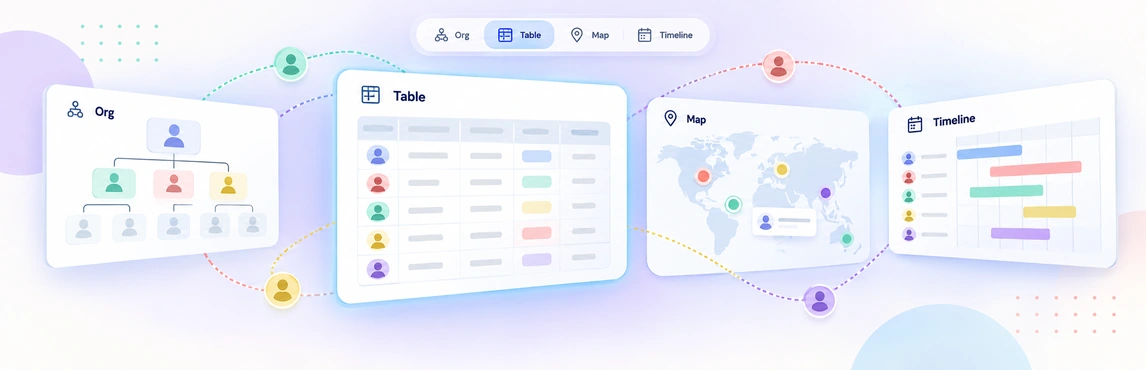
A single enterprise-wide chart can become too crowded for detailed hiring discussions. Create focused views so each stakeholder can review the information relevant to their decisions.
Enterprise view
Use the enterprise view to understand the overall effect of the approved hiring plan.
It should help leadership and HR review:
- Total planned headcount
- Current and future organizational structure
- Approved and proposed positions
- Investment across departments
- Major capability gaps
- Cross-functional dependencies
- Areas undergoing significant growth or redesign
The enterprise view is best for validating whether the hiring plan supports the broader workforce strategy.
Department view
Use department views to review hiring needs within a specific function, business unit, or location.
They should show:
- Filled, vacant, and planned positions
- Department reporting lines
- Approved and unapproved headcount
- Hiring priorities
- Capability gaps
- Dependencies between positions
- Expected changes to the department structure
This helps department leaders, HR, Finance, and Recruiting agree on which roles should move forward and in what order.
Manager view
Use manager views to examine the effect of planned hiring on an individual team.
They should help identify:
- The manager’s current and future direct reports
- Vacant and planned positions
- Changes to reporting relationships
- Span-of-control concerns
- Replacement versus newly created roles
- Roles that depend on a manager or leadership position being filled first
This view is useful for confirming that hiring requests will create a practical team structure rather than simply adding headcount.
Role or position view
Use the role or position view when stakeholders need to review a specific opening in detail.
It should bring together:
- Position and requisition IDs
- Role title and department
- Reporting line
- Position, approval, and recruiting statuses
- Hiring manager and recruiter
- Business justification
- Capability requirements
- Location and employment type
- Target start date
- Budget approval
- Dependencies and related decisions
This provides the organizational context behind the requisition while the ATS continues to manage candidates, interviews, and offers.
Use the views to compare organizational states
Instead of creating another standalone “org chart examples” section, use these views to compare three states:
- Current state: The organization as it operates today, including filled positions and confirmed vacancies
- Approved-hiring state: The current organization plus positions approved for recruitment
- Future state: The expected structure after approved hires, internal moves, redesigns, and other workforce changes are completed
These states can be presented as separate scenarios or filters within the relevant enterprise, department, or manager view. Clearly distinguish approved positions from proposed roles so readers do not interpret possible future headcount as authorized hiring.
How to Connect Planned Positions to Requisitions
Once a planned position is approved for recruitment, connect its workforce-planning record to the corresponding requisition in the applicant tracking system (ATS).
- Assign a stable position ID. Give the planned position a unique identifier that remains consistent if its title, status, or assigned employee changes.
- Confirm approval and budget. Verify that the position has received the required headcount and funding approvals.
- Create the requisition in the ATS. Recruiting should create the requisition and manage the hiring workflow in the ATS.
- Connect the records. Add the requisition ID or link to the corresponding position in the organizational model. Where supported, add the position ID to the ATS record.
- Update structural changes in the organizational model. Record changes to the position’s title, department, reporting relationship, priority, or planned start date in the org model.
- Keep recruiting activity in the ATS. Candidate applications, interviews, assessments, offers, and related recruiting activity should remain in the ATS.
- Reconcile both records. When the position changes, pauses, closes, or is filled, update the relevant records so the workforce plan and recruiting workflow remain aligned.
The organizational model shows where the position fits and why it is needed. The ATS manages the requisition and candidate process. Position and requisition IDs provide the connection between them.
How Should HR Evaluate Org Chart and Hierarchy Tools?
Choose the tool based on the depth of the workflow. A static template is enough for a one-time chart. Recurring workforce and hiring decisions need a workspace that can preserve context as roles, people, approvals, and scenarios change.
| Requirement | Template or basic diagram | Collaborative workspace | Enterprise org intelligence |
|---|---|---|---|
| One-time structure or presentation | Strong fit | Strong fit | Usually unnecessary |
| Reusable team and department views | Limited | Strong fit | Strong fit |
| Multiple editors and stakeholder review | Limited | Strong fit | Strong fit |
| Current-state and future-state scenarios | Manual | Strong fit | Strong fit |
| HRIS or employee-data sourcing | Not supported | Evaluate data imports | Core evaluation requirement |
| Permissions, governance, and audit history | Limited | Evaluate controls | Core evaluation requirement |
| Enterprise security or procurement review | Not applicable | May be required | Required handoff |
Use a self-serve Creately workspace when the team needs reusable templates, shared editing, comments, and scenario exploration. Evaluate Creately Atlas when HR and People leaders need position-based planning, reviewed imports of HRIS CSV exports, controlled field access, and historical org views without replacing the HRIS. The most relevant capabilities at this stage are position-based planning, rerunnable data imports, linked department views, scenario comparison, historical views, and a 6-tier sensitivity model for restricted fields.
Choose the Right Next Step
Stay with templates and educational resources when the job is a one-time organizational chart or a simple reporting-line reference.
Start with an organizational chart template when you want to build and customize the structure yourself.
Explore Creately’s org chart software when several people need to build, review, and maintain organizational scenarios in a shared workspace.
Contact the enterprise team when the evaluation includes HRIS synchronization, permissioned people data, governance, security review, or organization-wide deployment.
Helpful Resources for Org Chart Planning
Learn how to model current-state, future-state, scenario-based, and skills-based workforce plans.
Compare ten organizational structures, their strengths, limitations, and best-fit scenarios.
Browse editable organizational chart examples for departments, projects, companies, and institutions.